Clash for iPhone: How to Get It, Set It Up, and Use It Safely
Learn what Clash for iPhone is, how to install a compatible app, and how to configure a proxy safely.


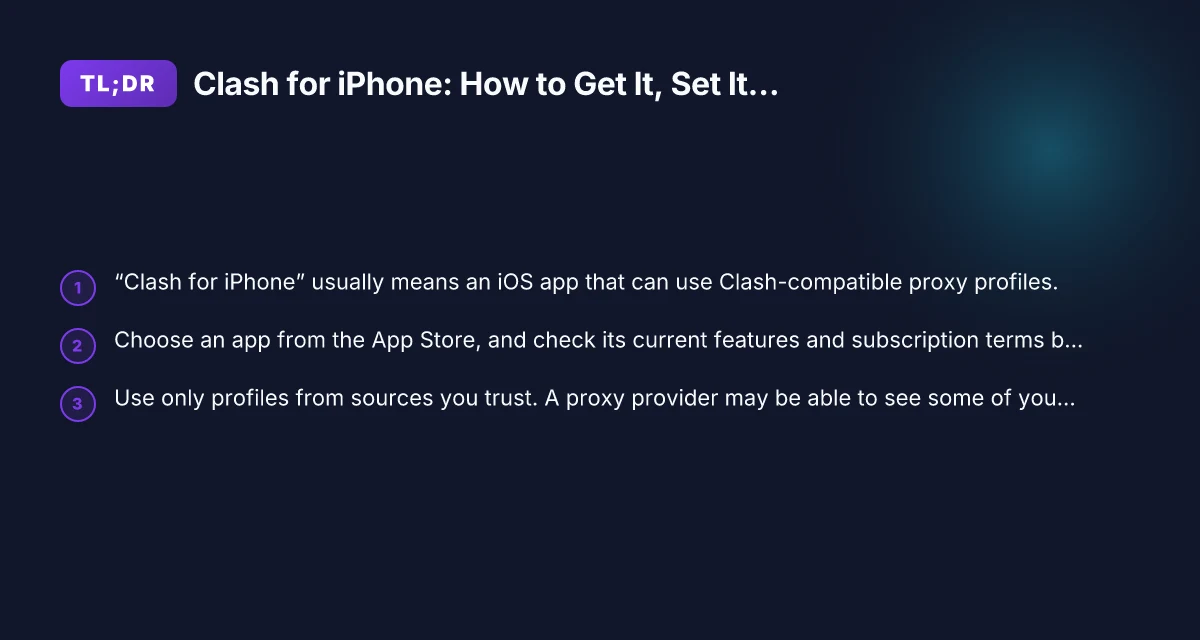
If you’re looking for Clash for iPhone, the key point is that Clash-compatible network tools are available for iOS, but the exact app names, features, and availability can vary by region and over time. Search the App Store for a reputable iOS client that explicitly supports Clash-compatible configuration, then import a profile from a provider you trust. The original Clash project is not itself a standard, official iPhone app, so verify the publisher and documentation before downloading anything.

Compare common Clash-compatible iPhone app options
| Option | What to look for | Profile support | Setup effort | Safety check |
|---|---|---|---|---|
| App Store client | Clear developer and documentation | Compatible formats listed | Usually guided | Review privacy label |
| TestFlight client | Official developer invitation | Confirm profile compatibility | Follow beta instructions | Use trusted invitation |
| Enterprise-distributed app | Verifiable organization | Check supported profile type | May require trust settings | Avoid unknown distributors |
| Open-source client | Public source and release history | Check documented formats | May need manual import | Verify official project |
| Generic proxy app | Explicit Clash-format support | Often limited or absent | Varies by app | Check permissions and publisher |
| Unfamiliar download site | No reliable listing | Unclear | Unclear | Avoid installing |
Compiled November 2026; check the provider's site for current details.
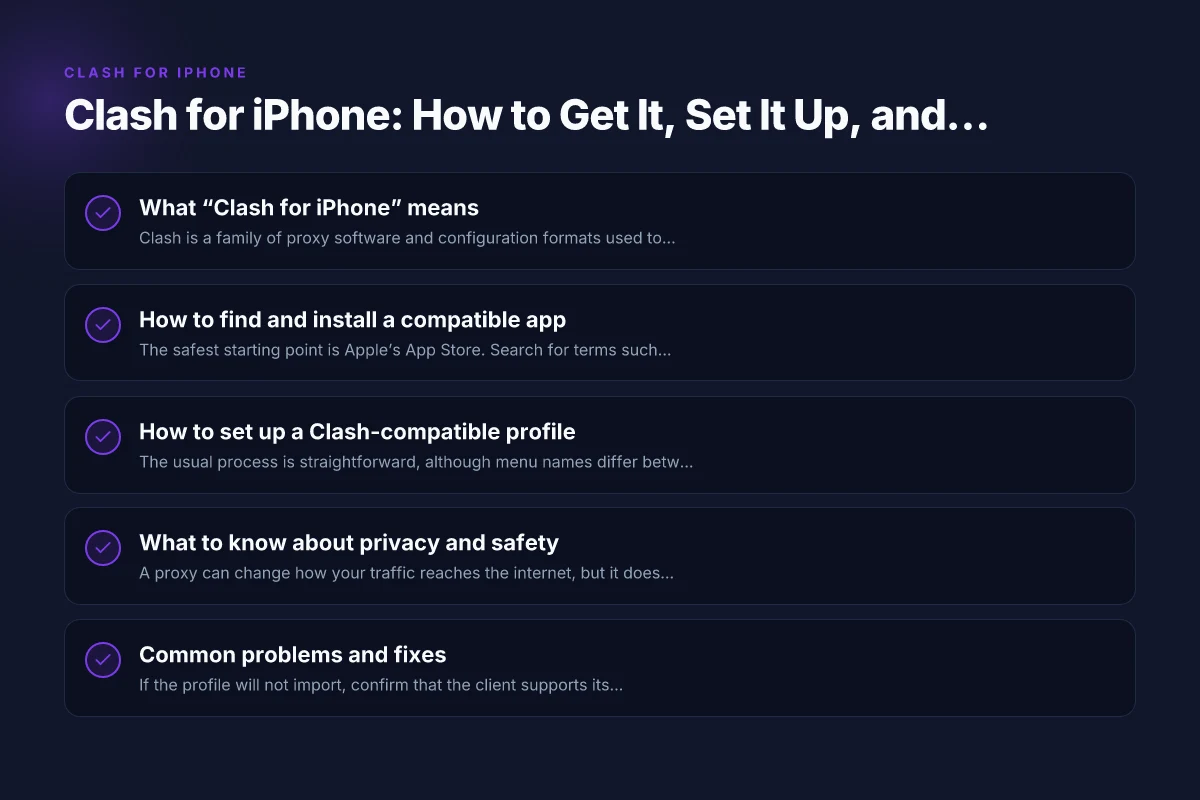
What “Clash for iPhone” means
Clash is a family of proxy software and configuration formats used to route network traffic according to rules. On an iPhone, a compatible client typically creates a local VPN configuration so it can direct selected or all network connections through proxy servers.
That does not mean every app called “Clash” is an official release or works with every configuration. Some apps support only certain profile formats, protocol types, or features. Others may have different pricing, privacy practices, or update schedules.
Before installing, check:
- Whether the app specifically supports the profile format you have.
- The developer name, recent updates, and user reviews.
- Whether the app is free, paid, or subscription-based.
- Its privacy policy and the permissions it requests.
- Whether it is available in your country or region.
How to find and install a compatible app
The safest starting point is Apple’s App Store. Search for terms such as “Clash client” or “Clash proxy,” then read the app listing carefully. Confirm compatibility with your iPhone and iOS version, and follow links to the developer’s official site when you need to verify a product’s identity. Free Location Changing VPN: What to Know Before You Choose
Avoid downloading configuration apps from unfamiliar websites or installing profiles simply because a social post recommends them. Profiles and VPN configurations can change how your traffic is routed, so treat them as sensitive settings.
| Option | What to check | Best for |
|---|---|---|
| App Store client | Developer, supported formats, updates, and pricing | Most iPhone users |
| Provider’s recommended app | Whether it is listed in the App Store and documented by the provider | Users with a specific proxy service |
| Unverified download or profile | Source, permissions, and security implications | Avoid unless you can independently verify it |
An app’s name alone does not prove that it is official, safe, or compatible. If the provider gives setup instructions, compare them with the app’s own documentation before proceeding.
How to set up a Clash-compatible profile
The usual process is straightforward, although menu names differ between apps:
- Install the client from the App Store and open it.
- Obtain a configuration profile or subscription link from a trusted provider.
- Add the profile using the app’s import option, or scan a provider-supplied QR code if supported.
- Review the profile name and available settings before enabling it.
- Start the connection and approve Apple’s system prompt to add a VPN configuration, if requested.
A subscription link may let the app refresh server details and routing rules. Treat it like a password: anyone who has access to it may be able to use or view the associated configuration. Do not post it publicly or send it to someone you do not trust. A. Proton VPN free: Is the Free Plan Worth Using?
After connecting, check the app’s status and test a site or service you normally use. If a provider offers an official test page, use that rather than relying on an unfamiliar website.
Choose a profile setup method
| Method | What you need | Setup steps | Main advantage | Main caution |
|---|---|---|---|---|
| Import a profile file | File from a trusted provider | Open or import in compatible app | Straightforward | Treat file as sensitive |
| Import from a URL | Trusted profile link | Add link in app and update | Easier to refresh | Link provider may see requests |
| Enter settings manually | Server and connection details | Fill in fields and save | More control | Errors are easier to make |
| Scan a configuration code | Code from a trusted source | Scan and review imported settings | Quick entry | Check destination before connecting |
| Use a subscription profile | Provider subscription details | Add subscription and select a node | Can update available settings | Provider controls profile contents |
| Skip unknown profiles | No verified source | Do not import or connect | Avoids untrusted settings | Find a reputable source first |
Compiled November 2026; check the provider's site for current details.
What to know about privacy and safety
A proxy can change how your traffic reaches the internet, but it does not automatically make you anonymous or secure. Depending on the configuration, the proxy provider may be able to observe connection details and, for unencrypted traffic, potentially its contents. HTTPS protects much of the data exchanged with websites, but it does not hide every detail of your activity from every network operator. Microsoft Edge Free VPN Extension: Safe Options and What to Know
Use a provider you trust and understand what its service does. Read its privacy policy, check how it handles logs, and be cautious of claims that promise complete anonymity or guaranteed access to every service.
Keep these safeguards in mind:
- Do not install a profile from an unknown person or group.
- Review iPhone VPN settings if you no longer use the app.
- Remove outdated profiles and subscriptions you do not recognize.
- Keep iOS and the client updated.
- Follow local laws and the terms of the networks and services you use.
Common problems and fixes
If the profile will not import, confirm that the client supports its format and that the link has not expired. A profile intended for a different app may require conversion or may not work at all. Use the provider’s documented format rather than editing it blindly.
If the app connects but browsing fails, try these checks: Free VPN for Microsoft Edge Browser Extension: What to Know
- Confirm that your internet connection works with the proxy turned off.
- Check the profile’s server details and subscription status.
- Refresh the configuration if the provider supports updates.
- Switch to another server or routing mode offered by the provider.
- Restart the app and iPhone, then test again.
If a specific website or app does not work, the issue may be a routing rule, server restriction, or service policy rather than an iPhone fault. Contact the app developer or proxy provider through an official support channel. Never share account passwords or private subscription links in a public support post.
Troubleshoot common connection problems
| Symptom | Possible cause | First check | Safe action | Avoid |
|---|---|---|---|---|
| App will not install | Incompatible iOS version | App requirements | Update iOS if supported | Unofficial download sites |
| Profile will not import | Unsupported format | App’s format guidance | Request a compatible profile | Random converters |
| Connection fails | Incorrect settings | Profile details | Recheck with provider | Sharing credentials publicly |
| No internet after connecting | Invalid node or routing | Connection status | Disconnect, then review profile | Repeatedly importing unknown files |
| App asks to add VPN configuration | iOS VPN permission needed | App identity and prompt | Approve only for a trusted app | Approving unfamiliar apps |
| Profile stops working | Expired or changed settings | Provider updates | Refresh through trusted source | Unverified replacement links |
| Privacy concerns arise | Unclear provider or permissions | Privacy policy and app listing | Disconnect and remove profile | Sending sensitive traffic through it |
Compiled November 2026; check the provider's site for current details.
Recommendation
For most people, the best way to get Clash for iPhone is to install a well-documented, currently maintained iOS client from the App Store and use a configuration supplied by a provider they trust. Verify compatibility before importing, protect the profile link, and remember that a proxy is a routing tool, not a guarantee of privacy or anonymity. Microsoft Edge Extensions Free VPN: What to Know Before You Install