Edge VPN Extension: What It Does and How to Choose One
Learn what an Edge VPN extension can protect, its limitations, and how to choose and install one safely.


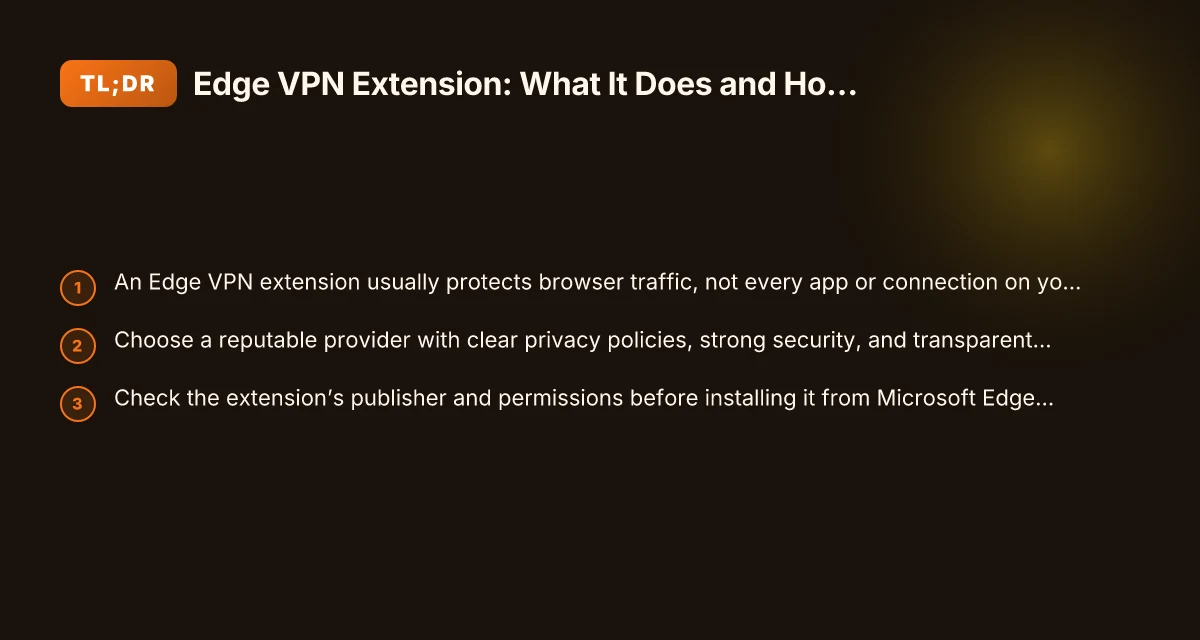
An Edge VPN extension is an add-on for Microsoft Edge that routes browser traffic through a VPN service. It can help mask your IP address from websites and protect browsing on some networks, but it may not encrypt or reroute traffic from other apps on your device. If you need device-wide protection, use a full VPN app instead. The right choice depends on what you want to protect, how much privacy you need, and how the provider handles your data.

Editor's pick: NordVPN — fast, secure VPN — Strong encryption, a no-logs policy and apps for every device. 30-day money-back guarantee. Get NordVPN →
Compare an Edge VPN extension with a full VPN app
| Feature | Edge VPN extension | Full VPN app |
|---|---|---|
| Where it runs | Inside Microsoft Edge | On the device |
| Traffic covered | Browser traffic, depending on provider | Device traffic, depending on provider |
| Other apps covered | Usually no | Usually yes |
| Setup | Add to Edge and sign in | Install the app and sign in |
| Browser-specific controls | Often available | May be limited |
| Device-wide protection | Usually no | Usually available |
| Best fit | Browser-only use | Protection across apps and browsers |
Compiled November 2026; check the provider's site for current details.
| VPN | Obfuscation | From / month | Plan | Free plan | Refund | Alipay | UnionPay | Crypto | Website opens in China | Trustpilot | |
|---|---|---|---|---|---|---|---|---|---|---|---|
 ZoogVPN | Turn on manually Shadow | $2.49/mo | 27 months: $59.99 | Yes | 7 days | ✓ | ✓ | ✓ | ✓ | Official site blocked; our special link opens (4.4 s) | 4.2/5 (195 reviews) |
 NordVPN | Turn on manually Obfuscated Servers / NordWhisper | $3.49/mo | 27 months: $94.23 | No | 30 days | ? | ✗ | ✓ | ✓ | ✗ Blocked | 4.2/5 (51,628 reviews) |
 ExpressVPN | ✓ On by default all servers | $3.00/mo | 28 months: $84 | No | 30 days | ✗ | ✗ | ✓ | ✗ | ✗ Blocked | 4.4/5 (29,706 reviews) |
 Surfshark | ✓ On by default Camouflage, with OpenVPN | See site | See site | No | 30 days | ✗ | ✗ | ✗ | ✓ | ✗ Blocked | 4.3/5 (31,823 reviews) |
 Proton VPN | Turn on manually Stealth, free plan too | $2.99/mo | 12 months: $35.88 | Yes | 30 days | ✗ | ✗ | ✗ | ✓ | ✗ Blocked | 2.1/5 (1,040 reviews) |
 Astrill VPN | Turn on manually StealthVPN / OpenWeb | $12.50/mo | 24 months: $300 | No | See site | ✗ | ✗ | ✗ | ✓ | ✗ Blocked | 1.3/5 (110 reviews) |
 Private Internet Access | Turn on manually Shadowsocks, OpenVPN only | $2.03/mo | 40 months: $81.2 | No | 30 days | ✗ | ✗ | ✗ | ✗ | ✗ Blocked | 4.2/5 (11,033 reviews) |
 CyberGhost | Turn on manually selected servers | $2.19/mo | 28 months: $61.32 | No | 45 days | ✗ | ✗ | ✗ | ✓ | ✗ Blocked | 4.0/5 (24,178 reviews) |
 PureVPN | Turn on manually switch to OpenVPN | $1.69/mo | 60 months: $101.55 | No | 31 days | ? | ? | ✗ | ✓ | ✗ Blocked | 4.4/5 (17,994 reviews) |
 AdGuard VPN | ✓ On by default TrustTunnel | $2.99/mo | 24 months: $71.76 | Yes | 30 days | ✓ | ✗ | ✓ | ✓ | Official site blocked; our special link opens (3.7 s) | 4.3/5 (290 reviews) |
 Mullvad | Turn on manually QUIC / Shadowsocks / LWO | $5.61/mo | €5/mo | No | 14 days | ✗ | ✗ | ✗ | ✓ | ✗ Blocked | 3.2/5 (192 reviews) |
 Windscribe | Turn on manually Stealth / WStunnel | $5.75/mo | 12 months: $69 | Yes | See site | ✗ | ✗ | ✗ | ✓ | ✗ Blocked | 4.7/5 (13,355 reviews) |
 StrongVPN | Turn on manually Scramble, OpenVPN TCP | See site | See site | No | 30 days | ✓ | ✗ | ✗ | ✗ | ✗ Blocked | 4.4/5 (2,695 reviews) |
 LightXtreme 闪连 | Not listed | $7.08/mo | 12 months: $84.99 | Yes | 30 days | ✓ | ✓ | ✓ | ✓ | ✓ Yes (3.5 s) | No page |
Prices checked 2026-11-10 on each vendor's pricing page (cheapest long plan, USD). Check the vendor's checkout for the final price.
Obfuscation checked 2026-11-14 on each vendor's site and help center: "on by default" = nothing to set; "turn on manually" = switch protocol or mode in settings; "not listed" = the vendor describes no obfuscation.
Payment methods checked 2026-11-10 on each vendor's payment pages: all 14 take cards and PayPal; ✗ = not listed, ? = the vendor's own pages disagree.
China access: whether the official website opens from mainland China networks (tests the website only, not the VPN connection). Last checked 2026-11-18 01:02 Beijing time.
Trustpilot score and review count checked 2026-11-10.
What an Edge VPN extension does
A VPN extension connects your browser to a provider’s server. Websites then see the server’s IP address rather than your usual public IP address. Depending on the service, you may be able to choose a server location, block certain trackers, or configure which sites use the VPN connection.
The term “VPN extension” can be misleading. Some extensions are browser controls for a VPN service, while others create a proxy connection that applies only to browser traffic. A proxy may change your apparent IP address without offering the same encryption and device-wide coverage as a full VPN.
Check the provider’s documentation to learn what the extension actually does. Do not assume that installing an add-on protects all internet activity on your computer.
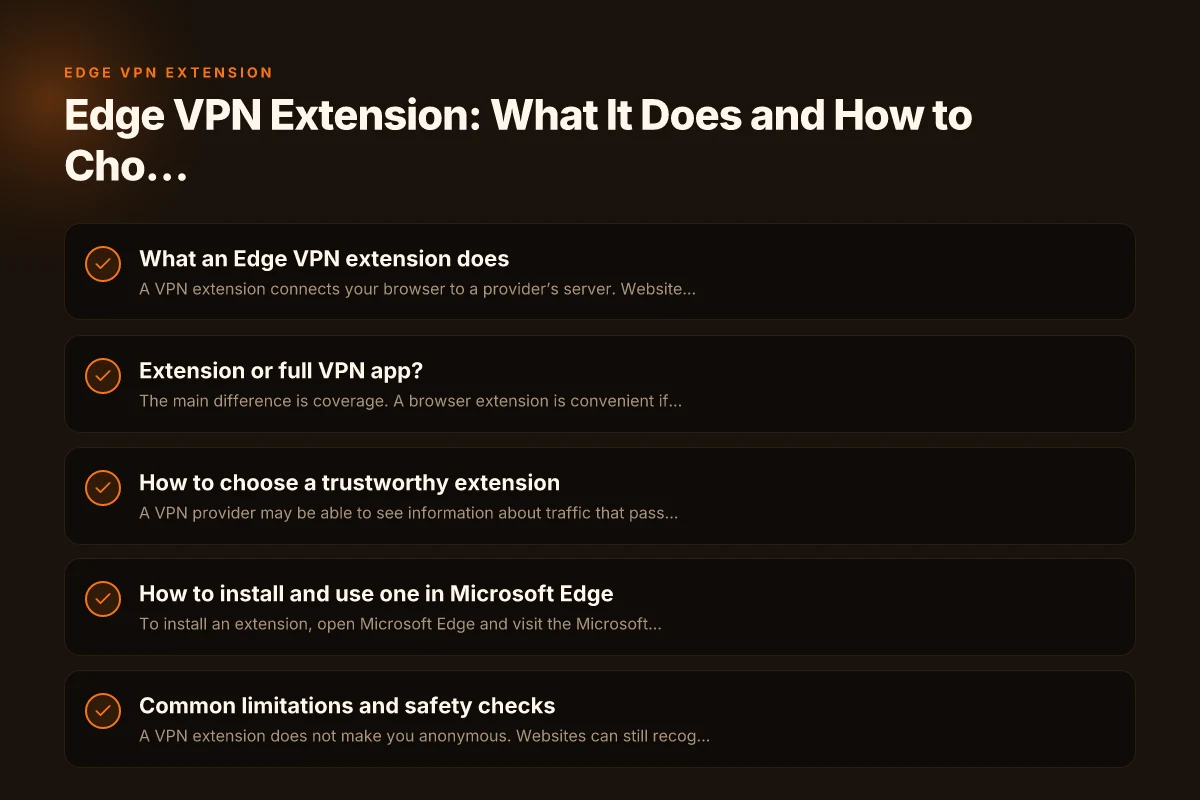
Extension or full VPN app?
The main difference is coverage. A browser extension is convenient if your goal is to route traffic from Edge. A desktop VPN app is generally the better option when you want protection for other browsers, messaging apps, games, or background services too. Urban VPN Extension Chrome: What It Does and How to Use It
| Feature | Edge VPN extension | Full VPN app |
|---|---|---|
| Typical coverage | Edge browser traffic | Most device internet traffic |
| Setup | Installed in Edge | Installed on the device |
| Ease of switching locations | Usually simple | Usually simple |
| Protection for other apps | Generally no | Generally yes |
| Best for | Browser-specific use | Device-wide use |
Coverage and features vary by provider. Some extensions require an account or an active subscription, and some work only when the provider’s desktop app is installed. Read the product details before signing up.
How to choose a trustworthy extension
A VPN provider may be able to see information about traffic that passes through its service. Choosing an extension should therefore involve more than comparing server locations or looking for a free option.
Look for:
- A clear privacy policy: It should explain what data is collected, why it is collected, and how long it is kept.
- A trustworthy publisher: Confirm that the extension is published by the VPN company you intend to use.
- Specific security details: The provider should explain whether the extension encrypts traffic or uses a proxy, and describe relevant safeguards.
- Transparent limitations: Be wary of vague claims such as “complete anonymity” or “protects everything.”
- Useful support and documentation: Installation guidance and straightforward explanations make it easier to understand the service.
- A sensible business model: Free services still have costs. Find out how the provider is funded and whether the free plan limits data, speed, or features.
User ratings can offer clues, but they do not prove that a service is private or secure. Check the listing and provider information directly, and avoid extensions that request permissions unrelated to their stated purpose. VPN PES Download: How to Choose and Install a VPN for eFootball
Trust checks for choosing an Edge VPN extension
| Check | What to look for | Warning sign | Why it matters |
|---|---|---|---|
| Publisher | Recognizable provider and official listing | Unclear publisher | Helps verify who operates it |
| Privacy policy | Clear data collection and retention terms | Vague or missing policy | Shows how browsing data may be handled |
| Permissions | Requests that fit its features | Unexplained access requests | Limits unnecessary access |
| Encryption | Provider explains how connections are protected | No clear security details | Helps assess connection protection |
| Logging | Plain explanation of what is recorded | Broad or ambiguous logging claims | Clarifies data retention |
| Pricing | Transparent free and paid terms | Unclear limits or renewal terms | Avoids unexpected restrictions or charges |
| Support | Current documentation or support contact | No usable help information | Makes problems easier to resolve |
Compiled November 2026; check the provider's site for current details.
How to install and use one in Microsoft Edge
To install an extension, open Microsoft Edge and visit the Microsoft Edge Add-ons store. Search for the VPN provider’s official extension, then check the publisher name, description, permissions, and reviews before selecting the install option. If the provider directs you to another store, verify that the link comes from its official website.
After installation: Best Free VPN to Change Location: Safe Options and Limits
- Open the extension from the Edge toolbar.
- Sign in or create an account if required.
- Select a server location, if the service offers that choice.
- Connect and confirm that the extension indicates an active connection.
- Review its settings, including any site exclusions or privacy features.
If a website behaves unexpectedly, try a different server or disconnect briefly to test whether the extension is affecting access. Remember that an IP-checking website can show the address visible to that site, but it does not verify every aspect of your privacy or security.
Common limitations and safety checks
A VPN extension does not make you anonymous. Websites can still recognize you through account sign-ins, cookies, browser fingerprinting, and other tracking methods. A VPN also does not automatically stop phishing, malware, or unsafe downloads.
Keep these points in mind:
- Check which traffic is covered. Other browsers and apps may continue using your regular connection.
- Use HTTPS. A VPN is not a substitute for secure website connections.
- Review extension permissions. Remove add-ons you no longer use, and avoid granting unnecessary access.
- Keep Edge and the extension updated. Updates can address security issues and compatibility problems.
- Understand split tunneling or exclusions. If certain sites bypass the VPN, their traffic may reveal your regular IP address.
- Be cautious on shared devices. A VPN does not prevent someone with access to your device or account from seeing saved data.
If you use a VPN for work, sensitive activity, or public Wi-Fi, confirm that the service meets your organization’s requirements. A browser-only extension may not be enough. How to Access ¥¥172.30.10.121¥share¥forticlientvpn Safely
Decide whether an Edge VPN extension meets your needs
| Need or check | Extension may be suitable when… | Consider a full VPN app when… |
|---|---|---|
| Coverage | You mainly need protection in Edge | You want protection for other apps too |
| Installation | You want setup directly in the browser | You need device-level configuration |
| Privacy | The provider explains its data practices | You need controls beyond the browser |
| Permissions | Requested access is limited and understandable | The extension asks for access you cannot justify |
| Connection | The extension connects and behaves as expected | You need broader VPN features |
| Safety | You can verify the publisher and policy | You cannot confirm who operates it |
| Final choice | Its scope matches your browsing needs | Browser-only coverage is not enough |
Compiled November 2026; check the provider's site for current details.
Recommendation
Choose an Edge VPN extension only if you specifically want VPN or proxy coverage for browser traffic and trust the provider’s privacy practices. Install it through the Microsoft Edge Add-ons store or a link from the provider’s official website, then verify its scope and settings. If you want protection for your whole device, choose a reputable full VPN app rather than relying on a browser extension.