FortiClient IPsec VPN Connection Is Down: Causes and Fixes
Troubleshoot a FortiClient IPsec VPN connection that is down with practical checks for credentials, network access, settings, and logs.
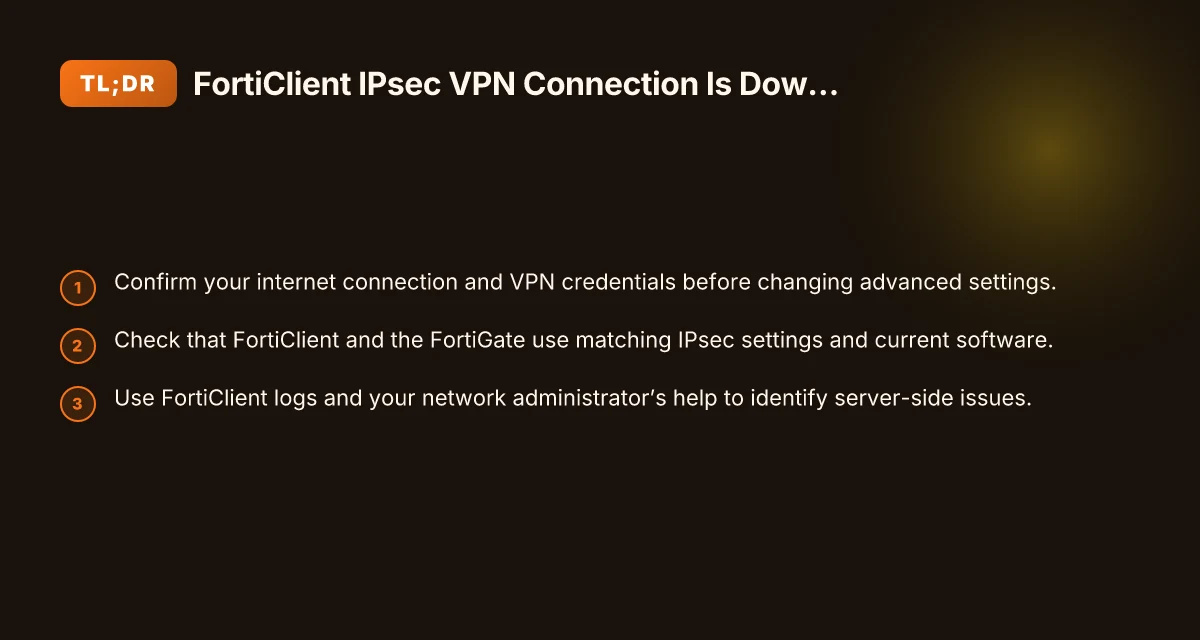
If your FortiClient IPsec VPN connection is down, first verify that your device has internet access, then confirm the VPN gateway address, username, password, and any required multifactor authentication. If those basics are correct, check whether the FortiGate VPN service is available and whether your client’s connection settings match the configuration on the firewall. The error can come from your device, your network, or the VPN gateway, so troubleshoot one layer at a time.

Editor's pick: NordVPN — fast, secure VPN — Strong encryption, a no-logs policy and apps for every device. 30-day money-back guarantee. Get NordVPN →
Symptom-to-check guide for a FortiClient IPsec VPN connection that is down
| What you notice | Likely area to check | First check | What to look for | Next step |
|---|---|---|---|---|
| VPN will not connect | Basic settings | VPN profile | Correct gateway and connection type | Confirm settings with IT |
| Connection fails after a password change | Credentials | Username and password | Current credentials are entered | Sign in again |
| Connection works on another device | Device settings | FortiClient and device | App version and device configuration | Update or compare settings |
| Connection fails on one network only | Local network | Network access | Network restrictions or instability | Try an approved alternate network |
| Connection drops repeatedly | Network or gateway | Connection stability | Whether other users are affected | Share timing and frequency with IT |
| VPN connects but internal resources are unavailable | Routing or access | Resource access | Whether the issue affects specific services | Report the affected resources |
| Error appears during connection | FortiClient or gateway | Error message | Exact wording and when it appears | Record it for troubleshooting |
Compiled November 2026; check the provider's site for current details.
| VPN | Obfuscation | From / month | Plan | Free plan | Refund | Alipay | UnionPay | Crypto | Website opens in China | Trustpilot | |
|---|---|---|---|---|---|---|---|---|---|---|---|
 ZoogVPN | Turn on manually Shadow | $2.49/mo | 27 months: $59.99 | Yes | 7 days | ✓ | ✓ | ✓ | ✓ | Official site blocked; our special link opens (4.4 s) | 4.2/5 (195 reviews) |
 NordVPN | Turn on manually Obfuscated Servers / NordWhisper | $3.49/mo | 27 months: $94.23 | No | 30 days | ? | ✗ | ✓ | ✓ | ✗ Blocked | 4.2/5 (51,628 reviews) |
 ExpressVPN | ✓ On by default all servers | $3.00/mo | 28 months: $84 | No | 30 days | ✗ | ✗ | ✓ | ✗ | ✗ Blocked | 4.4/5 (29,706 reviews) |
 Surfshark | ✓ On by default Camouflage, with OpenVPN | See site | See site | No | 30 days | ✗ | ✗ | ✗ | ✓ | ✗ Blocked | 4.3/5 (31,823 reviews) |
 Proton VPN | Turn on manually Stealth, free plan too | $2.99/mo | 12 months: $35.88 | Yes | 30 days | ✗ | ✗ | ✗ | ✓ | ✗ Blocked | 2.1/5 (1,040 reviews) |
 Astrill VPN | Turn on manually StealthVPN / OpenWeb | $12.50/mo | 24 months: $300 | No | See site | ✗ | ✗ | ✗ | ✓ | ✗ Blocked | 1.3/5 (110 reviews) |
 Private Internet Access | Turn on manually Shadowsocks, OpenVPN only | $2.03/mo | 40 months: $81.2 | No | 30 days | ✗ | ✗ | ✗ | ✗ | ✗ Blocked | 4.2/5 (11,033 reviews) |
 CyberGhost | Turn on manually selected servers | $2.19/mo | 28 months: $61.32 | No | 45 days | ✗ | ✗ | ✗ | ✓ | ✗ Blocked | 4.0/5 (24,178 reviews) |
 PureVPN | Turn on manually switch to OpenVPN | $1.69/mo | 60 months: $101.55 | No | 31 days | ? | ? | ✗ | ✓ | ✗ Blocked | 4.4/5 (17,994 reviews) |
 AdGuard VPN | ✓ On by default TrustTunnel | $2.99/mo | 24 months: $71.76 | Yes | 30 days | ✓ | ✗ | ✓ | ✓ | Official site blocked; our special link opens (3.7 s) | 4.3/5 (290 reviews) |
 Mullvad | Turn on manually QUIC / Shadowsocks / LWO | $5.61/mo | €5/mo | No | 14 days | ✗ | ✗ | ✗ | ✓ | ✗ Blocked | 3.2/5 (192 reviews) |
 Windscribe | Turn on manually Stealth / WStunnel | $5.75/mo | 12 months: $69 | Yes | See site | ✗ | ✗ | ✗ | ✓ | ✗ Blocked | 4.7/5 (13,355 reviews) |
 StrongVPN | Turn on manually Scramble, OpenVPN TCP | See site | See site | No | 30 days | ✓ | ✗ | ✗ | ✗ | ✗ Blocked | 4.4/5 (2,695 reviews) |
 LightXtreme 闪连 | Not listed | $7.08/mo | 12 months: $84.99 | Yes | 30 days | ✓ | ✓ | ✓ | ✓ | ✓ Yes (3.5 s) | No page |
Prices checked 2026-11-10 on each vendor's pricing page (cheapest long plan, USD). Check the vendor's checkout for the final price.
Obfuscation checked 2026-11-14 on each vendor's site and help center: "on by default" = nothing to set; "turn on manually" = switch protocol or mode in settings; "not listed" = the vendor describes no obfuscation.
Payment methods checked 2026-11-10 on each vendor's payment pages: all 14 take cards and PayPal; ✗ = not listed, ? = the vendor's own pages disagree.
China access: whether the official website opens from mainland China networks (tests the website only, not the VPN connection). Last checked 2026-11-18 01:02 Beijing time.
Trustpilot score and review count checked 2026-11-10.
Check the basics first
Disconnect from the VPN and open a few websites to make sure your internet connection is working. If you are on public Wi-Fi, complete any sign-in or captive portal steps before trying to connect. You can also test a different network, such as a mobile hotspot, if your organization allows it. If the VPN works on another network, the original network may be blocking or disrupting VPN traffic.
Next, confirm these details with your organization’s IT team or VPN instructions:
- The gateway address is correct and has not changed.
- You are using the correct username and password.
- Multifactor authentication is completed promptly.
- Your account is active and authorized for remote access.
- Your device’s date, time, and time zone are correct.
Do not repeatedly retry a password if you are unsure it is correct. Some organizations temporarily lock accounts after multiple failed attempts.
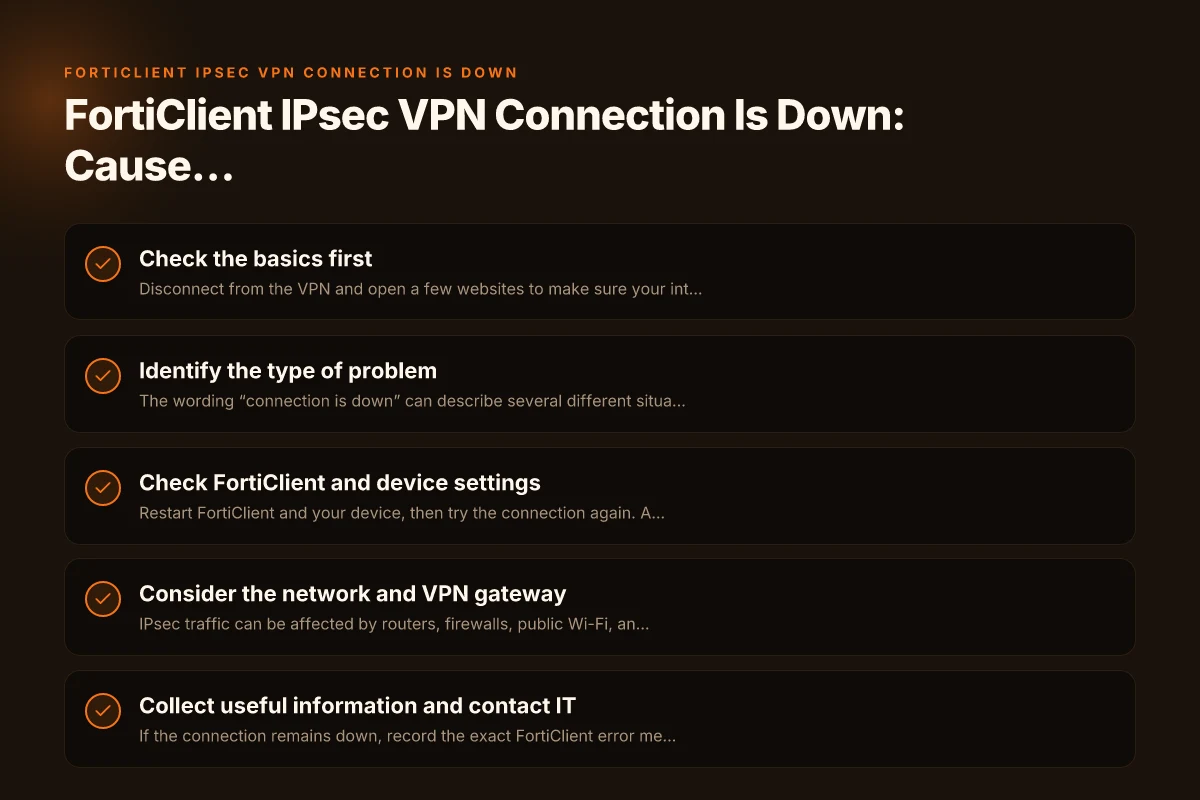
Identify the type of problem
The wording “connection is down” can describe several different situations. Note when the message appears: before authentication, during the connection attempt, or after the VPN has connected. That timing can help narrow down the cause. FortiGate IPsec Debug: A Practical Guide to Finding VPN Problems
| What you observe | Possible cause | Useful first check |
|---|---|---|
| The gateway cannot be reached | Incorrect address, internet issue, or gateway outage | Verify the address and try another network |
| The connection fails during sign-in | Incorrect credentials, MFA issue, or account restriction | Check sign-in details and contact IT |
| The connection starts but does not complete | Network filtering or mismatched IPsec settings | Test another network and ask IT to check the VPN configuration |
| The VPN connects, then drops | Unstable internet, sleep settings, or gateway timeout | Keep the device awake and test a stable connection |
| Only one device cannot connect | Local client, device policy, or configuration issue | Restart, update, and check the device’s VPN profile |
This table is a starting point, not a definitive diagnosis. The same symptom can have different causes depending on how your organization has configured FortiClient and FortiGate.
Check FortiClient and device settings
Restart FortiClient and your device, then try the connection again. A restart can clear a temporary client or network problem. If your organization manages FortiClient, avoid uninstalling it or changing profiles without approval. Those actions may remove required security settings.
Check the following:
- Client version: Install updates approved by your organization. A version mismatch or outdated client can cause connection problems.
- VPN profile: Make sure you selected the correct IPsec connection and that its gateway address matches the instructions you were given.
- Other VPN software: Disconnect other VPNs or proxy tools temporarily if your organization permits it. They can interfere with network routes.
- Security software: Do not disable antivirus or firewall protections on your own. Ask IT whether a security policy could be affecting the connection.
- Sleep and network changes: If the VPN drops after the laptop sleeps or switches between Wi-Fi networks, reconnect after waking or switching networks. Report recurring drops to IT.
IPsec settings such as authentication methods, encryption proposals, and pre-shared keys must match the FortiGate configuration. These are typically managed by an administrator. Do not guess at settings, change security options, or share a pre-shared key in an unsecured message. V2Ray Free: What It Means and How to Choose a Safe Option
Decide which troubleshooting path to follow
| Problem pattern | Check first | Helpful comparison | Possible finding | Recommended action |
|---|---|---|---|---|
| No connection on any network | VPN profile | Confirm profile details with IT | Configuration may be incorrect | Ask IT to verify the profile |
| No connection on one network | Local network | Test an approved alternate network | Network-specific restriction or issue | Contact the network administrator |
| Other users also cannot connect | VPN gateway | Ask whether colleagues are affected | Shared gateway or service issue | Report a possible outage to IT |
| Only one device is affected | Device settings | Compare with a working device | Local app or device issue | Check FortiClient and device settings |
| Connection drops during use | Network stability | Note when disconnects occur | Intermittent connectivity | Share the timing and network used |
| VPN connects but a resource fails | Access or routing | Check whether other resources work | Issue may be limited to one service | Give IT the resource name |
| Failure follows a settings change | VPN profile | Review recent changes | Changed configuration may be relevant | Tell IT what changed |
Compiled November 2026; check the provider's site for current details.
Consider the network and VPN gateway
IPsec traffic can be affected by routers, firewalls, public Wi-Fi, and mobile networks. A network may restrict VPN traffic or handle it inconsistently. If permitted, test from a different trusted network. If the connection works there, provide your IT team with the name and type of the network where it fails.
The VPN gateway itself may also be unavailable, overloaded, or undergoing maintenance. Ask a colleague who uses the same VPN whether they can connect. If several people are affected at once, the problem is more likely to be on the service or network side than on your device. Cisco Secure Client AnyConnect VPN: Setup, Features, and Troubleshooting
Your administrator may need to verify that:
- The FortiGate is reachable and the IPsec service is enabled.
- The user account and group are allowed to use the VPN.
- The client and gateway proposals, authentication, and phase settings match.
- Firewall policies and routing allow traffic after the tunnel connects.
- Recent changes, certificate issues, or maintenance are affecting access.
Share the time the issue began and any recent changes, such as a password reset, client update, or change of internet provider. These details can make a gateway-side investigation faster.
Collect useful information and contact IT
If the connection remains down, record the exact FortiClient error message and the time of each failed attempt. If your version of FortiClient provides VPN logs or diagnostic information, collect it using the options available in the app or your organization’s instructions. Logs may contain sensitive information, so send them only through an approved support channel.
When you contact support, include: FortiClient VPN: What It Is, How to Set It Up, and When to Use It
- Your operating system and FortiClient version.
- The VPN profile name and gateway address, if your policy allows sharing it.
- Whether you can browse the internet without the VPN.
- Whether the VPN works on another approved network or device.
- The exact error message and when it occurs.
- Whether other users are experiencing the same issue.
Avoid posting configuration files, passwords, authentication codes, certificates, or pre-shared keys publicly. Your IT team can review those details securely if needed.
Information to collect before contacting IT
| Information | What to provide | Why it helps | Where to check |
|---|---|---|---|
| Error message | Exact wording or screenshot | Identifies the reported failure | FortiClient prompt |
| Time of failure | Date and approximate time | Helps match logs and incidents | Note it when the issue occurs |
| Device details | Device type and operating system | Narrows device-specific checks | Device settings |
| FortiClient details | Version and connection status | Helps assess app-related issues | FortiClient |
| Network used | Home, office, or another network | Helps isolate network-specific problems | Note the connection |
| VPN profile | Profile name and gateway, if known | Helps verify connection settings | FortiClient profile |
| Scope of issue | Whether others are affected | Distinguishes individual from shared problems | Ask colleagues or IT |
| Recent changes | Password, app, device, or network changes | Provides useful troubleshooting context | Recall changes before failure |
Compiled November 2026; check the provider's site for current details.
Recommendation
Start with internet access, the gateway address, credentials, and MFA. Then restart FortiClient and test an approved alternative network. If the FortiClient IPsec VPN connection is still down, provide the error message and relevant logs to your IT administrator. Because IPsec settings and gateway policies must match, let the administrator verify advanced configuration rather than changing it yourself. NordVPN China Doesn’t Work? Causes, Fixes, and Alternatives