
How to Change Proxy Settings in Edge: A Step-by-Step Guide
Learn how to configure, check, and troubleshoot proxy settings in Microsoft Edge on Windows and macOS.


To change proxy settings in Edge, open the browser’s Settings, search for “proxy,” and select Open your computer’s proxy settings. Edge uses the proxy configuration set in Windows or macOS, so make the change in your operating system. The exact options vary by device, but you can usually enable a setup script or enter a proxy address and port manually.

Editor's pick: NordVPN — fast, secure VPN — Strong encryption, a no-logs policy and apps for every device. 30-day money-back guarantee. Get NordVPN →
Choose the right proxy option in Microsoft Edge
| Option | Where to configure | Best for | Applies to | Main consideration |
|---|---|---|---|---|
| Automatically detect settings | Windows proxy settings | Networks that provide automatic configuration | Windows | Uses network-provided settings |
| Use setup script | Windows proxy settings | Organizations that supply a proxy script | Windows | Requires a script address |
| Manual proxy | Windows proxy settings | A known proxy server and port | Windows | Enter server details |
| Proxy server | macOS network settings | A known proxy server and port | macOS | Configure for the selected network |
| Automatic proxy configuration | macOS network settings | Networks that provide a configuration URL | macOS | Requires a configuration URL |
| No proxy | Windows or macOS settings | Direct connections without a proxy | Windows or macOS | May not work on managed networks |
Compiled November 2026; check the provider's site for current details.
Open proxy settings from Microsoft Edge
- Open Microsoft Edge.
- Select the three-dot menu in the upper-right corner, then choose Settings.
- Select System and performance, or search Settings for proxy.
- Choose Open your computer’s proxy settings.
Edge will open the proxy controls for your operating system. You can also go directly to those settings without opening Edge.
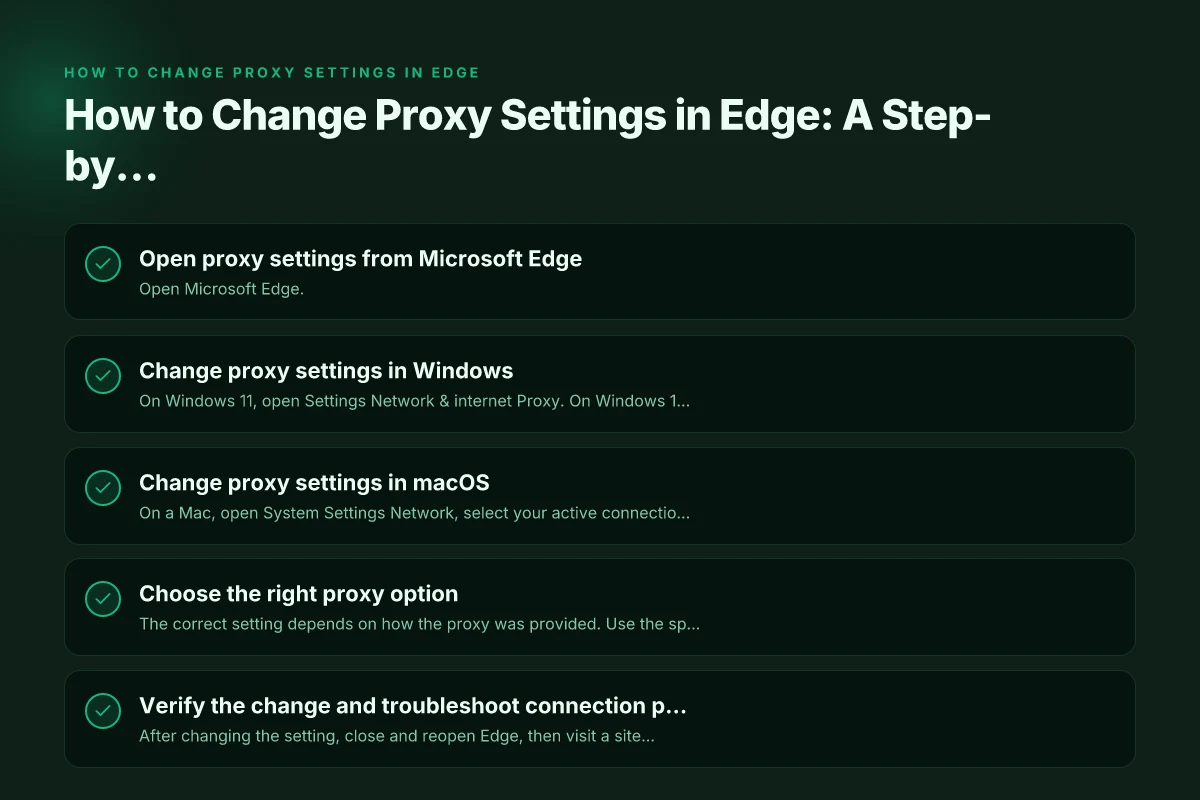
Change proxy settings in Windows
On Windows 11, open Settings > Network & internet > Proxy. On Windows 10, go to Settings > Network & Internet > Proxy. If the layout differs, search Windows Settings for “proxy settings.”
Windows typically offers automatic and manual options:
- Automatically detect settings: Lets Windows look for proxy settings on the network. This is often appropriate for workplace or school networks.
- Use setup script: Configures a proxy using a URL provided by your organization or proxy administrator.
- Use a proxy server: Lets you enter a proxy address and port yourself.
To use a setup script, turn on the relevant option and enter the script address in the URL field. Save the change if prompted. Why Does VPN Keep Turning On iPhone? Causes and Fixes
To configure a proxy manually, enable Use a proxy server, enter the address and port, and save. If certain sites should connect without the proxy, add them to the exceptions field, if available. Use the format and exceptions supplied by your network administrator.
Change proxy settings in macOS
On a Mac, open System Settings > Network, select your active connection, such as Wi-Fi or Ethernet, and choose Details. Open the Proxies section. The wording and layout can vary slightly by macOS version.
Choose the proxy type your provider or administrator specified. Common options include automatic proxy configuration, a web proxy (HTTP), and a secure web proxy (HTTPS). Enter the server address and port, then apply or save the settings.
If your network requires a username and password, enable authentication and enter the credentials supplied by the administrator. Do not guess proxy details: incorrect settings can prevent websites and other apps from connecting. My VPN Is Blocking Websites: Causes and Fixes
Choose the right proxy option
The correct setting depends on how the proxy was provided. Use the specific instructions from your employer, school, network administrator, or trusted proxy provider.
| Option | What you enter | Best suited for |
|---|---|---|
| Automatic detection | Usually nothing | Networks that provide proxy details automatically |
| Setup script | A configuration script URL | Organizations that manage proxy rules centrally |
| Manual proxy | Server address and port | A proxy with fixed connection details |
| No proxy | No proxy configuration | Direct connections on networks that do not require a proxy |
A proxy script may apply different rules to different sites, while a manual proxy generally sends traffic through the configured server. Avoid entering details from unverified websites, and check whether your organization requires a particular configuration.
Verify the change and troubleshoot connection problems
After changing the setting, close and reopen Edge, then visit a site you trust. Some changes take effect immediately, while others may require reconnecting to the network. If the proxy requires a login, follow your organization’s authentication instructions.
If Edge cannot connect: Free VPN for Changing Location: What Works and What to Know
- Confirm that the proxy address, port, and script URL are spelled correctly.
- Check that you selected the proxy type your provider specified.
- Make sure the proxy server is online and your network connection is working.
- Review any site exceptions or bypass rules for typos.
- Turn off a proxy only if you are sure it is not required by your network.
- Ask your IT administrator whether a policy is managing the settings.
If a setting is unavailable or keeps changing back, your device may be managed by an organization. Contact its IT team rather than trying to override the configuration. Also remember that a proxy does not automatically encrypt all internet traffic or provide the same protections as a VPN. Security depends on the proxy and the connection being used.
Verify a proxy change and troubleshoot
| Check | What to do | If it works | If it fails |
|---|---|---|---|
| Confirm settings | Reopen the system proxy settings | The chosen option is enabled | Review the selected option |
| Check proxy details | Verify the server address and port | Details match the provider | Correct any entry errors |
| Check setup script | Confirm the script address | The script is configured | Verify the URL with the provider |
| Test a website | Open a site in Edge | The page loads | Continue troubleshooting |
| Compare connections | Check whether other apps connect | Issue may be Edge-specific | Issue may affect the network |
| Review managed settings | Ask your organization’s administrator | Policy explains the configuration | Request approved settings |
| Try without proxy | Use only if direct access is allowed | Direct connection works | Restore the required proxy |
| Recheck after changes | Restart Edge and test again | Connection is restored | Contact the network or proxy provider |
Compiled November 2026; check the provider's site for current details.
Recommendation
Use Edge’s Open your computer’s proxy settings link, then configure the proxy in Windows or macOS using verified instructions. For a work or school device, follow the organization’s guidance. For a personal device, leave the proxy off unless you have a trusted reason and accurate settings to use. VPN Free Change Location: How to Switch Your IP Address Safely