My IP ExpressVPN: How to Check Your IP Address and Fix Connection Issues
Learn how to check your public IP with ExpressVPN, understand what the result means, and troubleshoot leaks or location mismatches.


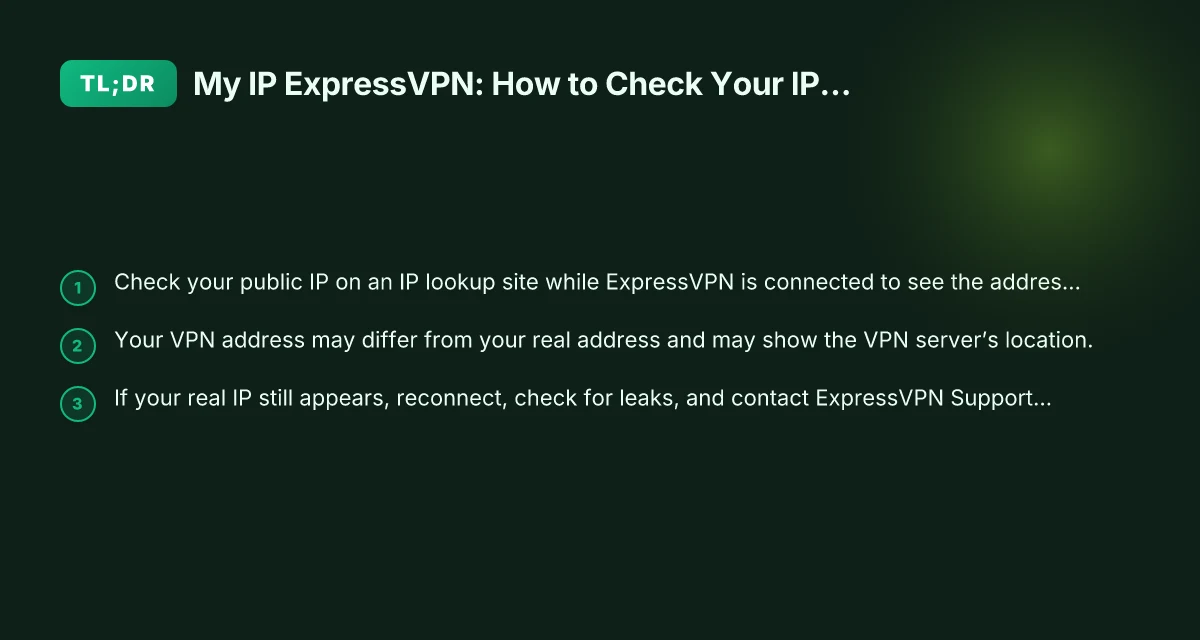
If you’re searching for “my IP ExpressVPN,” you probably want to know what IP address websites can see when you use ExpressVPN. Connect to an ExpressVPN server, then visit a reputable IP lookup website. The address shown should generally be the VPN server’s public IP, not the public IP assigned by your internet provider.
The location shown is usually an estimate based on the IP address. It may not match the server’s exact physical location, and it does not necessarily indicate where you are personally. If the lookup still shows your regular public IP, check that ExpressVPN is connected and troubleshoot the connection before browsing sensitive sites.
| VPN | Obfuscation | From / month | Plan | Free plan | Refund | Alipay | UnionPay | Crypto | Website opens in China | Trustpilot | |
|---|---|---|---|---|---|---|---|---|---|---|---|
 ExpressVPN | ✓ On by default all servers | $3.00/mo | 28 months: $84 | No | 30 days | ✗ | ✗ | ✓ | ✗ | ✗ Blocked | 4.4/5 (29,706 reviews) |
 ZoogVPN | Turn on manually Shadow | $2.49/mo | 27 months: $59.99 | Yes | 7 days | ✓ | ✓ | ✓ | ✓ | Official site blocked; our special link opens (4.4 s) | 4.2/5 (195 reviews) |
 NordVPN | Turn on manually Obfuscated Servers / NordWhisper | $3.49/mo | 27 months: $94.23 | No | 30 days | ? | ✗ | ✓ | ✓ | ✗ Blocked | 4.2/5 (51,628 reviews) |
 Surfshark | ✓ On by default Camouflage, with OpenVPN | See site | See site | No | 30 days | ✗ | ✗ | ✗ | ✓ | ✗ Blocked | 4.3/5 (31,823 reviews) |
 Proton VPN | Turn on manually Stealth, free plan too | $2.99/mo | 12 months: $35.88 | Yes | 30 days | ✗ | ✗ | ✗ | ✓ | ✗ Blocked | 2.1/5 (1,040 reviews) |
 Astrill VPN | Turn on manually StealthVPN / OpenWeb | $12.50/mo | 24 months: $300 | No | See site | ✗ | ✗ | ✗ | ✓ | ✗ Blocked | 1.3/5 (110 reviews) |
 Private Internet Access | Turn on manually Shadowsocks, OpenVPN only | $2.03/mo | 40 months: $81.2 | No | 30 days | ✗ | ✗ | ✗ | ✗ | ✗ Blocked | 4.2/5 (11,033 reviews) |
 CyberGhost | Turn on manually selected servers | $2.19/mo | 28 months: $61.32 | No | 45 days | ✗ | ✗ | ✗ | ✓ | ✗ Blocked | 4.0/5 (24,178 reviews) |
 PureVPN | Turn on manually switch to OpenVPN | $1.69/mo | 60 months: $101.55 | No | 31 days | ? | ? | ✗ | ✓ | ✗ Blocked | 4.4/5 (17,994 reviews) |
 AdGuard VPN | ✓ On by default TrustTunnel | $2.99/mo | 24 months: $71.76 | Yes | 30 days | ✓ | ✗ | ✓ | ✓ | Official site blocked; our special link opens (3.7 s) | 4.3/5 (290 reviews) |
 Mullvad | Turn on manually QUIC / Shadowsocks / LWO | $5.61/mo | €5/mo | No | 14 days | ✗ | ✗ | ✗ | ✓ | ✗ Blocked | 3.2/5 (192 reviews) |
 Windscribe | Turn on manually Stealth / WStunnel | $5.75/mo | 12 months: $69 | Yes | See site | ✗ | ✗ | ✗ | ✓ | ✗ Blocked | 4.7/5 (13,355 reviews) |
 StrongVPN | Turn on manually Scramble, OpenVPN TCP | See site | See site | No | 30 days | ✓ | ✗ | ✗ | ✗ | ✗ Blocked | 4.4/5 (2,695 reviews) |
 LightXtreme 闪连 | Not listed | $7.08/mo | 12 months: $84.99 | Yes | 30 days | ✓ | ✓ | ✓ | ✓ | ✓ Yes (3.5 s) | No page |
Prices checked 2026-11-10 on each vendor's pricing page (cheapest long plan, USD). Check the vendor's checkout for the final price.
Obfuscation checked 2026-11-14 on each vendor's site and help center: "on by default" = nothing to set; "turn on manually" = switch protocol or mode in settings; "not listed" = the vendor describes no obfuscation.
Payment methods checked 2026-11-10 on each vendor's payment pages: all 14 take cards and PayPal; ✗ = not listed, ? = the vendor's own pages disagree.
China access: whether the official website opens from mainland China networks (tests the website only, not the VPN connection). Last checked 2026-11-18 01:02 Beijing time.
Trustpilot score and review count checked 2026-11-10.

Editor's pick: NordVPN — fast, secure VPN — Strong encryption, a no-logs policy and apps for every device. 30-day money-back guarantee. Get NordVPN →
Ways to check your IP address with ExpressVPN
| Method | What to do | What it shows | Best for |
|---|---|---|---|
| ExpressVPN app | Connect to a VPN server | Connection status and selected location | Checking the VPN connection |
| ExpressVPN IP checker | Open the checker while connected | Public IP address and detected location | Verifying your apparent IP |
| External IP checker | Visit a reputable IP-checking site | Public IP address and detected location | Cross-checking the result |
| Check before connecting | Visit an IP checker without the VPN | Your usual public IP and location | Establishing a baseline |
| Check after connecting | Revisit the checker after connecting | IP and location presented by the VPN | Confirming a change |
| Compare locations | Compare the result with the selected server | Whether the detected location appears consistent | Spotting a location mismatch |
Compiled November 2026; check the provider's site for current details.
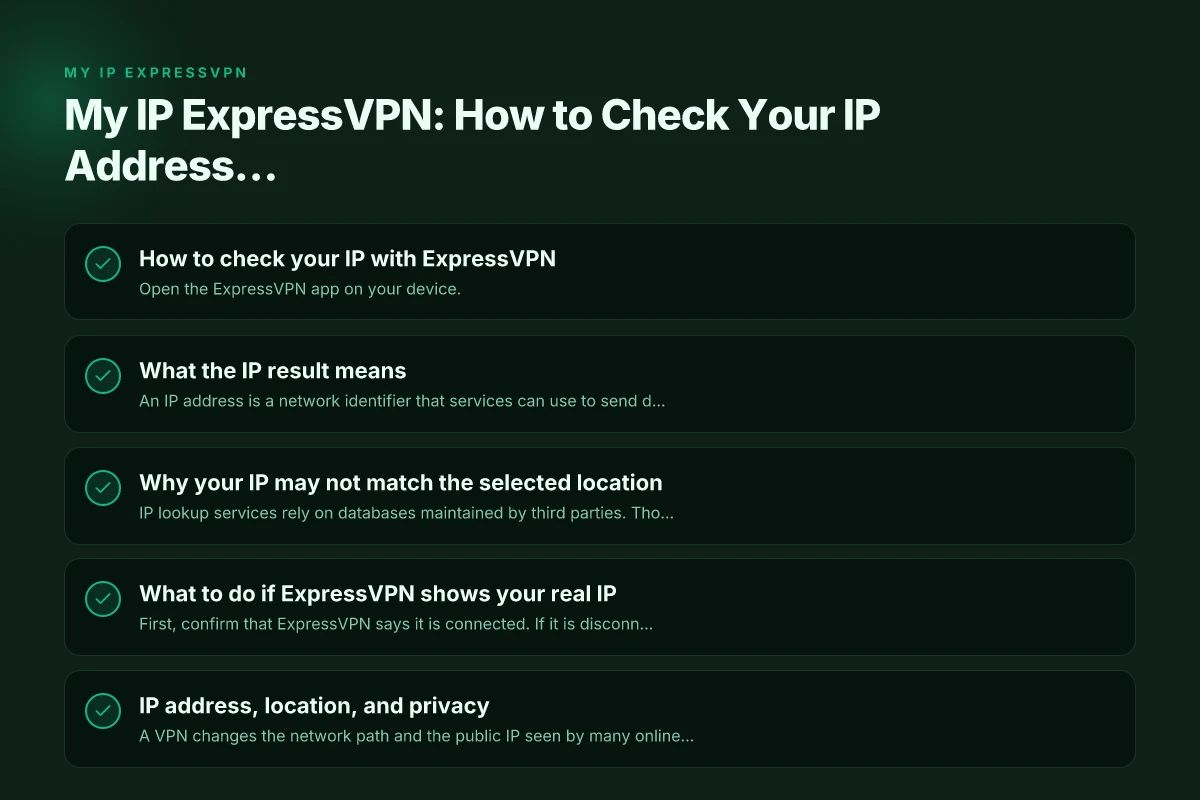
How to check your IP with ExpressVPN
- Open the ExpressVPN app on your device.
- Connect to a VPN server. Choose a location from the list or use Smart Location if you have no specific preference.
- Open a browser and search for “what is my IP” or use a trusted IP lookup service.
- Note the displayed IP address and approximate location.
For a useful comparison, check your IP once before connecting and again afterward. The addresses should usually be different. The result after connecting is the public IP that the lookup service sees for that browser session.
You do not need to enter your ExpressVPN account details into an IP lookup site. A basic lookup only needs to observe the connection address. Avoid unfamiliar sites that ask for your password, payment information, or unnecessary permissions.
What the IP result means
An IP address is a network identifier that services can use to send data to your device. Websites may also use it to estimate your general location, apply regional settings, or help detect suspicious activity. It does not, by itself, reveal your precise home address.
When ExpressVPN is connected, your internet traffic is routed through a VPN server. Websites generally see the server’s public IP address instead of your internet provider’s public IP. That can make your apparent location different from your actual location, but IP location databases are not always exact. Norton VPN App for Fire Stick: What to Know Before You Install
| What you see | What it usually means |
|---|---|
| A different IP after connecting | Your connection is likely using the VPN server |
| A location matching the selected server | The lookup database associates that IP with the selected location |
| A nearby or unexpected location | The database may be imprecise, or the server’s registered location may differ |
| Your usual public IP while connected | The VPN may not be active for that connection, or a leak or configuration issue may be present |
A changed IP is a useful check, but it is not a complete privacy audit. Your browser, apps, account logins, cookies, and device settings can still reveal information about you. A VPN also does not make you anonymous or prevent every type of tracking.
Why the displayed IP or location may not match the selected location
| Possible cause | What you may see | What to check | First step |
|---|---|---|---|
| VPN connection dropped | Your usual public IP | App connection status | Reconnect to the VPN |
| Wrong server selected | A different VPN location | Selected server in the app | Choose the intended location |
| IP location database differs | A location unlike the server location | Results from another checker | Compare with another checker |
| Browser location data | A location based on browser signals | Browser location permissions | Review or disable permissions |
| Cached page result | An outdated IP result | A fresh checker page | Reload or reopen the page |
| Network change | A changed IP or location | Current Wi-Fi or mobile network | Reconnect after the network change |
Compiled November 2026; check the provider's site for current details.
Why your IP may not match the selected location
IP lookup services rely on databases maintained by third parties. Those databases can be outdated or may identify where an IP range is registered rather than the exact location of the VPN server. As a result, two lookup sites can report different cities for the same address. NordVPN Activation Code: How to Get and Use One
Other reasons for an unexpected result include:
- You selected a different server than intended. Check the connected location in the ExpressVPN app.
- The VPN disconnected. Some devices or network changes can interrupt a session.
- You are checking traffic from another app or browser. A browser extension, proxy, or separate network setting may affect its route.
- Location settings are influencing the result. Websites may use browser location permission, GPS, or other signals in addition to your IP.
- You are using a shared VPN IP. VPN services commonly assign an address used by multiple customers, so an IP lookup cannot reliably identify one specific user.
If the IP is different from your normal public address, a city mismatch alone does not necessarily indicate a problem. Check the connection status in the app and, if needed, compare results from more than one reputable lookup service.
What to do if ExpressVPN shows your real IP
First, confirm that ExpressVPN says it is connected. If it is disconnected, reconnect and repeat the check. If it appears connected but the lookup still shows your usual public IP, try these steps:
- Disconnect from the VPN, then connect again.
- Choose another ExpressVPN server location.
- Update the ExpressVPN app and restart your device.
- Temporarily disable other VPN, proxy, or network-filtering apps.
- Check ExpressVPN’s support guidance for your device and operating system.
- Test using a different browser or network, such as mobile data, if practical.
You can also check for DNS or WebRTC exposure. A DNS leak test checks which DNS resolvers appear to handle your requests. A WebRTC test checks whether browser features expose network information. Test results can depend on your browser and setup, so use them as troubleshooting clues rather than definitive proof that your whole device is protected. Urban VPN Microsoft Edge Extension: How It Works and What to Know
ExpressVPN includes Network Lock, its network lock feature, on supported platforms. It is designed to block internet traffic if the VPN connection drops, subject to the app, platform, and settings in use. Review the app’s settings and current ExpressVPN documentation to confirm what protections are available on your device.
If your real IP continues to appear, stop using the connection for activities where you need the VPN protection until you understand what is happening. Contact ExpressVPN Support with your device type, operating system, app version, selected server, and the steps you have tried. Do not share passwords or other account secrets in a public forum.
What to do if ExpressVPN appears to show your real IP
| Check or action | What to look for | If the issue remains |
|---|---|---|
| Confirm VPN status | App shows a connected state | Reconnect to the VPN |
| Verify selected location | App lists the intended server | Select the intended location |
| Refresh the IP checker | A current result, not a cached one | Try another checker |
| Compare with another checker | Whether both show the same IP | Check browser location signals |
| Review browser permissions | Whether location access is enabled | Restrict location access if unwanted |
| Change networks | Whether the result changes on another network | Reconnect to the VPN |
| Contact ExpressVPN support | Details of the app and connection issue | Follow support guidance |
Compiled November 2026; check the provider's site for current details. FortiClient iOS IPsec: Setup, Compatibility, and Troubleshooting
IP address, location, and privacy
A VPN changes the network path and the public IP seen by many online services, but it does not hide every identifying detail. A website can still recognize you if you sign in to a personal account, use identifying browser data, or share information directly. Your device’s location permissions may also reveal a more precise location if you grant access.
For better privacy habits:
- Keep ExpressVPN and your operating system up to date.
- Review browser location permissions and allow them only when needed.
- Use trusted websites and avoid entering sensitive information on unfamiliar IP-check pages.
- Remember that changing VPN servers changes the apparent IP, not the information you provide to websites.
- Check the app’s connection status when switching networks or waking a device from sleep.
Recommendation
To check “my IP ExpressVPN,” connect to ExpressVPN and use a reputable IP lookup service. A different public IP is the expected result, while an approximate location mismatch is not automatically a fault. If your usual public IP appears, reconnect, check for leaks, and consult ExpressVPN Support before relying on the connection for privacy-sensitive use.