
Surfshark Won’t Connect? Try These Fixes
Fix Surfshark connection problems with practical checks for your network, app, protocol, and device.
If Surfshark won’t connect, first check that your internet works with the VPN disconnected. Then try a different Surfshark server, restart the app and your device, and switch VPN protocols. These steps resolve many connection problems without changing advanced settings. If Surfshark connects but websites still will not load, the issue may be with your browser, DNS settings, or the site itself.

Editor's pick: NordVPN — fast, secure VPN — Strong encryption, a no-logs policy and apps for every device. 30-day money-back guarantee. Get NordVPN →
Troubleshooting steps for a Surfshark connection that won’t start
| Step | What to try | What it checks | If it works |
|---|---|---|---|
| 1 | Open a website without Surfshark | Whether your internet works | Continue using Surfshark |
| 2 | Restart your router or switch networks | Whether the connection is unstable | Retry Surfshark |
| 3 | Choose another Surfshark server | Whether the current server is the issue | Stay on the working server |
| 4 | Restart the Surfshark app | Whether the app needs a fresh connection | Reconnect to a server |
| 5 | Change the VPN protocol | Whether the current protocol is blocked | Keep the protocol that connects |
| 6 | Update Surfshark | Whether an outdated app is causing trouble | Try connecting again |
| 7 | Check device settings | Whether settings are interfering | Adjust settings and retry |
| 8 | Reinstall the app or contact support | Whether a fresh install or help is needed | Follow support guidance |
Compiled November 2026; check the provider's site for current details.
1. Check your internet connection
Disconnect Surfshark and open a few websites or apps. If they still do not work, troubleshoot your Wi-Fi or mobile data before changing VPN settings.
Try these basic checks:
- Turn Wi-Fi off and back on, or switch between Wi-Fi and mobile data.
- Restart your modem and router, if you control them.
- Check whether other devices on the same network can access the internet.
- Sign in to a public Wi-Fi network’s login page, if one is required.
Some networks, including workplace, school, hotel, and public Wi-Fi, restrict VPN traffic. If Surfshark works on mobile data but not Wi-Fi, the network may be blocking the connection. Try another network or ask the network administrator whether VPN connections are allowed.
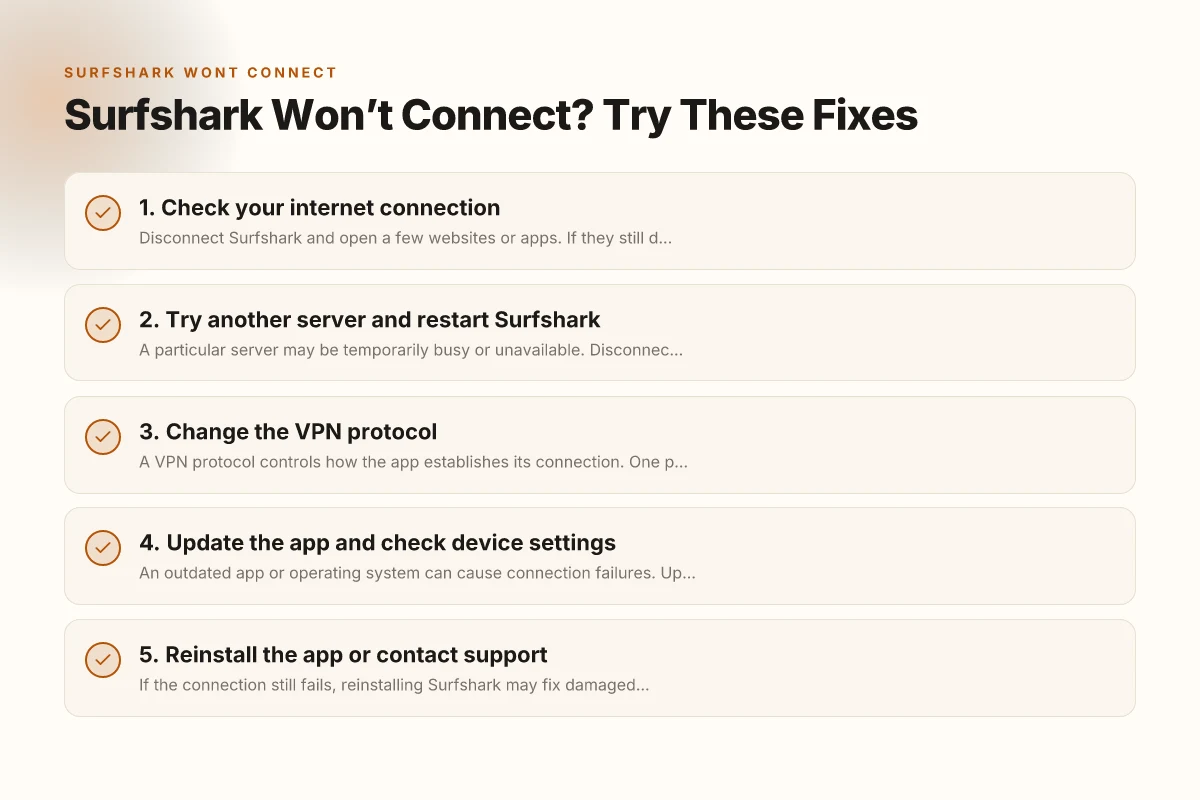
2. Try another server and restart Surfshark
A particular server may be temporarily busy or unavailable. Disconnect from Surfshark, choose a different location, and try connecting again. If you are using a specific city, test another city in the same country or choose a nearby country. Find My VPN Location: Check Your Public IP and Virtual Region
Close and reopen Surfshark if changing servers does not help. On a computer or phone, fully quit the app rather than leaving it running in the background. Restarting your device can also clear a stalled connection or a temporary network issue.
| What you notice | What to try first |
|---|---|
| Surfshark stays on “connecting” | Choose another server and restart the app |
| It connects, but pages will not load | Check your internet, browser, and DNS settings |
| The problem happens only on one network | Test another network or check for VPN restrictions |
| The app will not open or keeps crashing | Update it, restart your device, or reinstall it |
3. Change the VPN protocol
A VPN protocol controls how the app establishes its connection. One protocol may work better than another on a restricted or unstable network.
Open Surfshark’s settings and look for the VPN protocol option. Depending on your device and app version, available choices may include WireGuard, OpenVPN, or IKEv2. Switch to a different option, reconnect, and test a second option if needed. The names and menu locations can vary by platform.
If you cannot connect after a protocol change, return to the original setting or try another available protocol. Avoid changing several settings at once: testing one change at a time makes it easier to identify what fixed the issue. FortiClient VPN 7.2: Download, Install, and Set Up a Secure Connection
Which Surfshark connection fix should you try first?
| Situation | First option to try | Why it may help | Next step if it fails |
|---|---|---|---|
| Websites do not load without the VPN | Check your internet connection | Surfshark needs working internet | Try another network |
| Only one server will not connect | Choose another server | The selected server may be the issue | Restart the app |
| The app is stuck connecting | Restart Surfshark | Refreshes the app connection | Change the protocol |
| Connection fails on one protocol | Change the VPN protocol | Another protocol may connect better | Check device settings |
| The app may be outdated | Update Surfshark | A current version may resolve app issues | Restart the device |
| Settings may be interfering | Check device settings | Device settings can affect connections | Reinstall the app |
| Basic fixes have not helped | Reinstall Surfshark | A fresh installation may resolve app problems | Contact support |
Compiled November 2026; check the provider's site for current details.
4. Update the app and check device settings
An outdated app or operating system can cause connection failures. Update Surfshark from the official app store or Surfshark’s website, as appropriate for your device. Also install available system updates and restart your device afterward.
Check for other software that may interfere with VPN traffic. A second VPN, proxy, firewall, or security app can sometimes conflict with Surfshark. Temporarily pause the conflicting feature only if it is safe to do so, then test the connection. Turn protection back on if it does not solve the problem. Clash for Window: How to Play Clash of Clans on Windows
On phones and tablets, check that Surfshark has permission to create a VPN connection. If your device shows a prompt to approve a VPN configuration, accept it. On computers, confirm that firewall settings are not blocking the Surfshark app. Do not disable security protections permanently to troubleshoot a connection.
If the app connects but websites still fail, disconnect and reconnect once, then test a different browser or website. You can also restart your device and check whether custom DNS, proxy, or filtering settings are affecting traffic.
5. Reinstall the app or contact support
If the connection still fails, reinstalling Surfshark may fix damaged or incomplete app files. Before removing it, make sure you know your account sign-in details. Uninstall the app, restart the device, reinstall the latest version from an official source, sign in, and test a nearby server.
If you use Surfshark on a router, check the router’s VPN setup instructions instead of following app-specific steps. Router configurations can depend on the model and firmware, and a change that works in the app may not apply to the router. How to Change My VPN Location Free: A Safe Step-by-Step Guide
When contacting Surfshark Support, share useful details:
- Your device and operating system.
- The Surfshark app version.
- The server location and protocol you tried.
- Any error message or connection behavior.
- Whether Surfshark works on another network or device.
Do not send your password or other sensitive account details in a public forum.
Comparing Surfshark troubleshooting options
| Option | Best for | Effort | Requires reinstalling? | When to move on |
|---|---|---|---|---|
| Check your internet | No connection outside Surfshark | Low | No | Internet works but VPN does not |
| Try another server | A single server fails | Low | No | Other servers also fail |
| Restart Surfshark | App appears stuck | Low | No | Restart does not help |
| Change protocol | Protocol-related connection trouble | Low | No | Available protocols do not connect |
| Update the app | Outdated app or possible app issue | Low | No | Latest version still fails |
| Check device settings | Possible device-side interference | Medium | No | Settings checks do not resolve it |
| Reinstall the app | Persistent app trouble | Medium | Yes | Fresh install still fails |
| Contact support | Troubleshooting steps have failed | Low | No | Follow the support team’s guidance |
Compiled November 2026; check the provider's site for current details. VPN That Allows You to Choose Location: How to Pick the Right One
Recommendation
Start with the quickest checks: confirm your internet works without the VPN, select another server, and restart Surfshark. If that does not help, change protocols and update the app. If the problem continues across multiple networks, devices, and servers, contact Surfshark Support with the details above.