
TunnelBear Extension for Edge: How to Install and Use It
Learn whether TunnelBear works as an Edge extension, how to install it, and when to use the desktop app instead.


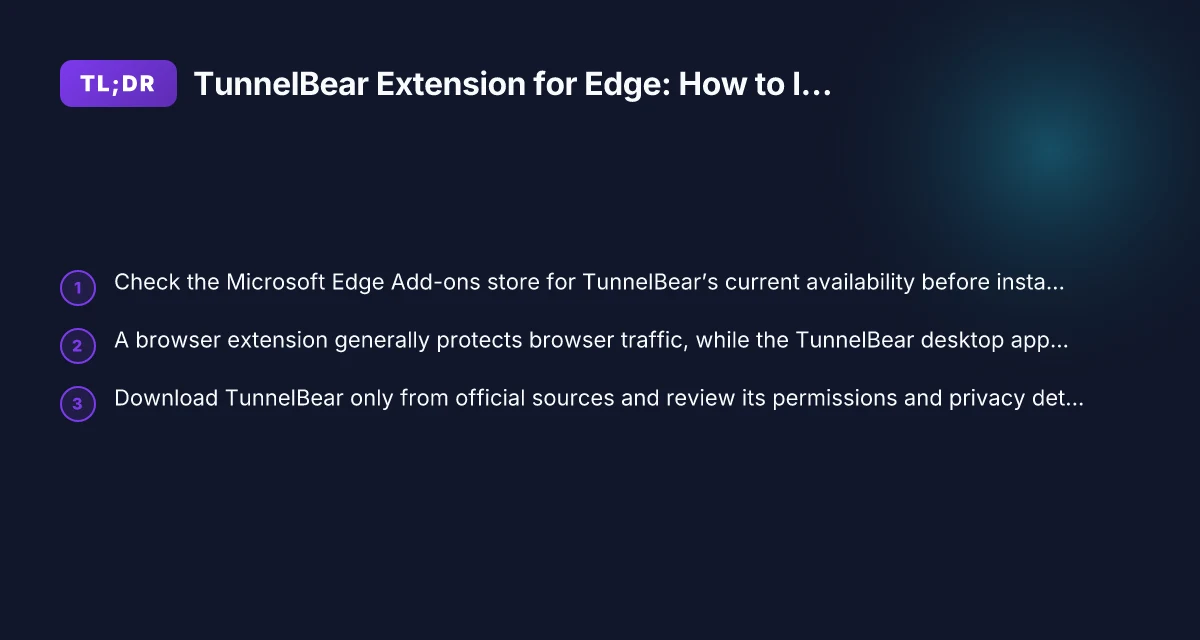
If you’re looking for a TunnelBear extension for Edge, first check the Microsoft Edge Add-ons store to see whether TunnelBear currently offers an official extension there. Availability can change, so don’t assume that a Chrome extension will automatically work in Edge. If there is no official Edge listing, use TunnelBear’s official desktop app for Windows or another supported platform instead. The app is generally the better choice when you want VPN protection beyond browser traffic.

Editor's pick: NordVPN — fast, secure VPN — Strong encryption, a no-logs policy and apps for every device. 30-day money-back guarantee. Get NordVPN →
Compare the TunnelBear Edge extension and desktop app
| Feature | Edge extension | Desktop app |
|---|---|---|
| Installation | Add through Edge if available | Install from TunnelBear |
| Browser coverage | Edge traffic | Device traffic |
| Setup | Browser-specific | System-wide |
| Availability | Check Edge Add-ons | Check TunnelBear downloads |
| Best for | Browser-only use | Broader device coverage |
| Edge compatibility | Verify in Edge | Works alongside Edge |
| VPN controls | Browser toolbar | App interface |
| Choice depends on | Extension availability | Device and usage needs |
Compiled November 2026; check the provider's site for current details.
Does TunnelBear have an Edge extension?
TunnelBear’s browser-extension availability may vary over time and by browser. Search the Microsoft Edge Add-ons store for “TunnelBear” and confirm that any result is published by TunnelBear or its official company. Check the listing’s description, publisher, supported browser, permissions, and update history before installing it.
Edge is built on Chromium, the same open-source browser foundation used by Chrome. That technical similarity means some Chrome extensions may run in Edge, but it does not guarantee that a particular extension is compatible, supported, or safe to use there. If TunnelBear provides an official Chrome extension but no Edge version, check TunnelBear’s own support documentation for current guidance before attempting to add it to Edge.
Avoid unofficial extensions that use TunnelBear’s name or logo without a clear connection to the company. A VPN-related extension can handle sensitive information, so the publisher matters as much as the product name.

How to check and install it in Edge
To look for an official TunnelBear extension: Where Is My VPN Located? How to Check Your VPN Server Location
- Open Microsoft Edge.
- Visit the Microsoft Edge Add-ons store.
- Search for “TunnelBear.”
- Open the listing and confirm the publisher and supported browser.
- Review the permissions and privacy information.
- Select the option to add the extension, if an official listing is available.
After installation, follow TunnelBear’s instructions to sign in and connect. The extension may need permission to read or change data on websites, depending on how it works. Read those prompts rather than accepting them automatically.
You can also check TunnelBear’s official website for a link to its browser product. Following a link from the provider is a useful way to avoid lookalike listings. If the official site does not direct Edge users to an extension, don’t rely on third-party download pages or instructions that ask you to install an unknown file.
Extension or desktop app: what’s the difference?
A browser extension and a desktop VPN app can protect different kinds of traffic. The exact behavior depends on the product and its settings, so read TunnelBear’s current documentation. In general, an extension operates within the browser, while a desktop app can route traffic from other applications through the VPN connection.
| Option | Typical coverage | Best suited to |
|---|---|---|
| TunnelBear browser extension, if officially available for Edge | Traffic handled by the supported browser | Browser-focused use |
| TunnelBear desktop app | Potentially traffic from multiple apps on the device | Broader device-level VPN use |
| No TunnelBear extension installed | No TunnelBear extension protection in Edge | Users relying on another trusted VPN setup |
A browser extension should not be treated as a replacement for device-wide protection unless TunnelBear explicitly says it covers all device traffic. Likewise, installing a desktop app does not mean every connection is protected in every situation: check the app’s connection status, settings, and any exclusions. Big IP VPN Download: A Safe Guide to Choosing and Installing a VPN
Check and install TunnelBear for Edge
| Step | What to check | If available | If unavailable |
|---|---|---|---|
| 1 | Open Edge Add-ons | Continue to the listing | Check TunnelBear’s site |
| 2 | Search for TunnelBear | Confirm publisher and details | Don’t use unofficial downloads |
| 3 | Review permissions | Install if acceptable | Skip installation |
| 4 | Add the extension | Confirm the browser prompt | Check for a desktop app |
| 5 | Open the extension | Sign in or create an account | Use the official app option |
| 6 | Choose a location | Connect and test browsing | Recheck product availability |
| 7 | Check Edge’s toolbar | Pin it for easier access | Use the app controls |
Compiled November 2026; check the provider's site for current details.
Using TunnelBear with Microsoft Edge
If you install an official extension, connect it before using the browser for the activity you want to protect. Look for a clear connection indicator and verify your settings in TunnelBear’s own interface. If the connection drops, the browser may continue loading sites through your regular connection unless a suitable protection feature prevents that. Consult the product documentation to understand what happens in your configuration.
If you use the desktop app instead: Forticlientvpninstaller.exe: How to Download and Install FortiClient VPN
- Download it from TunnelBear’s official website or an official app store.
- Install the version intended for your operating system.
- Sign in and connect before opening Edge.
- Confirm the app reports an active connection.
- Keep the app and Edge updated.
- Disconnect when you no longer need the VPN, if that suits your use.
A VPN can help protect network traffic between your device and the VPN provider, particularly on networks you do not control. It does not make you anonymous, prevent every form of tracking, or protect you from unsafe downloads and phishing. Websites may still identify you through account sign-ins, cookies, browser settings, or other signals.
Troubleshooting common problems
If you can’t find a TunnelBear extension in Edge, it may not currently be offered for that browser or may not be available in your region. Check TunnelBear’s official help pages and the Edge Add-ons store again rather than installing an extension from an unverified source.
If an extension is listed but won’t connect, try these steps:
- Make sure Edge is up to date.
- Check that the extension is enabled in Edge’s extensions settings.
- Sign out and back in if TunnelBear’s instructions recommend it.
- Temporarily disable conflicting VPN or proxy tools.
- Restart Edge and test again.
- Contact TunnelBear support if the problem continues.
If the desktop app is connected but Edge behaves as though it is not, confirm whether the app is actually routing browser traffic and whether you have configured split tunneling or exclusions. These settings can change which apps use the VPN. Follow TunnelBear’s documentation rather than assuming that an active status covers every connection. Urban VPN Extension Edge Download: How to Install It Safely
Troubleshoot TunnelBear issues in Edge
| Problem | Check first | Try this | If it continues |
|---|---|---|---|
| Extension not listed | Edge Add-ons availability | Search TunnelBear’s official site | Consider the desktop app |
| Install fails | Edge version and connection | Restart Edge and retry | Check official support |
| Sign-in fails | Account details and connection | Sign in again | Reset account access |
| Cannot connect | Selected location and network | Choose another location | Check TunnelBear service status |
| Some sites do not load | Site behavior and connection | Reload or try another location | Use the desktop app |
| Extension icon is missing | Edge toolbar settings | Pin the extension | Check whether installation completed |
Compiled November 2026; check the provider's site for current details.
Recommendation
Start with the Microsoft Edge Add-ons store and install a TunnelBear extension only if the listing is official and explicitly supports Edge. If no official Edge extension is available, choose TunnelBear’s desktop app for broader device-level coverage, or use a different VPN browser extension only after verifying its publisher and privacy practices. In either case, keep the software updated and remember that a VPN is one part of online security, not a substitute for safe browsing.