
How to Change Proxy Settings in Edge Browser
Learn how to change proxy settings in Microsoft Edge, configure a manual proxy, and troubleshoot connection problems.


To change proxy settings in Edge, open the browser’s Settings, go to System and performance, and select Open your computer’s proxy settings. Edge will take you to the proxy controls for your operating system, where you can configure automatic detection, a setup script, or a manual proxy server. The exact options and labels depend on whether you use Windows or macOS.

Editor's pick: NordVPN — fast, secure VPN — Strong encryption, a no-logs policy and apps for every device. 30-day money-back guarantee. Get NordVPN →
Compare proxy configuration options in Microsoft Edge
| Option | Where you configure it | Scope | Best for | Main consideration |
|---|---|---|---|---|
| System proxy settings | Device settings opened from Edge | Usually applies across the device | Most users | Edge follows the operating system’s proxy configuration |
| Manual proxy | Windows or macOS network settings | Depends on operating system settings | A known proxy server | Requires server details |
| Automatic setup script | Windows or macOS network settings | Depends on operating system settings | Organizations providing a script | Requires the script address |
| Automatic detection | Operating system proxy settings | Depends on operating system settings | Networks that support automatic discovery | Availability depends on the network |
| VPN connection | VPN app or device settings | May route more than browser traffic | A broader network connection | Not the same as configuring an Edge-only proxy |
| Browser extension | Edge extension settings | Often limited to browser traffic | Browser-specific controls | Requires a trusted extension |
| No proxy | Device proxy settings | No proxy is used | Direct connections | May not work on restricted networks |
Compiled November 2026; check the provider's site for current details.
Open your device’s proxy settings from Edge
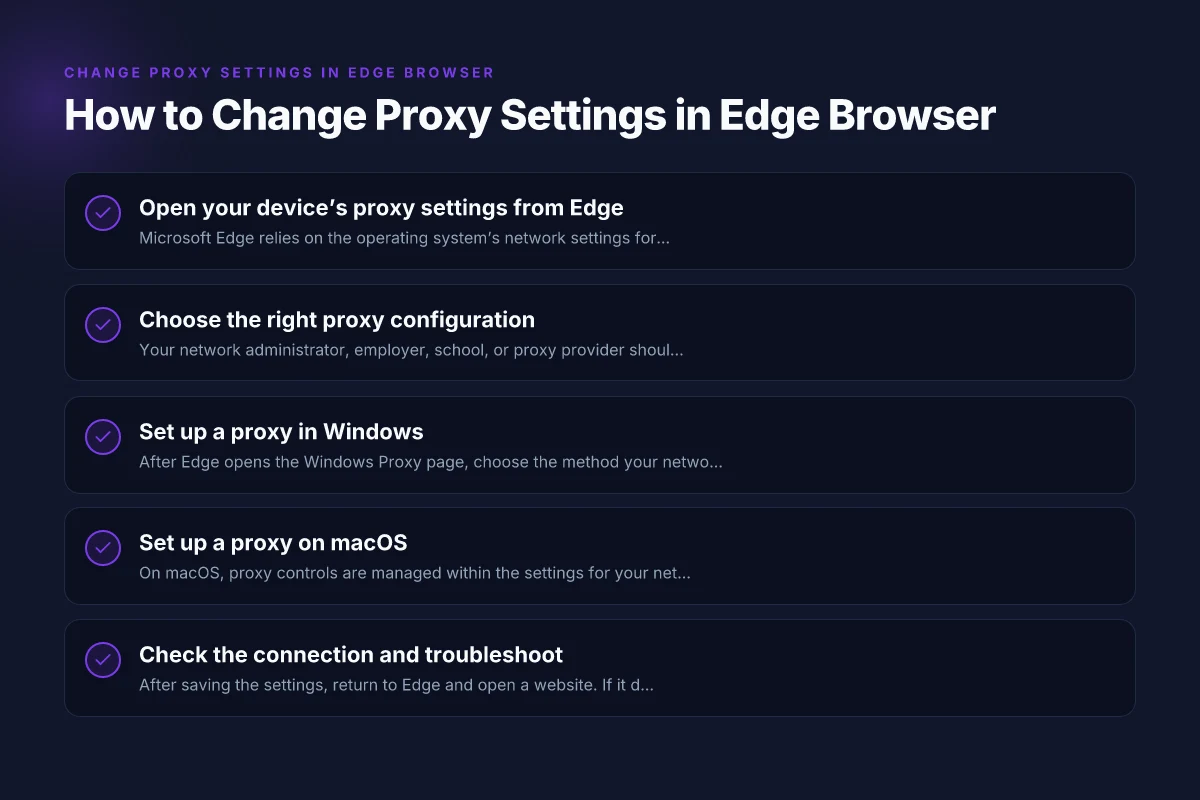
Microsoft Edge relies on the operating system’s network settings for proxy connections. This means you generally cannot enter a proxy server directly on a dedicated proxy page inside Edge.
- Open Microsoft Edge.
- Select the three-dot menu in the upper-right corner.
- Choose Settings.
- Select System and performance in the sidebar.
- Choose Open your computer’s proxy settings.
On Windows, this opens the system’s Proxy page. On macOS, it takes you to the relevant network settings. If the menu labels differ in your Edge version, search the Settings page for “proxy.”
You can also open proxy settings without Edge. In Windows, search for “Proxy settings” from the Start menu. On macOS, open System Settings, select Network, choose your active connection, then open its Details or Advanced settings and look for Proxies. The macOS wording can vary by version.
Choose the right proxy configuration
Your network administrator, employer, school, or proxy provider should tell you which configuration to use. Avoid guessing server addresses or ports: incorrect details can prevent websites and other apps from connecting. How to Change Proxy Settings in Edge: A Step-by-Step Guide
| Option | What it does | Use it when |
|---|---|---|
| Automatically detect settings | Lets Windows detect proxy settings for the network | Your organization or network instructs you to use automatic detection |
| Use setup script | Applies proxy settings from a configuration script URL | You have been given a script address, often ending in .pac |
| Manual proxy setup | Sends traffic through a specified proxy server and port | You have been given a server address and port |
| No proxy | Connects without a configured proxy | Your network does not require one, and you are authorized to disable it |
A proxy can affect traffic from more than Edge. Because the settings are shared with the operating system, changing them may also affect other browsers and applications.
Set up a proxy in Windows
After Edge opens the Windows Proxy page, choose the method your network requires.
Use automatic detection
Under Automatic proxy setup, turn on Automatically detect settings if your administrator or network requires it. This lets Windows look for proxy configuration on the network.
If you have been given a setup script instead, turn on Use setup script, enter the script address, and save the change. Check the address carefully before saving. Why Does VPN Keep Turning On iPhone? Causes and Fixes
Enter a manual proxy
Under Manual proxy setup:
- Turn on Use a proxy server.
- Enter the proxy server address and port provided to you.
- If needed, enter addresses that should bypass the proxy in the exceptions field.
- Save the settings.
The bypass list is for specific destinations that should connect directly. Do not add broad exceptions unless your administrator advises you to do so. If the proxy requires authentication, you may be prompted to sign in when Edge connects.
To stop using a manual proxy, return to the same page and turn off Use a proxy server. Do this only if the proxy is not required by your network or organization.
Compare proxy setup paths by operating system My VPN Is Blocking Websites: Causes and Fixes
| Setup path | Where to open settings | Configuration location | Can use manual settings | Can use automatic setup |
|---|---|---|---|---|
| Windows | Edge’s proxy settings link | Windows network settings | Yes | Yes |
| macOS | Edge’s proxy settings link | macOS network settings | Yes | Yes |
| Edge on Windows | Edge settings | Opens Windows proxy controls | Through Windows | Through Windows |
| Edge on macOS | Edge settings | Opens macOS proxy controls | Through macOS | Through macOS |
| Change for the whole device | Operating system settings | Windows or macOS | Supported | Supported |
| Change only Edge behavior | Edge or extension controls | Depends on the method | Not through system settings alone | Not through system settings alone |
Compiled November 2026; check the provider's site for current details.
Set up a proxy on macOS
On macOS, proxy controls are managed within the settings for your network connection.
- Open System Settings.
- Select Network.
- Choose the active connection, such as Wi-Fi or Ethernet.
- Open Details or Advanced settings.
- Select Proxies.
- Enable the proxy type you were instructed to use.
- Enter the server address, port, and any other required details, then apply the change.
Available proxy types may include web proxy (HTTP), secure web proxy (HTTPS), SOCKS proxy, and automatic proxy configuration. The options shown depend on your macOS version and network. If you are unsure which type to select, ask the person who provided the proxy details.
Check the connection and troubleshoot
After saving the settings, return to Edge and open a website. If it does not load, check the following: Free VPN for Changing Location: What Works and What to Know
- Confirm the proxy address and port match the information you received.
- Make sure the correct proxy method is enabled.
- Check that the setup script URL is typed correctly and can be reached.
- Sign in if the proxy requests authentication.
- Confirm you are connected to the expected Wi-Fi or work network.
- Check whether a VPN, security tool, or organization policy is affecting the connection.
If Edge reports that it cannot connect to the proxy server, the proxy may be unavailable, the address may be incorrect, or the network may require a VPN. Contact your network administrator or provider if you cannot verify the settings.
If you no longer need the proxy, restore the previous configuration rather than changing every option at random. On Windows, check both automatic setup and manual proxy settings. On macOS, disable only the proxy types that were enabled for your connection. If the device is managed by an organization, its policy may prevent you from changing these settings or may reapply them automatically.
Proxy connection checks and troubleshooting choices
| What you observe | What to check | Likely area | Next step |
|---|---|---|---|
| Pages do not load | Proxy address and port | Manual configuration | Confirm details with the provider or administrator |
| Connection is refused | Server availability | Proxy server | Check that the server is online |
| Some sites fail | Proxy rules or access policy | Proxy configuration | Ask the administrator about blocked destinations |
| Settings appear unchanged | Active system proxy settings | Windows or macOS | Reopen device settings from Edge and verify |
| Automatic setup does not work | Script address or network support | Automatic configuration | Confirm the script URL and network requirements |
| Connection works outside Edge | Edge’s system proxy behavior | Device settings | Check the operating system proxy configuration |
| Unexpected connection behavior | VPN, extensions, or other network tools | Device or browser | Temporarily review conflicting settings |
| Proxy details are unknown | Required server information | Provider or administrator | Request the correct configuration details |
Compiled November 2026; check the provider's site for current details. VPN Free Change Location: How to Switch Your IP Address Safely
Recommendation
Use the proxy configuration supplied by your network administrator or provider, and save a record of your original settings before making changes. Since Edge shares the operating system’s proxy configuration, make changes in Windows or macOS, not in an unfamiliar browser extension, and test the connection afterward.