iPhone Clash: What It Means and How to Fix Common iPhone Conflicts
Learn what “iPhone clash” can mean, how to resolve common app and device conflicts, and when to seek Apple Support.
The phrase “iPhone clash” can refer to different problems: two apps interfering with each other, an accessory failing to connect, conflicting settings, or an iPhone struggling after an update. It is not a single standard Apple error message, so the right fix depends on what is clashing and what happens on your device. Start by identifying the symptom, then try the least disruptive troubleshooting steps first.

Match the symptom to the likely type of iPhone conflict
| What you notice | Possible conflict | First check | Low-risk action |
|---|---|---|---|
| Wi‑Fi drops or won’t connect | Network settings or router | Try another Wi‑Fi network | Toggle Wi‑Fi off and on |
| Bluetooth accessory won’t pair | Pairing or accessory conflict | Check accessory pairing mode | Forget and pair the accessory again |
| Apps freeze or close | App or iOS conflict | Check whether one app is affected | Update or reinstall the app |
| Notifications are missing | Focus or notification settings | Check Focus and app alerts | Adjust notification settings |
| Calls or messages fail | Network, carrier, or settings | Check signal and service | Toggle Airplane Mode |
| Battery drains unusually fast | App activity or iOS issue | Review Battery usage | Update or close the affected app |
| Accessories stop working | Compatibility or connection issue | Test another accessory or cable | Reconnect and check compatibility |
Compiled November 2026; check the provider's site for current details.
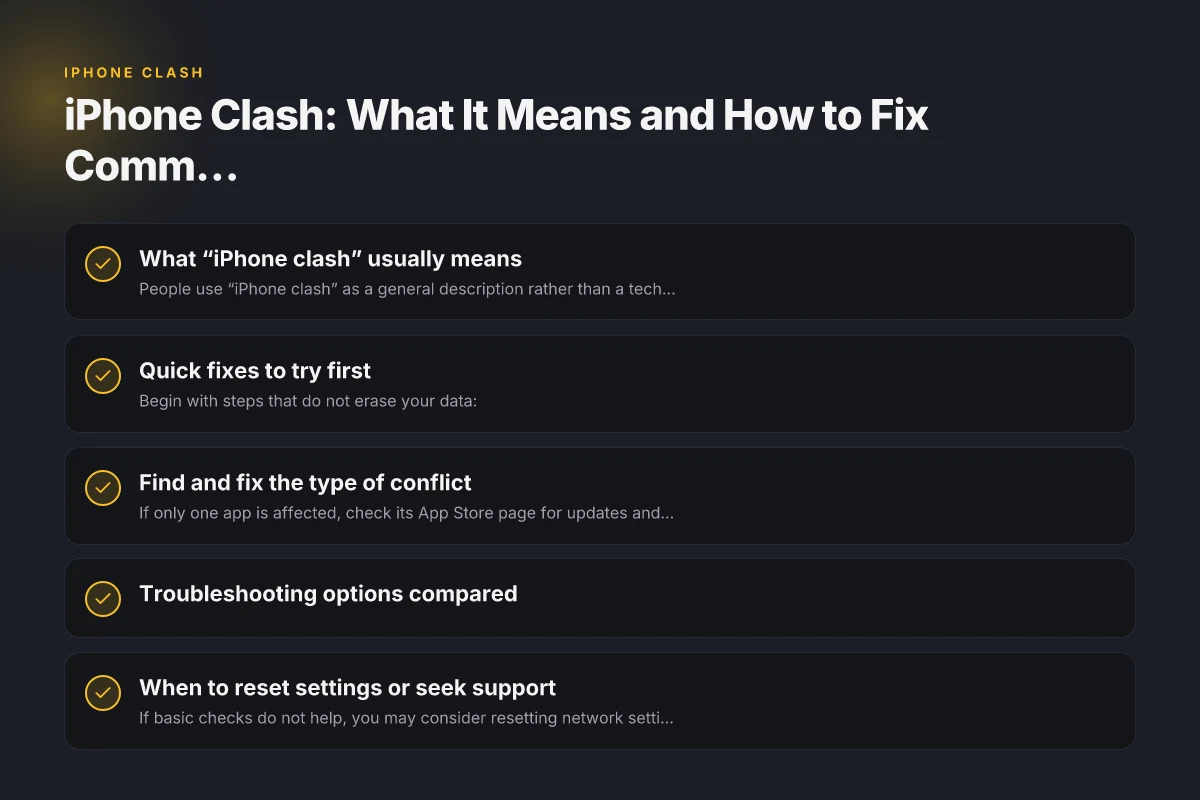
What “iPhone Clash” usually means
People use “iPhone clash” as a general description rather than a technical diagnosis. Common examples include:
- An app freezing, closing unexpectedly, or behaving differently after another app is installed.
- Bluetooth devices disconnecting or competing to connect.
- Notifications, calls, or audio being interrupted by Focus or other settings.
- A software update causing an app or accessory to stop working properly.
- Two Apple devices sharing calls, messages, or other features in an unexpected way.
The details matter. Note when the problem began, what you were doing, and whether it affects one app, one accessory, or the whole iPhone. If an alert appears, record its exact wording. That information can help you find the relevant setting or explain the issue to Apple Support.
Quick fixes to try first
Begin with steps that do not erase your data:
- Close and reopen the affected app. If the problem is limited to one app, swipe it away from the app switcher, then open it again.
- Restart your iPhone. A restart can clear temporary software issues. Use the usual restart procedure for your iPhone model.
- Check for updates. Install available updates for iOS and the affected app. Developers often address compatibility problems in app updates.
- Check your connection. If the problem involves syncing, calls, or an online service, confirm that Wi-Fi or cellular data is working.
- Review recent changes. Consider whether the issue started after installing an app, connecting a new accessory, changing a setting, or updating software.
Test after each step so you can tell which change helped. If the issue is urgent, such as an iPhone overheating or a battery swelling, stop using it and contact Apple or an authorized service provider rather than continuing to troubleshoot. VPN Extension for Edge Browser: How to Choose and Use One
Find and fix the type of conflict
App problems
If only one app is affected, check its App Store page for updates and confirm that your iPhone meets its requirements. You can also review the app’s permissions in Settings. If it continues to crash, delete and reinstall it, but first make sure its data is backed up or synced, since removing an app can erase locally stored information.
If several apps fail at once, the issue may involve iOS, available storage, or a wider service outage. Check your iPhone’s storage in Settings and install any available iOS update. Avoid downloading “cleaner” apps that promise to repair iOS. They generally cannot fix system-level conflicts.
Bluetooth and accessory conflicts
For a Bluetooth device that will not connect reliably, charge it, keep it near the iPhone, and make sure it is not already connected to another device. In Settings, open Bluetooth and check its connection status. If necessary, forget the accessory and pair it again using the manufacturer’s instructions.
If the accessory still will not connect, test it with another compatible device if possible. This helps determine whether the issue is with the accessory or the iPhone. For CarPlay, headphones, or other specialized products, check the maker’s instructions and compatibility details. Urban VPN Add On: What It Does, How to Install It, and What to Consider
Calls, notifications, and shared Apple features
Unexpected silence or interruptions may be caused by Focus, Silent mode, notification settings, call forwarding, or another Apple device using a shared feature. Review the relevant settings and check whether the same Apple Account is signed in on devices that share calls or messages.
When notifications from one app are missing, check that app’s notification permissions rather than changing settings across the whole phone. If calls or messages appear on another device unexpectedly, review the settings for that feature on both devices.
Compare troubleshooting options by risk and scope
| Option | Best for | Scope | Risk or trade-off | Try before |
|---|---|---|---|---|
| Toggle the connection | Temporary Wi‑Fi or Bluetooth trouble | One connection | Minimal | Resetting settings |
| Restart iPhone | Temporary glitches | Whole device | Minimal | Changing settings |
| Update iOS | Known or persistent software issues | Whole device | Requires time and storage | Resetting settings |
| Update or reinstall an app | Trouble isolated to one app | One app | Reinstalling may remove app data | Resetting settings |
| Forget and reconnect a network or accessory | A single saved connection | One connection | Must reconnect or pair again | Resetting network settings |
| Reset Network Settings | Persistent network problems | Network configuration | Saved network settings are removed | Erasing the iPhone |
| Reset All Settings | Multiple settings-related conflicts | System settings | Preferences need to be set up again | Erasing the iPhone |
Compiled November 2026; check the provider's site for current details. FortiClient IPsec over TCP: What It Supports and How to Connect
Troubleshooting options compared
| Problem | First step | Next step if it continues |
|---|---|---|
| One app crashes | Update and reopen the app | Reinstall it after confirming its data is safe |
| Bluetooth accessory disconnects | Charge it and check its connection | Forget and pair it again |
| Notifications are missing | Review the app’s notification settings | Check Focus and scheduled summaries |
| Several features fail | Restart and check for updates | Contact Apple Support before erasing the phone |
When to reset settings or seek support
If basic checks do not help, you may consider resetting network settings or all settings. These options are not the same as erasing your iPhone, but they can still require setup afterward. A network settings reset can remove saved Wi-Fi networks and related network configurations. A settings reset can return many preferences to their defaults.
Before choosing either option, read the on-screen description carefully and make sure you know the passwords or details you may need to restore your setup. If the problem continues, back up your iPhone before considering an erase-and-restore. A full erase removes data from the device, and it should not be the first troubleshooting step.
Contact Apple Support or an Apple Authorized Service Provider if the problem affects multiple features, keeps returning after updates and restarts, or may involve hardware damage. Share the exact symptoms, when they began, and the steps you have already tried.
Decide whether to keep troubleshooting, reset settings, or seek support V2Ray for iOS: How to Choose and Set Up a Client
| Situation | Recommended next step | Reset settings? | Seek support? | Why |
|---|---|---|---|---|
| A single app is affected | Update or reinstall that app | No | Not yet | The issue may be app-specific |
| One Wi‑Fi network is affected | Check the router and reconnect | Not yet | If it persists | The network may be the cause |
| Several networks fail | Check iOS updates, then consider a network reset | Possibly | If it continues | The issue may involve saved network settings |
| Bluetooth trouble affects one accessory | Re-pair and test another accessory | Not yet | If multiple accessories fail | This helps isolate the cause |
| Settings-related issues span several features | Try a settings reset after simpler steps | Possibly | If unresolved | A broader settings conflict may be involved |
| The iPhone is damaged or overheating | Stop troubleshooting and contact Apple Support | No | Yes | Hardware or safety concerns need attention |
| The problem remains after reasonable troubleshooting | Contact Apple Support | Only if advised | Yes | Further diagnosis may be needed |
Compiled November 2026; check the provider's site for current details.
Recommendation
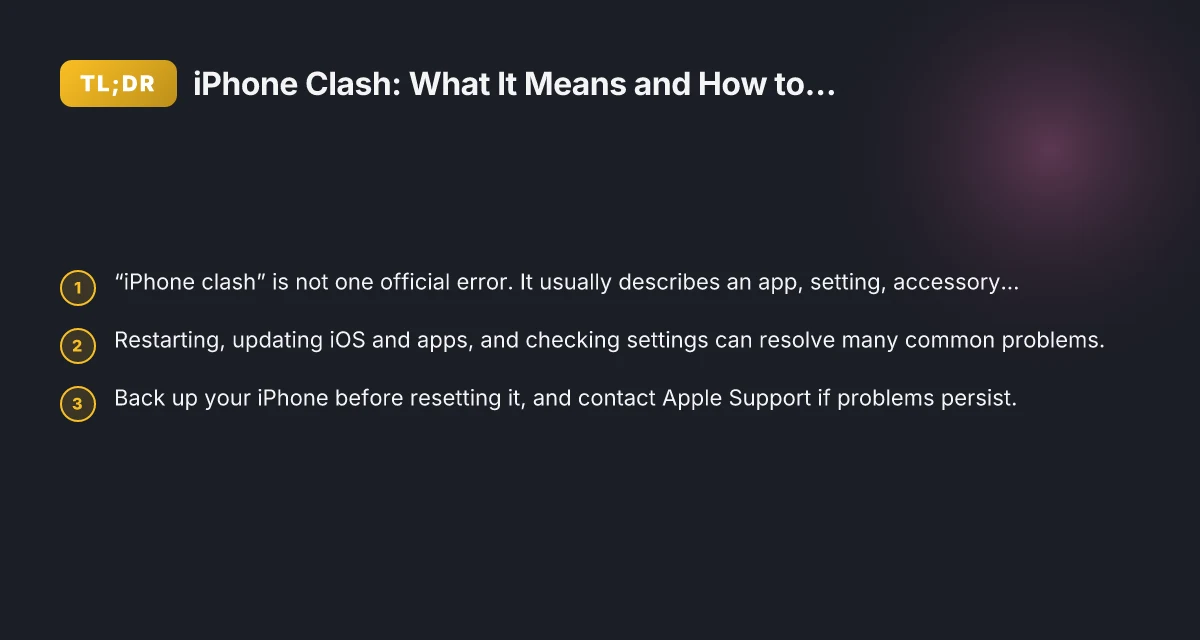
Treat “iPhone clash” as a description, not a diagnosis. Identify whether the issue involves an app, accessory, setting, or the whole device. Then restart, update, and check the relevant settings. Back up before any reset that could affect your data, and seek Apple Support if the problem persists or suggests hardware trouble.