
VPN for PC: How to Choose and Set Up the Right One
Learn what a VPN for PC does, how to choose a trustworthy service, and how to install and use it safely.
A VPN for PC is an app that routes your internet traffic through a VPN provider’s server, encrypting the connection between your computer and that server. It can improve privacy on public Wi-Fi, help prevent your local network from seeing the websites you visit, and let you connect through servers in other regions. To choose one, look for a reputable provider with a clear privacy policy, modern security, reliable performance, and an app that supports your version of Windows.

Editor's pick: NordVPN — fast, secure VPN — Strong encryption, a no-logs policy and apps for every device. 30-day money-back guarantee. Get NordVPN →
Compare VPN features that matter on a PC
| Feature | Why it matters | What to check | Good sign |
|---|---|---|---|
| Windows support | Ensures the app works on your PC | Supported Windows versions | Your version is listed |
| Encryption | Helps protect data in transit | Encryption standards | Modern, clearly documented standards |
| Kill switch | Limits exposure if the VPN disconnects | Whether it is included | Available and enabled |
| DNS leak protection | Helps keep DNS requests private | Whether it is included | Available and tested |
| No-logs policy | Describes what activity the provider records | Policy details and audits | Clear policy with independent review |
| Server locations | Affects available connection choices | Locations and coverage | Locations suit your needs |
| Speed | Affects browsing, calls and downloads | Performance tests | Reliable for your typical use |
| Data limits | Can restrict usage | Plan limits | No limit or enough for your use |
Compiled November 2026; check the provider's site for current details.
| VPN | Obfuscation | From / month | Plan | Free plan | Refund | Alipay | UnionPay | Crypto | Website opens in China | Trustpilot | |
|---|---|---|---|---|---|---|---|---|---|---|---|
 ZoogVPN | Turn on manually Shadow | $2.49/mo | 27 months: $59.99 | Yes | 7 days | ✓ | ✓ | ✓ | ✓ | Official site blocked; our special link opens (4.4 s) | 4.2/5 (195 reviews) |
 NordVPN | Turn on manually Obfuscated Servers / NordWhisper | $3.49/mo | 27 months: $94.23 | No | 30 days | ? | ✗ | ✓ | ✓ | ✗ Blocked | 4.2/5 (51,628 reviews) |
 ExpressVPN | ✓ On by default all servers | $3.00/mo | 28 months: $84 | No | 30 days | ✗ | ✗ | ✓ | ✗ | ✗ Blocked | 4.4/5 (29,706 reviews) |
 Surfshark | ✓ On by default Camouflage, with OpenVPN | See site | See site | No | 30 days | ✗ | ✗ | ✗ | ✓ | ✗ Blocked | 4.3/5 (31,823 reviews) |
 Proton VPN | Turn on manually Stealth, free plan too | $2.99/mo | 12 months: $35.88 | Yes | 30 days | ✗ | ✗ | ✗ | ✓ | ✗ Blocked | 2.1/5 (1,040 reviews) |
 Astrill VPN | Turn on manually StealthVPN / OpenWeb | $12.50/mo | 24 months: $300 | No | See site | ✗ | ✗ | ✗ | ✓ | ✗ Blocked | 1.3/5 (110 reviews) |
 Private Internet Access | Turn on manually Shadowsocks, OpenVPN only | $2.03/mo | 40 months: $81.2 | No | 30 days | ✗ | ✗ | ✗ | ✗ | ✗ Blocked | 4.2/5 (11,033 reviews) |
 CyberGhost | Turn on manually selected servers | $2.19/mo | 28 months: $61.32 | No | 45 days | ✗ | ✗ | ✗ | ✓ | ✗ Blocked | 4.0/5 (24,178 reviews) |
 PureVPN | Turn on manually switch to OpenVPN | $1.69/mo | 60 months: $101.55 | No | 31 days | ? | ? | ✗ | ✓ | ✗ Blocked | 4.4/5 (17,994 reviews) |
 AdGuard VPN | ✓ On by default TrustTunnel | $2.99/mo | 24 months: $71.76 | Yes | 30 days | ✓ | ✗ | ✓ | ✓ | Official site blocked; our special link opens (3.7 s) | 4.3/5 (290 reviews) |
 Mullvad | Turn on manually QUIC / Shadowsocks / LWO | $5.61/mo | €5/mo | No | 14 days | ✗ | ✗ | ✗ | ✓ | ✗ Blocked | 3.2/5 (192 reviews) |
 Windscribe | Turn on manually Stealth / WStunnel | $5.75/mo | 12 months: $69 | Yes | See site | ✗ | ✗ | ✗ | ✓ | ✗ Blocked | 4.7/5 (13,355 reviews) |
 StrongVPN | Turn on manually Scramble, OpenVPN TCP | See site | See site | No | 30 days | ✓ | ✗ | ✗ | ✗ | ✗ Blocked | 4.4/5 (2,695 reviews) |
 LightXtreme 闪连 | Not listed | $7.08/mo | 12 months: $84.99 | Yes | 30 days | ✓ | ✓ | ✓ | ✓ | ✓ Yes (3.5 s) | No page |
Prices checked 2026-11-10 on each vendor's pricing page (cheapest long plan, USD). Check the vendor's checkout for the final price.
Obfuscation checked 2026-11-14 on each vendor's site and help center: "on by default" = nothing to set; "turn on manually" = switch protocol or mode in settings; "not listed" = the vendor describes no obfuscation.
Payment methods checked 2026-11-10 on each vendor's payment pages: all 14 take cards and PayPal; ✗ = not listed, ? = the vendor's own pages disagree.
China access: whether the official website opens from mainland China networks (tests the website only, not the VPN connection). Last checked 2026-11-18 01:02 Beijing time.
Trustpilot score and review count checked 2026-11-10.
What a VPN for PC does
When you connect directly to a website, your internet service provider can generally see the domains you access, while the website can see your public IP address. With a VPN enabled, your PC creates an encrypted tunnel to a VPN server. Your ISP can see that you are connected to a VPN, but the VPN provider handles your traffic onward to its destination.
The website will generally see the VPN server’s IP address rather than your home IP. This can make it harder to link your browsing to your home connection, but it does not make you anonymous. Websites may still identify you through account logins, cookies, browser fingerprinting, or other information.
A VPN can be useful for:
- Protecting traffic from other people on public Wi-Fi networks.
- Reducing what your local network can learn about your browsing.
- Connecting to work or school resources through an organization’s VPN.
- Accessing services while traveling, subject to the service’s rules and regional restrictions.
A VPN does not replace antivirus software, secure passwords, or careful browsing. It also cannot guarantee privacy from the VPN provider itself. OpenVPN Connect Windows: How to Install and Use It
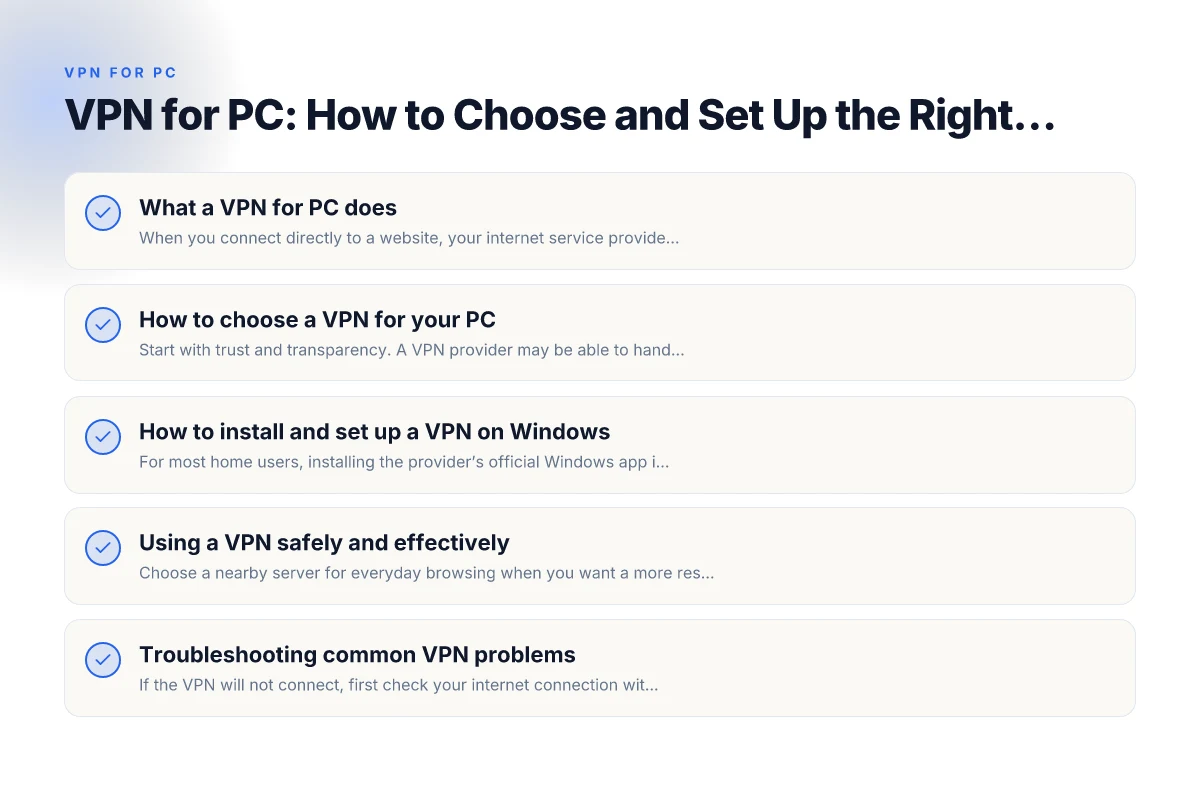
How to choose a VPN for your PC
Start with trust and transparency. A VPN provider may be able to handle sensitive connection data, so understand what it collects, how long it keeps records, and whether it shares information with third parties. Look for a readable privacy policy and credible explanations of the provider’s security practices.
Compare these factors before subscribing:
- Privacy policy: Check what data is collected, including connection logs, usage records, and account details.
- Security: Look for strong encryption, secure VPN protocols, and features such as a kill switch.
- Performance: Speed depends on your internet connection, distance to the server, server load, and VPN protocol.
- Windows support: Confirm the app supports your Windows version and receives regular updates.
- Ease of use: A clear interface makes it easier to choose a server and confirm whether you are connected.
- Price and renewal terms: Review the total cost, subscription length, renewal price, refund policy, and simultaneous-device limit.
- Customer support: Check whether help is available if installation or connectivity fails.
| Option | Typical advantages | Things to consider |
|---|---|---|
| Paid VPN app | Easier setup, broader server choice, and dedicated support may be available | Compare privacy practices, renewal prices, and device limits |
| Free VPN app | No subscription payment | May impose data, speed, or server limits; investigate how it is funded |
| Built-in Windows VPN settings | Useful for connecting to a work, school, or private VPN service | Usually requires you to obtain server details and sign-in information separately |
Be cautious of unfamiliar free VPNs that make sweeping privacy promises. Some free services may rely on advertising, collect data, or offer limited security. Read the provider’s terms and privacy policy rather than assuming “free” means risk-free.
Compare VPN setup options for Windows Proton VPN Free: What You Get and Whether It’s Worth Using
| Setup option | How it works | Best suited to | Considerations |
|---|---|---|---|
| Provider app | Install the VPN’s Windows application | Most PC users | Check the app’s permissions and settings |
| Windows built-in VPN | Enter connection details in Windows settings | Users with compatible VPN credentials | May require manual configuration |
| Router setup | Configure the VPN on a compatible router | Protecting multiple devices | Requires router support and setup |
| Browser extension | Route supported browser traffic through an extension | Browser-only use | Usually does not cover other PC apps |
| Automatic connection | Connect when Windows starts or an unsafe network is detected | Frequent or on-the-go use | Confirm when it activates |
| Manual connection | Connect only when needed | Occasional use | Easy to forget to turn on |
| Nearby server | Choose a close server location | Everyday browsing and calls | Often a practical starting point |
| Specific-location server | Choose a server in a needed location | Location-specific access | Check provider availability and service rules |
Compiled November 2026; check the provider's site for current details.
How to install and set up a VPN on Windows
For most home users, installing the provider’s official Windows app is the simplest option. Use the provider’s official website or a trusted app store, and avoid download links from ads, pop-ups, or unofficial software sites.
A typical setup looks like this:
- Choose a VPN provider and create an account.
- Download its Windows app from an official source.
- Install the app and sign in.
- Review the app’s privacy and security settings.
- Select a server or use the automatic connection option.
- Click Connect and check that the app confirms the connection.
Turn on the kill switch if you want the app to block internet access when the VPN connection unexpectedly drops. Some providers also offer automatic connection on public Wi-Fi. These settings can improve protection, though they may interrupt your internet access if the VPN disconnects. VPN Extension Free Edge Download: How to Choose and Install One
Windows also includes settings for connecting to certain VPN services. You may need the VPN provider’s server address, connection type, and sign-in details. This approach is often used for workplace or school access. It is not a VPN service by itself. Follow the setup instructions supplied by your organization or provider.
Using a VPN safely and effectively
Choose a nearby server for everyday browsing when you want a more responsive connection. A server farther away can increase delay, and busy servers may reduce speed. If a site or app works poorly, try another server or protocol offered by your provider.
Keep the VPN app and Windows updated. Check the app when you start sensitive browsing to make sure it is connected, and avoid entering account credentials on pages that look suspicious. A VPN can encrypt the connection to its server, but it cannot make a fake website safe.
Keep in mind that a VPN’s privacy benefits have limits: VPN for Edge Free Download: Safe Ways to Get Started
- The VPN provider can see some information about your connection, depending on its setup and what you do online.
- Websites may still track you through cookies, accounts, and browser data.
- A VPN does not prevent malware, phishing, or unsafe downloads.
- It does not guarantee access to every streaming service or region-restricted site.
- It may not hide your activity from an employer or school on a device they manage.
If you use a work or school computer, check the organization’s policies before installing a personal VPN. Managed devices may have restrictions or an existing VPN configuration.
Troubleshoot common VPN problems on a PC
| Problem | First check | Try next | If it continues |
|---|---|---|---|
| VPN will not connect | Check internet access and credentials | Select another server | Review the provider’s status or support |
| Connection keeps dropping | Check Wi-Fi or Ethernet stability | Try another protocol or server | Update the app and contact support |
| Slow connection | Check your baseline internet speed | Choose a nearby server | Test another protocol or time |
| Websites will not load | Check whether the VPN is connected | Switch servers or DNS settings | Restart the browser and VPN app |
| Some apps cannot connect | Check app and firewall permissions | Try another server or protocol | Ask the provider about app compatibility |
| VPN appears connected, but IP looks unchanged | Confirm the active VPN connection | Reconnect and check for leaks | Use the provider’s troubleshooting guidance |
| VPN app will not open | Restart the PC | Update or reinstall the app | Check Windows compatibility and support |
| VPN disconnects on sleep | Review Windows power settings | Enable automatic reconnection | Check the app’s connection settings |
Compiled November 2026; check the provider's site for current details.
Troubleshooting common VPN problems
If the VPN will not connect, first check your internet connection without the VPN. Restart the app, try a different server, and install any available app updates. If you are on a restricted network, such as a hotel or office connection, it may block some VPN connections. VPN for Edge Extension Free: Best Options and How to Choose
If browsing becomes slow, switch to a nearby server and close apps using significant bandwidth. A VPN usually adds some overhead because traffic travels through an extra server, so a small speed reduction is normal. If performance remains poor, contact the provider’s support team.
If a website behaves unexpectedly while the VPN is on, try another server. Some sites block known VPN addresses or may show content based on the server’s location. Disconnecting can help diagnose the issue, but consider whether you need the VPN’s protection before doing so.
Recommendation
For a VPN for PC, choose a well-reviewed provider with a transparent privacy policy, strong security features, an actively maintained Windows app, and pricing you understand. Install it from an official source, enable the kill switch if it suits your needs, and test a nearby server. Treat the VPN as one layer of online privacy, not a substitute for secure browsing, updated software, and strong account security.