VPN Free for Edge: Best Options, Benefits, and Safety Tips
Find a free VPN for Microsoft Edge, compare browser extensions with full-device apps, and learn how to choose a safer option.


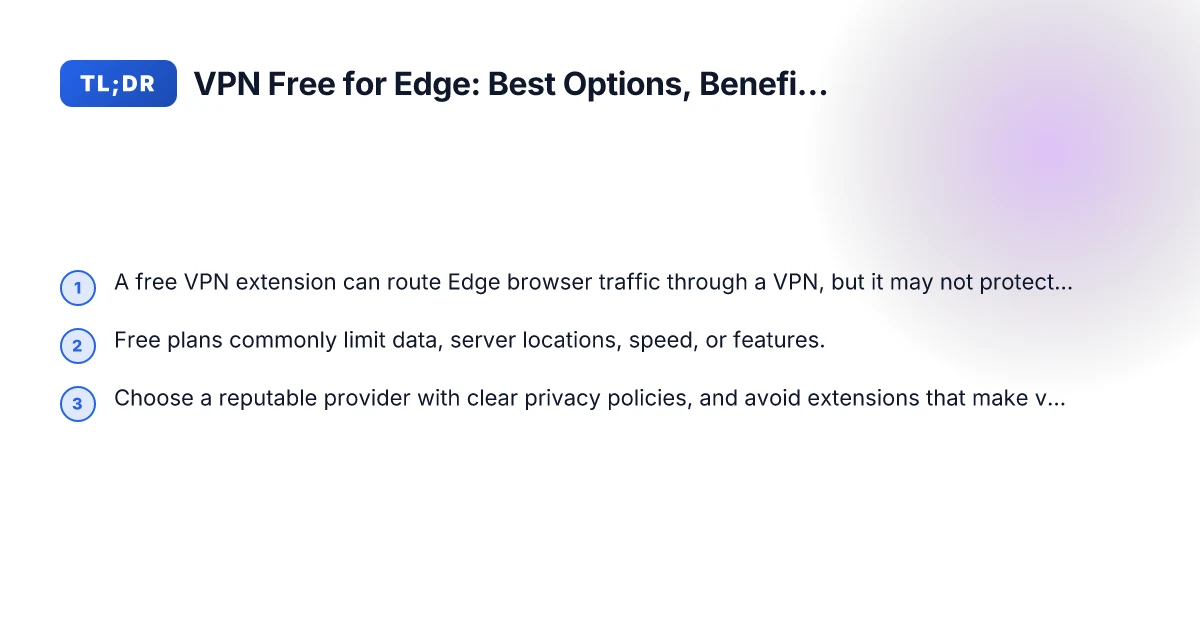
If you’re looking for a VPN free for Edge, start with a reputable VPN provider that offers an official Microsoft Edge extension or a free VPN plan. An Edge extension can protect traffic from the browser, while a VPN app usually covers your whole device. Free options can be useful for occasional browsing, but check their data limits, privacy practices, and coverage before installing one.

Editor's pick: NordVPN — fast, secure VPN — Strong encryption, a no-logs policy and apps for every device. 30-day money-back guarantee. Get NordVPN →
Comparing free VPN options for Microsoft Edge
| Option | Runs in Edge | Covers other apps | Setup | Main trade-off |
|---|---|---|---|---|
| Browser VPN extension | Yes | No | Add to Edge | Browser traffic only |
| VPN desktop app | Yes, through system connection | Yes | Install the app | More setup steps |
| Built-in proxy extension | Yes | No | Add and configure | May not encrypt traffic |
| Free VPN with account | Yes, if Edge extension is offered | Depends on option | Create an account | May have usage limits |
| VPN with no account | Yes, if extension is offered | Depends on option | Install and connect | Check privacy policy |
| Paid VPN free trial | Yes, if Edge support is offered | Often, through app | Start a trial | May require payment details |
Compiled November 2026; check the provider's site for current details.
| VPN | Obfuscation | From / month | Plan | Free plan | Refund | Alipay | UnionPay | Crypto | Website opens in China | Trustpilot | |
|---|---|---|---|---|---|---|---|---|---|---|---|
 ZoogVPN | Turn on manually Shadow | $2.49/mo | 27 months: $59.99 | Yes | 7 days | ✓ | ✓ | ✓ | ✓ | Official site blocked; our special link opens (4.4 s) | 4.2/5 (195 reviews) |
 NordVPN | Turn on manually Obfuscated Servers / NordWhisper | $3.49/mo | 27 months: $94.23 | No | 30 days | ? | ✗ | ✓ | ✓ | ✗ Blocked | 4.2/5 (51,628 reviews) |
 ExpressVPN | ✓ On by default all servers | $3.00/mo | 28 months: $84 | No | 30 days | ✗ | ✗ | ✓ | ✗ | ✗ Blocked | 4.4/5 (29,706 reviews) |
 Surfshark | ✓ On by default Camouflage, with OpenVPN | See site | See site | No | 30 days | ✗ | ✗ | ✗ | ✓ | ✗ Blocked | 4.3/5 (31,823 reviews) |
 Proton VPN | Turn on manually Stealth, free plan too | $2.99/mo | 12 months: $35.88 | Yes | 30 days | ✗ | ✗ | ✗ | ✓ | ✗ Blocked | 2.1/5 (1,040 reviews) |
 Astrill VPN | Turn on manually StealthVPN / OpenWeb | $12.50/mo | 24 months: $300 | No | See site | ✗ | ✗ | ✗ | ✓ | ✗ Blocked | 1.3/5 (110 reviews) |
 Private Internet Access | Turn on manually Shadowsocks, OpenVPN only | $2.03/mo | 40 months: $81.2 | No | 30 days | ✗ | ✗ | ✗ | ✗ | ✗ Blocked | 4.2/5 (11,033 reviews) |
 CyberGhost | Turn on manually selected servers | $2.19/mo | 28 months: $61.32 | No | 45 days | ✗ | ✗ | ✗ | ✓ | ✗ Blocked | 4.0/5 (24,178 reviews) |
 PureVPN | Turn on manually switch to OpenVPN | $1.69/mo | 60 months: $101.55 | No | 31 days | ? | ? | ✗ | ✓ | ✗ Blocked | 4.4/5 (17,994 reviews) |
 AdGuard VPN | ✓ On by default TrustTunnel | $2.99/mo | 24 months: $71.76 | Yes | 30 days | ✓ | ✗ | ✓ | ✓ | Official site blocked; our special link opens (3.7 s) | 4.3/5 (290 reviews) |
 Mullvad | Turn on manually QUIC / Shadowsocks / LWO | $5.61/mo | €5/mo | No | 14 days | ✗ | ✗ | ✗ | ✓ | ✗ Blocked | 3.2/5 (192 reviews) |
 Windscribe | Turn on manually Stealth / WStunnel | $5.75/mo | 12 months: $69 | Yes | See site | ✗ | ✗ | ✗ | ✓ | ✗ Blocked | 4.7/5 (13,355 reviews) |
 StrongVPN | Turn on manually Scramble, OpenVPN TCP | See site | See site | No | 30 days | ✓ | ✗ | ✗ | ✗ | ✗ Blocked | 4.4/5 (2,695 reviews) |
 LightXtreme 闪连 | Not listed | $7.08/mo | 12 months: $84.99 | Yes | 30 days | ✓ | ✓ | ✓ | ✓ | ✓ Yes (3.5 s) | No page |
Prices checked 2026-11-10 on each vendor's pricing page (cheapest long plan, USD). Check the vendor's checkout for the final price.
Obfuscation checked 2026-11-14 on each vendor's site and help center: "on by default" = nothing to set; "turn on manually" = switch protocol or mode in settings; "not listed" = the vendor describes no obfuscation.
Payment methods checked 2026-11-10 on each vendor's payment pages: all 14 take cards and PayPal; ✗ = not listed, ? = the vendor's own pages disagree.
China access: whether the official website opens from mainland China networks (tests the website only, not the VPN connection). Last checked 2026-11-18 01:02 Beijing time.
Trustpilot score and review count checked 2026-11-10.
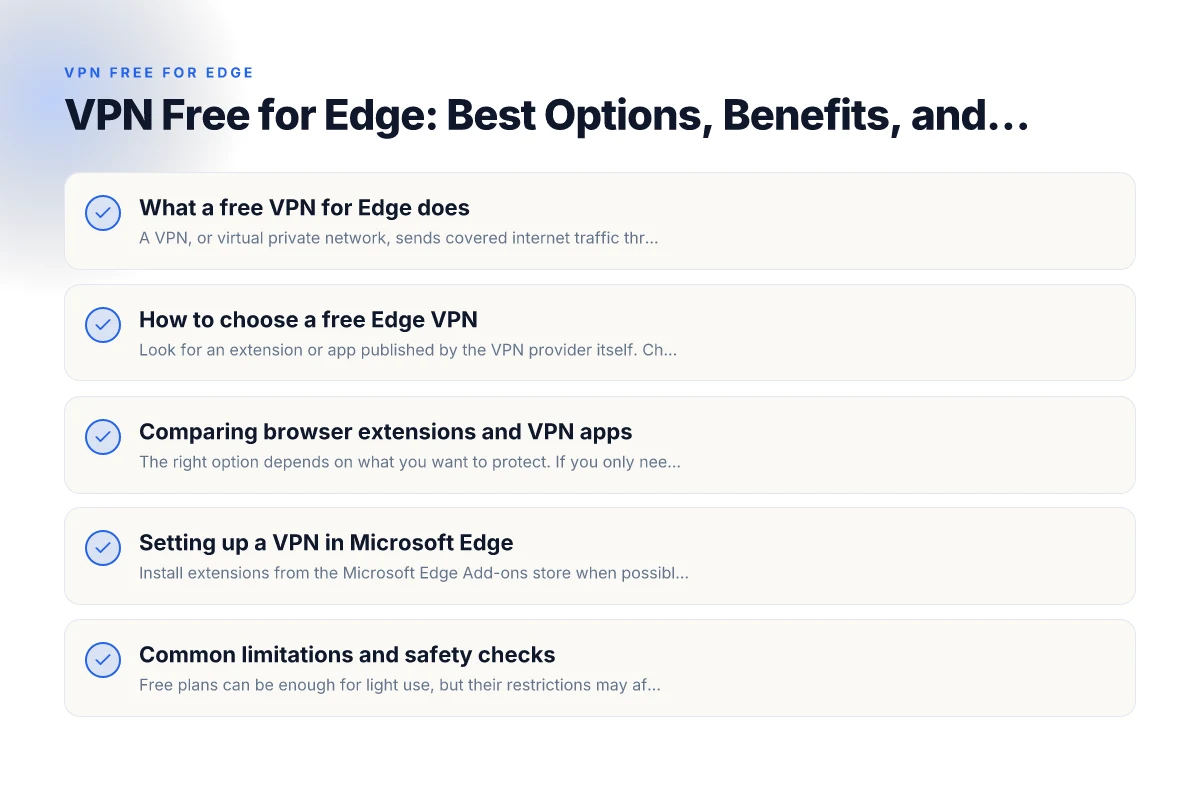
What a free VPN for Edge does
A VPN, or virtual private network, sends covered internet traffic through a VPN server. This can hide your IP address from websites and help protect your connection on public Wi-Fi. Websites and online services may still identify you through cookies, account logins, browser settings, or other signals.
VPNs work in different ways in Edge:
- Browser extension: Usually routes traffic from Edge through the provider’s service. Protection may not extend to other browsers or apps.
- VPN app: Runs on your device and can cover traffic from multiple apps, depending on its settings.
- Proxy extension: May change the apparent location of browser traffic without offering the same encryption or security features as a full VPN. Check exactly what the extension does.
A VPN does not make you completely anonymous, block every threat, or guarantee access to any particular streaming service. It is one privacy tool, not a substitute for safe browsing or account security.
How to choose a free Edge VPN
Look for an extension or app published by the VPN provider itself. Check that the developer name, official website, and privacy policy match. Avoid look-alike extensions with similar names or logos. VPN IPsec: How It Works, Benefits, and When to Use It
Before installing, review:
- Privacy policy: Find out what connection or usage data the provider collects, how long it keeps it, and whether it shares it.
- Free-plan limits: Check data allowances, available locations, speed restrictions, and whether the free plan expires.
- Coverage: Confirm whether you are installing an Edge extension, a full-device VPN app, or a proxy.
- Security details: Look for clear information about encryption, connection protection, and how the service handles failures.
- Permissions: Make sure requested access makes sense for the extension’s stated purpose.
- Support and updates: Prefer an established provider that maintains its software and explains how to get help.
“Free” does not necessarily mean unsafe, but a provider still needs a way to pay for its service. Understand the business model rather than assuming the service has no cost or trade-offs.
How to choose a free Edge VPN
| Check | Good sign | Warning sign | Why it matters |
|---|---|---|---|
| Privacy policy | Clear data practices | Vague or missing policy | Shows how data is handled |
| Encryption | Encryption is explained | No encryption details | Helps protect traffic |
| Permissions | Only needed access | Broad, unexplained access | Limits exposure |
| Data limits | Limits are stated clearly | Limits are hidden | Avoids unexpected restrictions |
| Server locations | Locations are listed | No location details | Helps assess connection choices |
| Ownership | Provider is identifiable | Unknown operator | Supports accountability |
| Independent reviews | Credible security checks | Unsupported safety claims | Adds evidence beyond marketing |
Compiled November 2026; check the provider's site for current details. 365VPN: Features, Platforms, and What to Check Before You Connect
Comparing browser extensions and VPN apps
The right option depends on what you want to protect. If you only need to route browser traffic, an Edge extension may be convenient. If you want broader coverage, consider a VPN app and check which apps it protects.
| Option | Typical coverage | Common trade-offs | Best suited to |
|---|---|---|---|
| Free Edge extension | Edge browser traffic | May have data, location, or speed limits | Occasional browsing in Edge |
| Free VPN app | Potentially multiple device apps | Free plans may limit data, servers, or features | Basic protection beyond the browser |
| Paid VPN plan | Depends on the app and settings | Requires a subscription | Regular use and more plan features |
Coverage varies by provider, so read the product details before relying on a particular setup. A browser extension should not be assumed to protect other apps, and an installed VPN app may require you to connect or enable specific settings.
Setting up a VPN in Microsoft Edge
Install extensions from the Microsoft Edge Add-ons store when possible, or follow the VPN provider’s official instructions. Avoid downloading installation files from unverified sites.
To get started: TunnelBear Extension: What It Does, How to Use It, and What to Know
- Confirm the extension is published by the provider you chose.
- Read its listing and privacy policy, including the permissions it requests.
- Install it and sign in or create an account if required.
- Connect to a server location offered on the free plan.
- Check the extension’s status before browsing.
- If you need protection outside Edge, install the provider’s official VPN app and review its connection settings.
You can remove an extension from Edge’s extensions menu if you no longer want it. If an extension requests access that seems unrelated to its purpose, pause and verify the request with the provider before proceeding.
Browser extension or VPN app?
| Feature | Edge extension | VPN app |
|---|---|---|
| Traffic covered | Usually Edge traffic | Device traffic |
| Works outside Edge | No | Yes |
| Setup location | Edge Add-ons or provider site | Provider website or app store |
| Connection control | Usually in the browser | Usually in the app |
| Other apps protected | No | Yes |
| Best suited for | Browser-only use | Whole-device protection |
| Safety check | Review permissions and publisher | Review provider and privacy policy |
| Common limitation | May be a proxy, not a full VPN | Free plan may limit use |
Compiled November 2026; check the provider's site for current details.
Common limitations and safety checks
Free plans can be enough for light use, but their restrictions may affect everyday browsing. Data caps can run out quickly when streaming or downloading. A smaller server selection can also mean fewer location choices, while busy free servers may feel slower. Clash for iPad: How to Install and Use It Safely
Keep these points in mind:
- A VPN is not antivirus software. It does not automatically detect malware or make unsafe downloads harmless.
- A VPN does not defeat every tracking method. Cookies, signed-in accounts, and browser fingerprinting can still reveal information.
- Location changes are not guaranteed to work everywhere. Websites and services may restrict access, and their rules can change.
- Public Wi-Fi still requires caution. Use secure websites, avoid suspicious links, and enable multifactor authentication where available.
- Check for leaks if privacy is important. A trustworthy provider should explain how to verify that your connection is using its VPN service.
If a free VPN asks you to disable security protections, install software from an unknown source, or share unnecessary personal information, choose another option.
Recommendation
For occasional browsing, choose a well-established provider’s official free Edge extension and confirm that it clearly explains its limits and data practices. If you need protection for more than Edge, use a reputable VPN app instead and check its coverage. When a free plan’s restrictions or privacy terms do not meet your needs, compare paid plans rather than taking a risk on an unfamiliar extension.