Why Doesn’t My VPN Switch to Those Local TV Stations?
Learn why a VPN may not unlock local TV channels and what to check before choosing another way to watch.
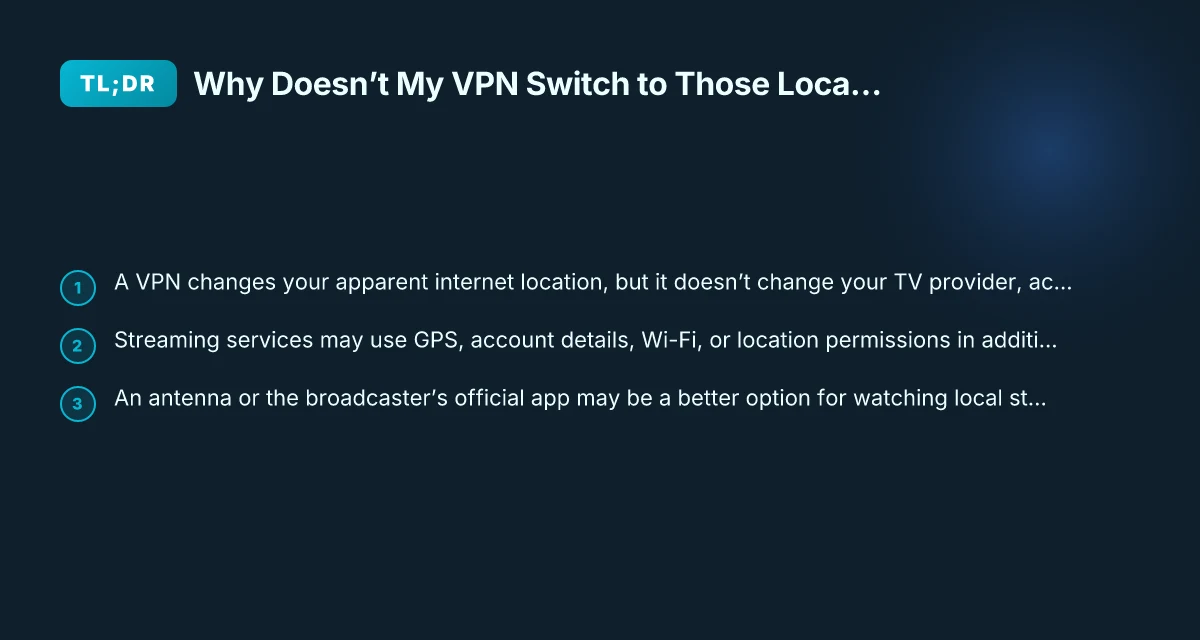
If you’re wondering, “why doesn’t my VPN switch to those local TV stations?” the short answer is that a VPN changes the location your internet connection appears to come from, but it doesn’t automatically change your streaming account’s location, unlock local channels, or replace a TV subscription. Local stations are usually available only through services that carry them in the relevant market, and those services may check more than your IP address.

Editor's pick: NordVPN — fast, secure VPN — Strong encryption, a no-logs policy and apps for every device. 30-day money-back guarantee. Get NordVPN →
What a VPN can and can’t change
| Factor | VPN can change it? | What may still matter | What to check |
|---|---|---|---|
| Public IP address | Yes | Streaming service rules | VPN connection status |
| Apparent network location | Yes | Other location signals | VPN server location |
| GPS location | No | Device location access | Location permissions |
| Home address on account | No | Account settings | Profile details |
| Billing country | No | Payment information | Account billing |
| Local station availability | Not by itself | Service and plan | Channel lineup |
| Blackout restrictions | Not necessarily | Service restrictions | Local blackout rules |
| Device location settings | No | App and device permissions | Location access |
Compiled November 2026; check the provider's site for current details.
| VPN | Obfuscation | From / month | Plan | Free plan | Refund | Alipay | UnionPay | Crypto | Website opens in China | Trustpilot | |
|---|---|---|---|---|---|---|---|---|---|---|---|
 ZoogVPN | Turn on manually Shadow | $2.49/mo | 27 months: $59.99 | Yes | 7 days | ✓ | ✓ | ✓ | ✓ | Official site blocked; our special link opens (4.4 s) | 4.2/5 (195 reviews) |
 NordVPN | Turn on manually Obfuscated Servers / NordWhisper | $3.49/mo | 27 months: $94.23 | No | 30 days | ? | ✗ | ✓ | ✓ | ✗ Blocked | 4.2/5 (51,628 reviews) |
 ExpressVPN | ✓ On by default all servers | $3.00/mo | 28 months: $84 | No | 30 days | ✗ | ✗ | ✓ | ✗ | ✗ Blocked | 4.4/5 (29,706 reviews) |
 Surfshark | ✓ On by default Camouflage, with OpenVPN | See site | See site | No | 30 days | ✗ | ✗ | ✗ | ✓ | ✗ Blocked | 4.3/5 (31,823 reviews) |
 Proton VPN | Turn on manually Stealth, free plan too | $2.99/mo | 12 months: $35.88 | Yes | 30 days | ✗ | ✗ | ✗ | ✓ | ✗ Blocked | 2.1/5 (1,040 reviews) |
 Astrill VPN | Turn on manually StealthVPN / OpenWeb | $12.50/mo | 24 months: $300 | No | See site | ✗ | ✗ | ✗ | ✓ | ✗ Blocked | 1.3/5 (110 reviews) |
 Private Internet Access | Turn on manually Shadowsocks, OpenVPN only | $2.03/mo | 40 months: $81.2 | No | 30 days | ✗ | ✗ | ✗ | ✗ | ✗ Blocked | 4.2/5 (11,033 reviews) |
 CyberGhost | Turn on manually selected servers | $2.19/mo | 28 months: $61.32 | No | 45 days | ✗ | ✗ | ✗ | ✓ | ✗ Blocked | 4.0/5 (24,178 reviews) |
 PureVPN | Turn on manually switch to OpenVPN | $1.69/mo | 60 months: $101.55 | No | 31 days | ? | ? | ✗ | ✓ | ✗ Blocked | 4.4/5 (17,994 reviews) |
 AdGuard VPN | ✓ On by default TrustTunnel | $2.99/mo | 24 months: $71.76 | Yes | 30 days | ✓ | ✗ | ✓ | ✓ | Official site blocked; our special link opens (3.7 s) | 4.3/5 (290 reviews) |
 Mullvad | Turn on manually QUIC / Shadowsocks / LWO | $5.61/mo | €5/mo | No | 14 days | ✗ | ✗ | ✗ | ✓ | ✗ Blocked | 3.2/5 (192 reviews) |
 Windscribe | Turn on manually Stealth / WStunnel | $5.75/mo | 12 months: $69 | Yes | See site | ✗ | ✗ | ✗ | ✓ | ✗ Blocked | 4.7/5 (13,355 reviews) |
 StrongVPN | Turn on manually Scramble, OpenVPN TCP | See site | See site | No | 30 days | ✓ | ✗ | ✗ | ✗ | ✗ Blocked | 4.4/5 (2,695 reviews) |
 LightXtreme 闪连 | Not listed | $7.08/mo | 12 months: $84.99 | Yes | 30 days | ✓ | ✓ | ✓ | ✓ | ✓ Yes (3.5 s) | No page |
Prices checked 2026-11-10 on each vendor's pricing page (cheapest long plan, USD). Check the vendor's checkout for the final price.
Obfuscation checked 2026-11-14 on each vendor's site and help center: "on by default" = nothing to set; "turn on manually" = switch protocol or mode in settings; "not listed" = the vendor describes no obfuscation.
Payment methods checked 2026-11-10 on each vendor's payment pages: all 14 take cards and PayPal; ✗ = not listed, ? = the vendor's own pages disagree.
China access: whether the official website opens from mainland China networks (tests the website only, not the VPN connection). Last checked 2026-11-18 01:02 Beijing time.
Trustpilot score and review count checked 2026-11-10.
What a VPN can, and can’t, change
A VPN routes your internet traffic through a server in another location. A streaming service may therefore see the VPN server’s IP address instead of your home IP address. That can affect which content appears, but it is only one part of how a service determines what you can watch.
A VPN generally cannot:
- Add a local station to a service that doesn’t carry it.
- Change the home location saved to your TV provider or streaming account.
- Supply a subscription, channel package, or viewing rights you don’t have.
- Change the location of a broadcast antenna or guarantee reception.
Local TV availability is often determined by broadcast markets. A station’s online stream or a live-TV service may be licensed to show its programs only in certain areas. Even if your VPN server is in the station’s market, the service may still use other information to determine your eligibility.
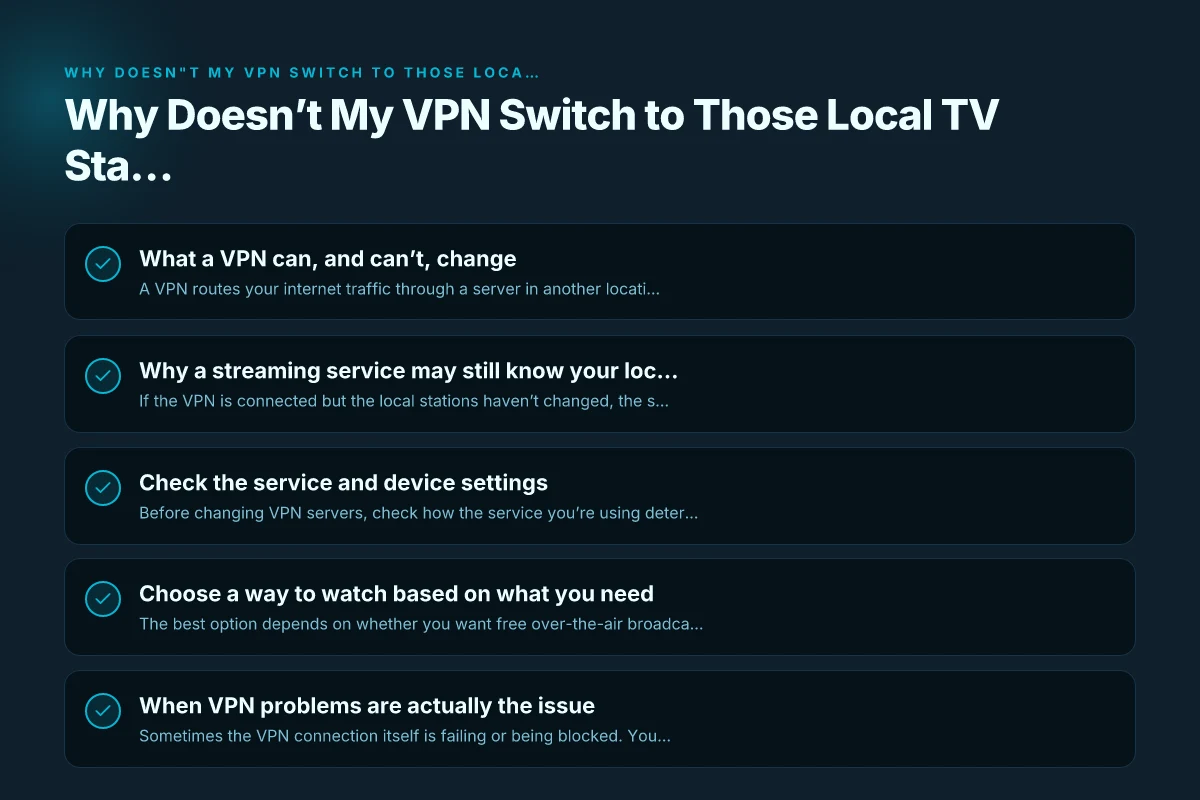
Why a streaming service may still know your location
If the VPN is connected but the local stations haven’t changed, the service may be checking signals beyond your IP address. Common examples include: Free VPN for PC: Safe Options, Limits, and How to Choose
- Account home location: Live-TV services often tie local channels to the home address or ZIP code on your account.
- Device location: A phone or tablet may share GPS or location-permission data with an app.
- Wi-Fi and network details: Some services use network information to confirm a home network or enforce household rules.
- Billing information: Your payment method or account address may be associated with a particular region.
- VPN detection: Streaming platforms sometimes identify IP addresses commonly used by VPNs and block them, show an error, or display limited content.
- App or browser data: Cached location details may remain after you connect to a VPN or update account settings.
The result varies by service and device. One app might use your IP address, while another relies on the home location registered to your subscription. A VPN can’t ensure that every service will treat you as being in the VPN server’s area.
Check the service and device settings
Before changing VPN servers, check how the service you’re using determines local-channel access. Its help pages can explain whether local stations depend on your billing ZIP code, a home location, device permissions, or a provider login.
You can also try these ordinary troubleshooting steps:
- Confirm that the VPN is connected and that the app or browser is using the connection.
- Check the streaming account’s home address or ZIP code for accuracy.
- Review the app’s location permissions, especially on mobile devices.
- Restart the app or device after making permitted settings changes.
- Contact the streaming service if your account should include the station but it doesn’t appear.
If you’re traveling, your service may offer a specific travel or out-of-home viewing option. Check its terms rather than assuming a VPN will reproduce your home setup. Using a VPN to bypass a service’s location rules may violate its terms, and the service could restrict playback or access. IPsec Port: Which Ports and Protocols Does IPsec Use?
Why a streaming service may still know your location
| Possible signal | What it can indicate | Where to check | Possible next step |
|---|---|---|---|
| GPS location | Device’s physical location | Device settings | Review app location access |
| Account address | Registered home market | Service account | Check profile details |
| Billing information | Billing region | Payment settings | Verify billing details |
| App permissions | Access to location data | Device settings | Adjust permissions if appropriate |
| Browser permissions | Location shared with site | Browser settings | Review site permissions |
| VPN connection | Apparent network location | VPN app | Confirm the intended server |
| Service rules | Eligible channels or market | Service help pages | Check availability and restrictions |
Compiled November 2026; check the provider's site for current details.
Choose a way to watch based on what you need
The best option depends on whether you want free over-the-air broadcasts, local news, or a particular live-TV package. These approaches work differently:
| Option | What it may provide | Main limitation |
|---|---|---|
| Indoor or outdoor antenna | Free broadcast channels within reception range | Signal strength, terrain, distance, and antenna placement matter |
| Broadcaster’s official app or website | News, clips, and sometimes live local programming | Live streams and full programs may be limited by market or rights |
| Live-TV streaming service | Local channels included in your area and package | Availability, price, account location, and travel rules vary |
| Cable or satellite provider | Channels included in your subscription | Requires an eligible service and may have location or device restrictions |
| VPN | A different apparent internet IP location | Doesn’t add channels or override every location check |
For dependable local broadcasts, an antenna is often the simplest first option if the stations’ signals reach your home. You can check local reception information and try repositioning the antenna before buying a more powerful model. For local headlines, a station’s website or app may offer live newscasts, clips, or weather updates even when full-time streaming isn’t available. VPN Country Changer Free: How to Change Your Virtual Location Safely
If you want local channels through an online TV service, verify its channel lineup for your actual home market before subscribing. Availability can differ by ZIP code, and a service may carry one network in your area but not another.
When VPN problems are actually the issue
Sometimes the VPN connection itself is failing or being blocked. You may see a playback error, buffering, or a message that content is unavailable. These symptoms don’t necessarily mean the VPN is connected to the wrong place. The platform may simply recognize the VPN’s server address or have an outage.
Try disconnecting and reconnecting the VPN, updating the app, or testing the stream without the VPN if your location and the service’s rules allow it. If the station works without the VPN but not with it, that suggests the service is treating the VPN connection differently. It doesn’t mean that choosing another server will reliably unlock the station.
Avoid sharing account credentials or installing unofficial streaming apps that promise access to every local channel. They may be unsafe, unreliable, or unauthorized. Free VPN for PC to Change Location: What Works and What to Check
Choose a way to watch based on what you need
| Option | Best for | Local stations? | Main thing to check | When it may not fit |
|---|---|---|---|---|
| Local broadcast antenna | Nearby over-the-air channels | Often, if available | Reception and station coverage | Weak indoor reception |
| Live TV streaming service | Local channels through an app | Depends on market and plan | Local channel lineup | Station not carried locally |
| Cable or satellite TV | A bundled channel lineup | Depends on package | Local stations in your area | Cost or package limits |
| Network app or website | A particular network’s content | Depends on the network | Live stream access | Local live feed unavailable |
| On-demand streaming | Shows after broadcast | Usually not live local news | Titles and release timing | Need for live local coverage |
| VPN with a streaming service | Changing apparent network location | Not guaranteed | Service rules and other location signals | Account or device location still matters |
Compiled November 2026; check the provider's site for current details.
Recommendation
A VPN won’t reliably switch your local TV lineup because local channels depend on broadcast rights, service availability, and account or device location, not just your internet IP address. First check your streaming service’s market and location rules. If you want free local broadcasts, look into an antenna. If you want online access, use a service or broadcaster that officially offers the stations where you live.