Free VPN to Change Location: What to Know Before You Connect
Learn how a free VPN changes your online location, what to check before choosing one, and how to connect safely.


A free VPN to change location can route your internet traffic through a server in another region, making your public IP address appear to come from there. To use one, choose a reputable VPN that offers a free plan and manual server selection, install its official app, select an available location, and connect. The key is to look beyond the word “free”: available countries, privacy practices, and connection limits differ by provider.

Editor's pick: NordVPN — fast, secure VPN — Strong encryption, a no-logs policy and apps for every device. 30-day money-back guarantee. Get NordVPN →
VPN location-changing basics
| Question | What it means | What to check | Limitation |
|---|---|---|---|
| What changes? | The IP address websites see | VPN server location | GPS location may remain unchanged |
| How is location chosen? | By selecting a server | Available countries and cities | Free plans may offer fewer choices |
| Does it change GPS? | Usually no | App location permissions | GPS controls are separate |
| Does it change every app? | Not always | VPN app coverage | Some traffic may be excluded |
| Is the connection protected? | VPN encrypts supported traffic | Encryption and protocol details | Protection depends on the provider |
| Can a site still identify you? | Yes | Cookies and account sign-ins | A VPN does not make you anonymous |
| Can location change affect access? | Yes | Service rules and availability | Sites may block VPN connections |
Compiled November 2026; check the provider's site for current details.
| VPN | Obfuscation | From / month | Plan | Free plan | Refund | Alipay | UnionPay | Crypto | Website opens in China | Trustpilot | |
|---|---|---|---|---|---|---|---|---|---|---|---|
 ZoogVPN | Turn on manually Shadow | $2.49/mo | 27 months: $59.99 | Yes | 7 days | ✓ | ✓ | ✓ | ✓ | Official site blocked; our special link opens (4.4 s) | 4.2/5 (195 reviews) |
 NordVPN | Turn on manually Obfuscated Servers / NordWhisper | $3.49/mo | 27 months: $94.23 | No | 30 days | ? | ✗ | ✓ | ✓ | ✗ Blocked | 4.2/5 (51,628 reviews) |
 ExpressVPN | ✓ On by default all servers | $3.00/mo | 28 months: $84 | No | 30 days | ✗ | ✗ | ✓ | ✗ | ✗ Blocked | 4.4/5 (29,706 reviews) |
 Surfshark | ✓ On by default Camouflage, with OpenVPN | See site | See site | No | 30 days | ✗ | ✗ | ✗ | ✓ | ✗ Blocked | 4.3/5 (31,823 reviews) |
 Proton VPN | Turn on manually Stealth, free plan too | $2.99/mo | 12 months: $35.88 | Yes | 30 days | ✗ | ✗ | ✗ | ✓ | ✗ Blocked | 2.1/5 (1,040 reviews) |
 Astrill VPN | Turn on manually StealthVPN / OpenWeb | $12.50/mo | 24 months: $300 | No | See site | ✗ | ✗ | ✗ | ✓ | ✗ Blocked | 1.3/5 (110 reviews) |
 Private Internet Access | Turn on manually Shadowsocks, OpenVPN only | $2.03/mo | 40 months: $81.2 | No | 30 days | ✗ | ✗ | ✗ | ✗ | ✗ Blocked | 4.2/5 (11,033 reviews) |
 CyberGhost | Turn on manually selected servers | $2.19/mo | 28 months: $61.32 | No | 45 days | ✗ | ✗ | ✗ | ✓ | ✗ Blocked | 4.0/5 (24,178 reviews) |
 PureVPN | Turn on manually switch to OpenVPN | $1.69/mo | 60 months: $101.55 | No | 31 days | ? | ? | ✗ | ✓ | ✗ Blocked | 4.4/5 (17,994 reviews) |
 AdGuard VPN | ✓ On by default TrustTunnel | $2.99/mo | 24 months: $71.76 | Yes | 30 days | ✓ | ✗ | ✓ | ✓ | Official site blocked; our special link opens (3.7 s) | 4.3/5 (290 reviews) |
 Mullvad | Turn on manually QUIC / Shadowsocks / LWO | $5.61/mo | €5/mo | No | 14 days | ✗ | ✗ | ✗ | ✓ | ✗ Blocked | 3.2/5 (192 reviews) |
 Windscribe | Turn on manually Stealth / WStunnel | $5.75/mo | 12 months: $69 | Yes | See site | ✗ | ✗ | ✗ | ✓ | ✗ Blocked | 4.7/5 (13,355 reviews) |
 StrongVPN | Turn on manually Scramble, OpenVPN TCP | See site | See site | No | 30 days | ✓ | ✗ | ✗ | ✗ | ✗ Blocked | 4.4/5 (2,695 reviews) |
 LightXtreme 闪连 | Not listed | $7.08/mo | 12 months: $84.99 | Yes | 30 days | ✓ | ✓ | ✓ | ✓ | ✓ Yes (3.5 s) | No page |
Prices checked 2026-11-10 on each vendor's pricing page (cheapest long plan, USD). Check the vendor's checkout for the final price.
Obfuscation checked 2026-11-14 on each vendor's site and help center: "on by default" = nothing to set; "turn on manually" = switch protocol or mode in settings; "not listed" = the vendor describes no obfuscation.
Payment methods checked 2026-11-10 on each vendor's payment pages: all 14 take cards and PayPal; ✗ = not listed, ? = the vendor's own pages disagree.
China access: whether the official website opens from mainland China networks (tests the website only, not the VPN connection). Last checked 2026-11-18 01:02 Beijing time.
Trustpilot score and review count checked 2026-11-10.
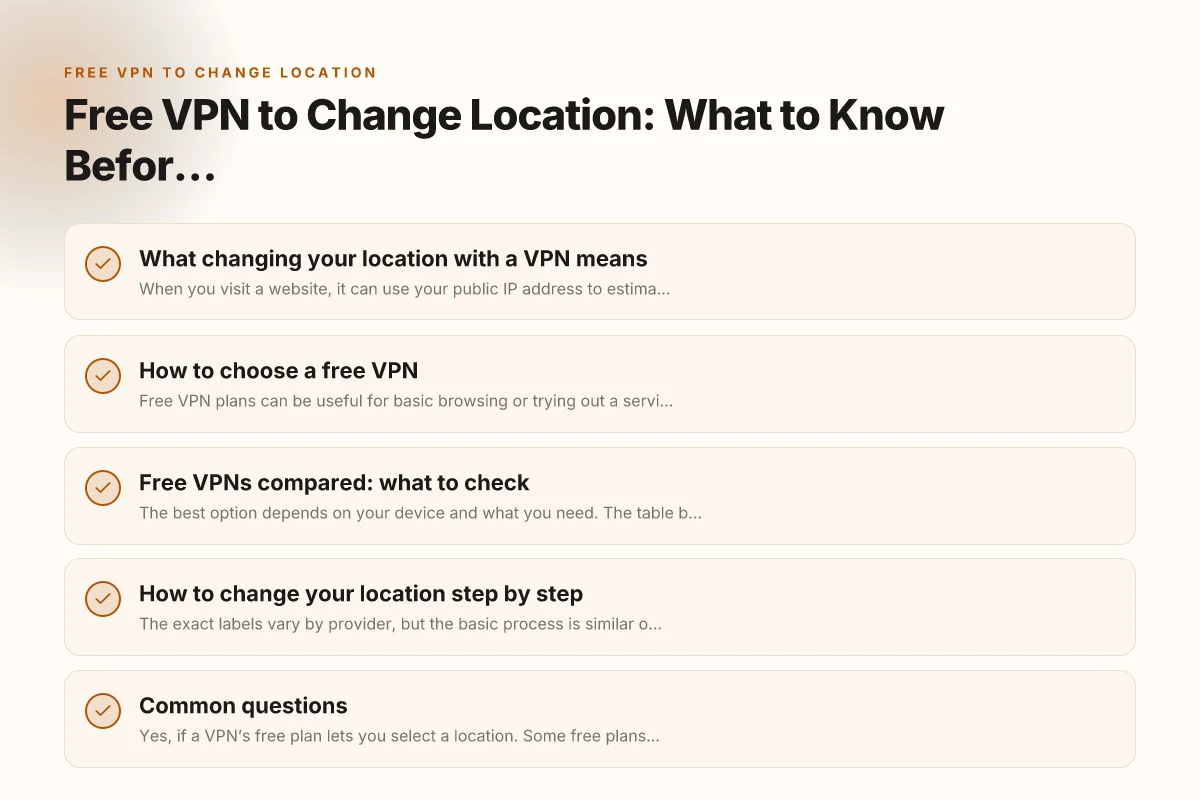
What changing your location with a VPN means
When you visit a website, it can use your public IP address to estimate your location. A VPN creates an encrypted connection between your device and a VPN server. The website generally sees the server’s IP address rather than your usual one, so it may treat your connection as coming from the server’s region.
This changes your apparent online location, not necessarily your physical location. It does not automatically change GPS data, your device’s location settings, or information you share with an app. Some services can use other signals, such as account details, cookies, or GPS permissions, to determine where you are.
A VPN also does not guarantee access to every region-specific service. Websites and streaming platforms may block known VPN addresses or require other location checks.
How to choose a free VPN
Free VPN plans can be useful for basic browsing or trying out a service, but features differ. Search results, for example, include Planet VPN, which advertises six free locations and unlimited traffic. Treat provider claims as a starting point: review the current app details and privacy policy before connecting. Microsoft Edge Menu > Settings > Show Advanced Settings > Change Proxy Settings > LAN Settings
Check these factors before downloading:
- Manual location selection: Confirm that the free plan lets you choose a server or country. Some apps choose a location automatically or reserve manual selection for paid users.
- Privacy policy: Look for clear information about what connection data is collected, how it is used, and whether it is retained.
- Security: Prefer a provider that explains its encryption and connection protections.
- Limits: Check for data caps, slower speeds, waiting periods, or restrictions on free servers.
- Reputation and support: Download from the provider’s official website or your device’s app store, and review recent feedback.
Be cautious of apps that promise unlimited access but provide little information about their operator or data practices. A free VPN still needs a business model, so understand how the service is funded before trusting it with sensitive traffic.
How to compare free VPNs
| Comparison point | What to look for | Why it matters | Warning sign |
|---|---|---|---|
| Server locations | Countries and cities listed | Determines available IP locations | Vague location claims |
| Data allowance | Clear usage limits | Affects how long you can connect | Limits are not explained |
| Speed | Disclosed performance details | Affects browsing and streaming | Unsupported speed promises |
| Privacy policy | Data collection and retention explained | Shows how information is handled | Unclear logging practices |
| Security | Encryption and protocol information | Helps assess connection protection | Missing security details |
| Device support | Compatible operating systems | Confirms it works on your device | Required platform is unsupported |
| Ads and upgrades | How the free plan is funded | Reveals trade-offs and prompts | Costs or ads are obscured |
Compiled November 2026; check the provider's site for current details. NordVPN Download Windows 11: How to Get and Install the App
Free VPNs compared: what to check
The best option depends on your device and what you need. The table below compares common plan features to investigate rather than ranking specific providers.
| Feature | What to look for | Why it matters |
|---|---|---|
| Server selection | A country or server list available on the free tier | You may not be able to choose a specific location otherwise |
| Data allowance | Clear information on limits or unlimited use | Limits can interrupt browsing or downloads |
| Speed and reliability | Recent reviews and a stable connection | Free servers can be busy or less consistent |
| Privacy terms | Plain-language policy and clear data handling | A VPN provider handles your internet traffic |
| App permissions | Only permissions relevant to the service | Unneeded access can expose more device information |
Do not assume that “unlimited” means unrestricted speed, every location, or no other conditions. Read the plan terms and confirm what is currently available in the app.
How to change your location step by step
The exact labels vary by provider, but the basic process is similar on Android, iPhone, Windows, and Mac:
- Choose a VPN provider and read its free-plan and privacy details.
- Install the official app from the provider or your device’s app store.
- Create an account if the service requires one, and review the permissions it requests.
- Open the app and find its server or location list.
- Select an available country or city, if the free plan offers that choice.
- Tap Connect and approve the device’s VPN connection prompt.
- Visit an IP-checking website to see whether your public IP appears to be in the selected region.
If the app disconnects, your traffic may no longer use the VPN. Check whether it offers an automatic reconnect or kill switch, and avoid sensitive activities until the connection is restored. You can disconnect from the app when you no longer need the VPN. Checkpoint VPN: What It Does, How It Works, and Which Client to Use
Location change decision checklist
| Step or question | Action | Check before proceeding | If it does not work |
|---|---|---|---|
| Choose a provider | Review its free plan | Privacy, limits, and locations | Compare another provider |
| Install the app | Use the official app store or site | Confirm the app and publisher | Avoid unofficial downloads |
| Connect | Select a server location | Check free-plan availability | Try another listed server |
| Verify the IP | Use an IP-checking service | Confirm the displayed country | Reconnect or choose another server |
| Check GPS-dependent apps | Review app location permissions | VPNs usually do not change GPS | Use device location settings |
| Test the service | Open the site or app you need | Check its access rules | The service may block VPNs |
| Disconnect safely | Turn off the VPN when finished | Check whether traffic returns to normal | Reconnect if protection is needed |
Compiled November 2026; check the provider's site for current details.
Common questions
Can I change my VPN location for free?
Yes, if a VPN’s free plan lets you select a location. Some free plans offer a limited server list, while others may assign a location automatically. Check the current plan details before installing.
Can a VPN change my Find My location?
Usually, no. A VPN changes your internet-facing IP address, but location-sharing features may rely on your device’s GPS and operating-system location services. A VPN alone does not move your physical or GPS location. Free VPN That Changes Location: What to Know Before You Connect
Will a VPN always make a website think I am in another country?
Not always. The VPN server can change the IP location websites see, but services may also use GPS, account information, cookies, or other signals. Some may block VPN connections, too.
Is a free VPN safe?
It depends on the provider. Review its privacy policy, permissions, security information, and reputation. Avoid assuming that free means private, and do not use an unfamiliar VPN for sensitive activity without understanding how it handles your data.
Recommendation
For a free VPN to change location, choose a provider with a clear privacy policy, reliable app, and manual location selection on its free plan. Verify the connection after choosing a server, remember that a VPN changes IP-based location rather than GPS, and switch providers if the terms or data practices are unclear.