Microsoft Edge Browser Extensions VPN: How to Choose and Use One
Learn how VPN extensions for Microsoft Edge work, what they protect, and how to choose a trustworthy option.


A Microsoft Edge browser extensions VPN is usually a browser add-on that routes Edge traffic through a VPN provider’s servers. It can help protect browsing on public Wi-Fi, mask your apparent IP address from websites, and provide access to region-specific content. However, some extensions are only secure proxies, and many protect only browser activity, not all the connections made by your computer. Choosing a reputable provider and understanding what the extension covers are essential.

Editor's pick: NordVPN — fast, secure VPN — Strong encryption, a no-logs policy and apps for every device. 30-day money-back guarantee. Get NordVPN →
Compare an Edge VPN extension with a full VPN app
| Feature | Edge VPN extension | Full VPN app |
|---|---|---|
| Where it runs | Inside Edge | On the device |
| Browser traffic | Usually supported | Supported |
| Other app traffic | Usually not covered | Usually covered |
| Setup location | Edge add-ons store | Provider’s app |
| Edge integration | Browser controls | Device controls |
| Browser-only use | Often suitable | Also suitable |
| Device-wide use | Not usually suitable | Usually suitable |
Compiled November 2026; check the provider's site for current details.
| VPN | Obfuscation | From / month | Plan | Free plan | Refund | Alipay | UnionPay | Crypto | Website opens in China | Trustpilot | |
|---|---|---|---|---|---|---|---|---|---|---|---|
 ZoogVPN | Turn on manually Shadow | $2.49/mo | 27 months: $59.99 | Yes | 7 days | ✓ | ✓ | ✓ | ✓ | Official site blocked; our special link opens (4.4 s) | 4.2/5 (195 reviews) |
 NordVPN | Turn on manually Obfuscated Servers / NordWhisper | $3.49/mo | 27 months: $94.23 | No | 30 days | ? | ✗ | ✓ | ✓ | ✗ Blocked | 4.2/5 (51,628 reviews) |
 ExpressVPN | ✓ On by default all servers | $3.00/mo | 28 months: $84 | No | 30 days | ✗ | ✗ | ✓ | ✗ | ✗ Blocked | 4.4/5 (29,706 reviews) |
 Surfshark | ✓ On by default Camouflage, with OpenVPN | See site | See site | No | 30 days | ✗ | ✗ | ✗ | ✓ | ✗ Blocked | 4.3/5 (31,823 reviews) |
 Proton VPN | Turn on manually Stealth, free plan too | $2.99/mo | 12 months: $35.88 | Yes | 30 days | ✗ | ✗ | ✗ | ✓ | ✗ Blocked | 2.1/5 (1,040 reviews) |
 Astrill VPN | Turn on manually StealthVPN / OpenWeb | $12.50/mo | 24 months: $300 | No | See site | ✗ | ✗ | ✗ | ✓ | ✗ Blocked | 1.3/5 (110 reviews) |
 Private Internet Access | Turn on manually Shadowsocks, OpenVPN only | $2.03/mo | 40 months: $81.2 | No | 30 days | ✗ | ✗ | ✗ | ✗ | ✗ Blocked | 4.2/5 (11,033 reviews) |
 CyberGhost | Turn on manually selected servers | $2.19/mo | 28 months: $61.32 | No | 45 days | ✗ | ✗ | ✗ | ✓ | ✗ Blocked | 4.0/5 (24,178 reviews) |
 PureVPN | Turn on manually switch to OpenVPN | $1.69/mo | 60 months: $101.55 | No | 31 days | ? | ? | ✗ | ✓ | ✗ Blocked | 4.4/5 (17,994 reviews) |
 AdGuard VPN | ✓ On by default TrustTunnel | $2.99/mo | 24 months: $71.76 | Yes | 30 days | ✓ | ✗ | ✓ | ✓ | Official site blocked; our special link opens (3.7 s) | 4.3/5 (290 reviews) |
 Mullvad | Turn on manually QUIC / Shadowsocks / LWO | $5.61/mo | €5/mo | No | 14 days | ✗ | ✗ | ✗ | ✓ | ✗ Blocked | 3.2/5 (192 reviews) |
 Windscribe | Turn on manually Stealth / WStunnel | $5.75/mo | 12 months: $69 | Yes | See site | ✗ | ✗ | ✗ | ✓ | ✗ Blocked | 4.7/5 (13,355 reviews) |
 StrongVPN | Turn on manually Scramble, OpenVPN TCP | See site | See site | No | 30 days | ✓ | ✗ | ✗ | ✗ | ✗ Blocked | 4.4/5 (2,695 reviews) |
 LightXtreme 闪连 | Not listed | $7.08/mo | 12 months: $84.99 | Yes | 30 days | ✓ | ✓ | ✓ | ✓ | ✓ Yes (3.5 s) | No page |
Prices checked 2026-11-10 on each vendor's pricing page (cheapest long plan, USD). Check the vendor's checkout for the final price.
Obfuscation checked 2026-11-14 on each vendor's site and help center: "on by default" = nothing to set; "turn on manually" = switch protocol or mode in settings; "not listed" = the vendor describes no obfuscation.
Payment methods checked 2026-11-10 on each vendor's payment pages: all 14 take cards and PayPal; ✗ = not listed, ? = the vendor's own pages disagree.
China access: whether the official website opens from mainland China networks (tests the website only, not the VPN connection). Last checked 2026-11-18 01:02 Beijing time.
Trustpilot score and review count checked 2026-11-10.
What a VPN extension for Edge does
A VPN extension adds controls to the browser toolbar. After you install it and connect to a server, the extension directs supported browser traffic through the provider’s network. Websites may then see the server’s IP address rather than the IP address assigned by your internet provider.
Depending on the service, an extension may also offer:
- Server locations in multiple countries
- Automatic connection or rules for selected websites
- Blocking for trackers, ads, or malicious domains
- A kill switch or protection against certain connection leaks
- Settings for protocols, cookies, or browser permissions
Features vary widely. Some extensions provide an encrypted connection to the VPN server. Others act as proxies that change your apparent location but do not encrypt all traffic in the same way. Read the provider’s documentation rather than relying on the word “VPN” in an extension’s name.
A browser extension is not the same as a standalone VPN application. An app typically protects traffic from multiple programs on your device, while an extension generally focuses on browser traffic. The exact scope depends on how the provider implements it. Cisco VPN AnyConnect: Setup, Features, Troubleshooting, and Alternatives
VPN extension vs. full VPN app
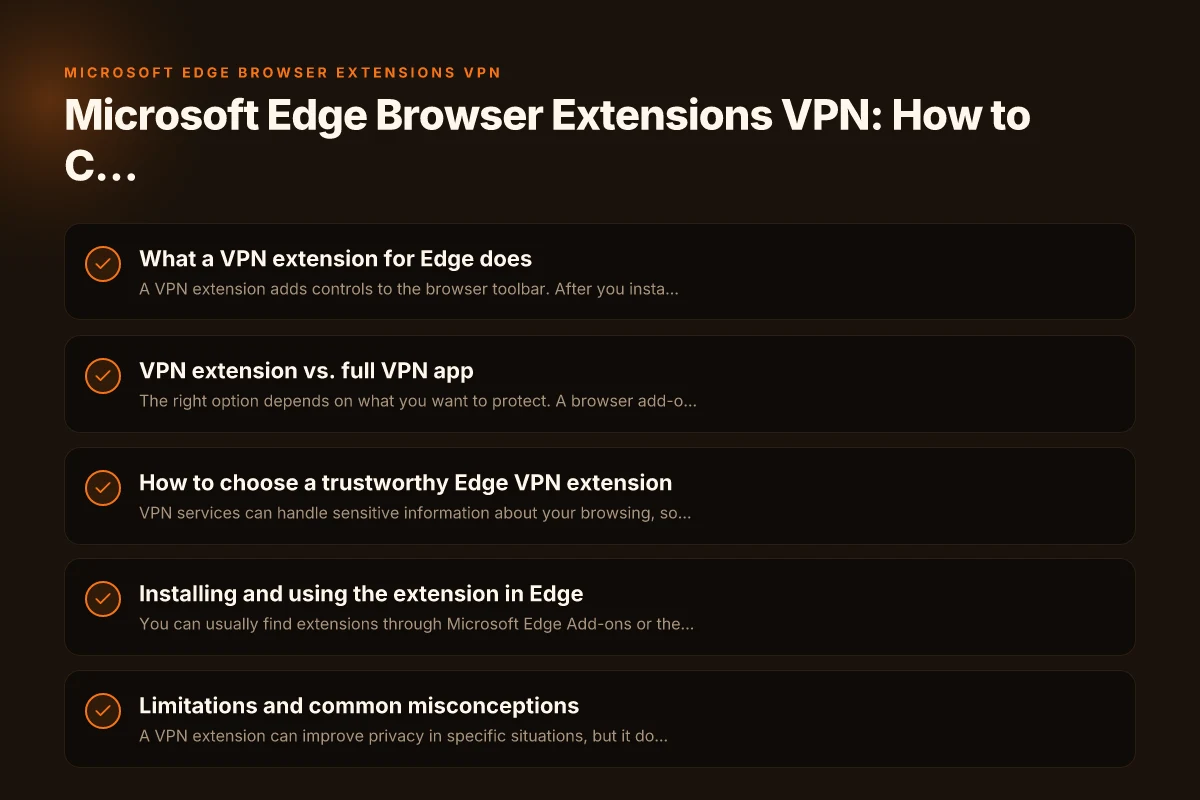
The right option depends on what you want to protect. A browser add-on can be convenient when your main concern is browsing in Edge. A full VPN app is usually the better choice for broader coverage.
| Feature | Edge VPN extension | Full VPN app |
|---|---|---|
| Typical coverage | Browser traffic, sometimes limited to selected sites | Traffic from many or most device apps |
| Setup | Installed and controlled in Edge | Installed and managed on the device |
| Best suited to | Browser-focused privacy and convenience | Device-wide protection on public networks |
| Possible limitation | Other apps may use your regular connection | May require more setup and system permissions |
Do not assume that an extension protects email software, games, cloud-sync tools, or other browsers. If you need those connections covered, check whether the provider offers a full application for your operating system.
How to choose a trustworthy Edge VPN extension
VPN services can handle sensitive information about your browsing, so reputation and transparency matter. Before installing an add-on, consider these points:
- Provider identity: Confirm that the extension is published by the VPN company you intended to use. Be cautious of lookalike names and unclear ownership.
- Privacy policy: Look for a plain explanation of what data is collected, how long it is retained, and whether it is shared with third parties.
- Security details: Check whether the service explains its encryption, connection method, and protection against DNS or IP leaks.
- Independent scrutiny: Look for credible third-party audits, security assessments, or a well-established record of responsible operation. Treat vague claims as a reason to investigate further.
- Permissions: Review what access the extension requests. Browser permissions can be powerful, so make sure they are relevant to the advertised features.
- Business model: Understand how the service pays for its operation. A free option is not automatically unsafe, but unlimited free VPN services may have trade-offs in speed, data limits, advertising, or data practices.
- Support and updates: Check that the extension is maintained and that the provider offers clear support information.
A VPN does not make you anonymous. The provider may be able to see some connection information, and websites can still identify you through account logins, cookies, browser fingerprinting, or other signals. VPN for Microsoft Edge Free: How to Choose a Safe Option
Checklist for choosing an Edge VPN extension
| Check | What to look for | Why it matters | Warning sign |
|---|---|---|---|
| Provider identity | Clear, verifiable company | Helps establish accountability | Unclear ownership |
| Privacy policy | Specific data practices | Shows what may be collected | Vague or missing policy |
| Permissions | Only what the feature needs | Limits access to browser data | Unexplained broad access |
| Security details | Clear protection claims | Helps assess the service | Unsupported guarantees |
| Business model | Transparent pricing or funding | Clarifies how it is sustained | Hidden costs or unclear funding |
| Reviews and updates | Recent activity and feedback | Indicates ongoing maintenance | Long gaps or repeated complaints |
| Support | Clear help channels | Makes problems easier to resolve | No usable support information |
Compiled November 2026; check the provider's site for current details.
Installing and using the extension in Edge
You can usually find extensions through Microsoft Edge Add-ons or the provider’s official website. Use the official listing where possible, and verify the publisher before installing.
A sensible setup process is: Clash Free: How to Prevent Scheduling Conflicts
- Choose a provider and read its privacy and service terms.
- Install the extension from a trusted source.
- Review the requested permissions before approving them.
- Sign in or create an account if the service requires one.
- Connect to a suitable server and confirm that the extension shows an active connection.
- Check the provider’s guidance for testing your IP address and DNS settings.
Keep the extension and Edge updated. If the service includes an automatic-connect option, decide whether you want it enabled, especially when using unfamiliar Wi-Fi networks. When troubleshooting, disconnect and reconnect, try another server, or consult the provider’s support pages. Avoid installing several VPN extensions at once, since they can conflict or make it unclear which connection is active.
Limitations and common misconceptions
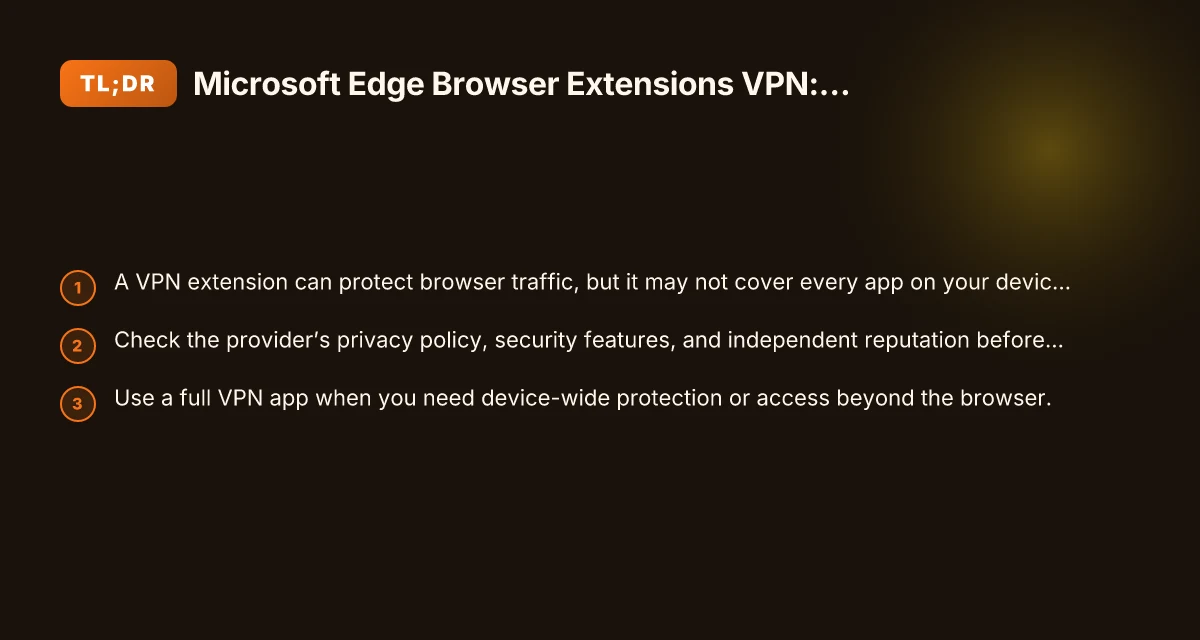
A VPN extension can improve privacy in specific situations, but it does not solve every online security problem.
It does not necessarily:
- Encrypt traffic from every program on your computer
- Prevent malware, phishing, or unsafe downloads
- Stop websites from tracking an account you sign in to
- Hide your identity from the VPN provider
- Guarantee access to streaming services or bypass every network restriction
Performance can also vary. Routing traffic through a distant server may increase latency or reduce speed. Nearby servers are often a practical choice for everyday browsing, while a different location may be useful for a particular need. Availability and speed can change over time. FortiGate IPsec VPN: Setup, Configuration, and Troubleshooting
Finally, a VPN is not a substitute for HTTPS. Check for secure connections on sites where you enter passwords or payment details, and use multifactor authentication for important accounts.
Decide whether an Edge VPN extension fits your needs
| Need or situation | Extension fit | What to check | Better next step |
|---|---|---|---|
| Protecting browser traffic | Often suitable | Confirm which traffic is covered | Enable it in Edge |
| Protecting other apps | Usually limited | Check coverage scope | Use a full VPN app |
| Using a public Wi-Fi network | May help with browser traffic | Confirm protection behavior | Consider device-wide coverage |
| Accessing a specific location | Depends on available locations | Check the location list | Choose a provider that supports it |
| Avoiding all online tracking | Not sufficient | Review tracking and privacy limits | Combine with other privacy measures |
| Staying protected when Edge closes | Usually not covered | Check whether protection is browser-only | Use a full VPN app |
| Installing from an add-ons store | Supported for Edge extensions | Verify the publisher and permissions | Install only from a trusted listing |
Compiled November 2026; check the provider's site for current details.
Recommendation
For browser-only privacy, a reputable Microsoft Edge VPN extension can be a convenient option, provided you verify the publisher, understand its privacy policy, and confirm what traffic it covers. If you want protection for other apps or your entire device, choose a trusted VPN provider’s full application instead. Avoid selecting an extension solely because it is free or promises complete anonymity. Transparency, security practices, and a clear fit for your needs matter more. VPN FortiGate: How It Works, Setup Options, and Best Practices