Sites Blocked When Using VPN: Causes and Fixes
Learn why sites block VPN connections and how to troubleshoot access safely and reliably.
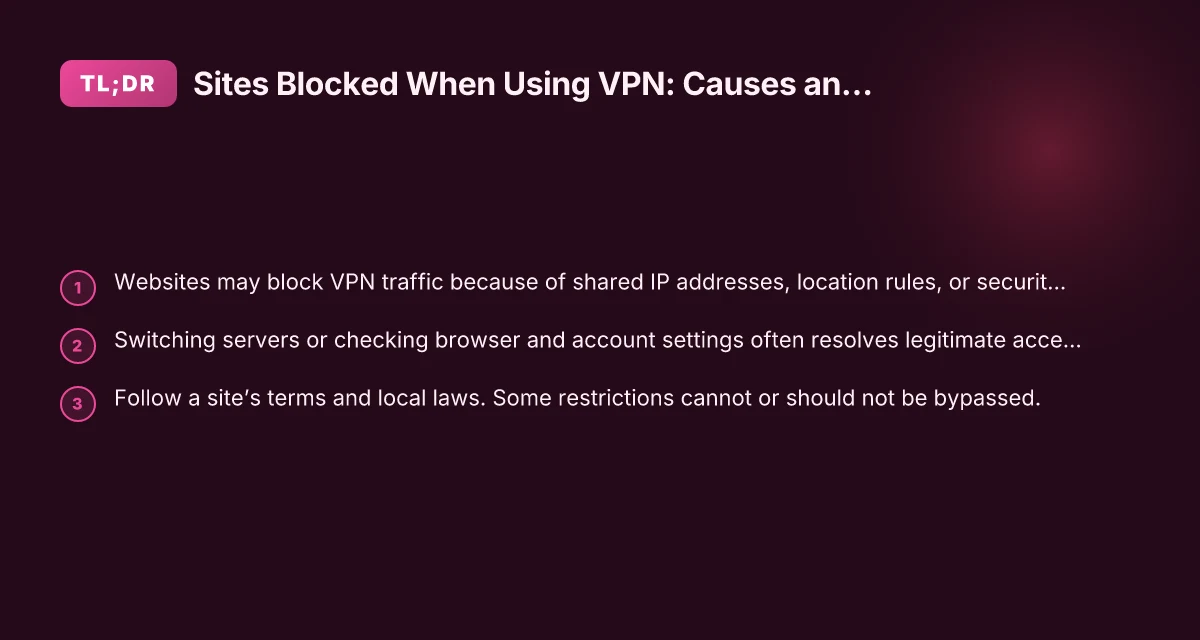
If sites are blocked when using a VPN, the most common reason is that the website recognizes the VPN’s IP address and limits access to it. Try a different VPN server, check whether the site works with the VPN disconnected, and review any error message. A block may also be caused by a location restriction, a browser security check, or a problem with your account, not the VPN itself.

Editor's pick: NordVPN — fast, secure VPN — Strong encryption, a no-logs policy and apps for every device. 30-day money-back guarantee. Get NordVPN →
Common causes of VPN-related site blocks
| Cause | What the site detects | Likely symptom | What to check |
|---|---|---|---|
| Shared VPN IP | Many users on one IP | Block or CAPTCHA | Try another VPN server |
| Known VPN address | IP linked to a VPN provider | Access denied | Check provider guidance |
| Unusual location | Location differs from usual activity | Extra verification | Confirm the selected region |
| IP and DNS mismatch | Different apparent locations | Block or warning | Check DNS settings |
| Browser location data | Location signals conflict | Site behaves unexpectedly | Review browser permissions |
| VPN connection drop | Original IP may become visible | Sudden block or reload | Check VPN connection status |
Compiled November 2026; check the provider's site for current details.
| VPN | Obfuscation | From / month | Plan | Free plan | Refund | Alipay | UnionPay | Crypto | Website opens in China | Trustpilot | |
|---|---|---|---|---|---|---|---|---|---|---|---|
 ZoogVPN | Turn on manually Shadow | $2.49/mo | 27 months: $59.99 | Yes | 7 days | ✓ | ✓ | ✓ | ✓ | Official site blocked; our special link opens (4.4 s) | 4.2/5 (195 reviews) |
 NordVPN | Turn on manually Obfuscated Servers / NordWhisper | $3.49/mo | 27 months: $94.23 | No | 30 days | ? | ✗ | ✓ | ✓ | ✗ Blocked | 4.2/5 (51,628 reviews) |
 ExpressVPN | ✓ On by default all servers | $3.00/mo | 28 months: $84 | No | 30 days | ✗ | ✗ | ✓ | ✗ | ✗ Blocked | 4.4/5 (29,706 reviews) |
 Surfshark | ✓ On by default Camouflage, with OpenVPN | See site | See site | No | 30 days | ✗ | ✗ | ✗ | ✓ | ✗ Blocked | 4.3/5 (31,823 reviews) |
 Proton VPN | Turn on manually Stealth, free plan too | $2.99/mo | 12 months: $35.88 | Yes | 30 days | ✗ | ✗ | ✗ | ✓ | ✗ Blocked | 2.1/5 (1,040 reviews) |
 Astrill VPN | Turn on manually StealthVPN / OpenWeb | $12.50/mo | 24 months: $300 | No | See site | ✗ | ✗ | ✗ | ✓ | ✗ Blocked | 1.3/5 (110 reviews) |
 Private Internet Access | Turn on manually Shadowsocks, OpenVPN only | $2.03/mo | 40 months: $81.2 | No | 30 days | ✗ | ✗ | ✗ | ✗ | ✗ Blocked | 4.2/5 (11,033 reviews) |
 CyberGhost | Turn on manually selected servers | $2.19/mo | 28 months: $61.32 | No | 45 days | ✗ | ✗ | ✗ | ✓ | ✗ Blocked | 4.0/5 (24,178 reviews) |
 PureVPN | Turn on manually switch to OpenVPN | $1.69/mo | 60 months: $101.55 | No | 31 days | ? | ? | ✗ | ✓ | ✗ Blocked | 4.4/5 (17,994 reviews) |
 AdGuard VPN | ✓ On by default TrustTunnel | $2.99/mo | 24 months: $71.76 | Yes | 30 days | ✓ | ✗ | ✓ | ✓ | Official site blocked; our special link opens (3.7 s) | 4.3/5 (290 reviews) |
 Mullvad | Turn on manually QUIC / Shadowsocks / LWO | $5.61/mo | €5/mo | No | 14 days | ✗ | ✗ | ✗ | ✓ | ✗ Blocked | 3.2/5 (192 reviews) |
 Windscribe | Turn on manually Stealth / WStunnel | $5.75/mo | 12 months: $69 | Yes | See site | ✗ | ✗ | ✗ | ✓ | ✗ Blocked | 4.7/5 (13,355 reviews) |
 StrongVPN | Turn on manually Scramble, OpenVPN TCP | See site | See site | No | 30 days | ✓ | ✗ | ✗ | ✗ | ✗ Blocked | 4.4/5 (2,695 reviews) |
 LightXtreme 闪连 | Not listed | $7.08/mo | 12 months: $84.99 | Yes | 30 days | ✓ | ✓ | ✓ | ✓ | ✓ Yes (3.5 s) | No page |
Prices checked 2026-11-10 on each vendor's pricing page (cheapest long plan, USD). Check the vendor's checkout for the final price.
Obfuscation checked 2026-11-14 on each vendor's site and help center: "on by default" = nothing to set; "turn on manually" = switch protocol or mode in settings; "not listed" = the vendor describes no obfuscation.
Payment methods checked 2026-11-10 on each vendor's payment pages: all 14 take cards and PayPal; ✗ = not listed, ? = the vendor's own pages disagree.
China access: whether the official website opens from mainland China networks (tests the website only, not the VPN connection). Last checked 2026-11-18 01:02 Beijing time.
Trustpilot score and review count checked 2026-11-10.
Why websites block VPN connections
A VPN routes your internet traffic through a server and gives websites the server’s public IP address instead of your usual one. Many VPN customers can use the same server IP, so a website may see traffic from that address as unusually high-volume or difficult to verify.
Common reasons for a block include:
- Shared or flagged IP addresses: A VPN server’s IP may have been associated with spam, automated requests, or other activity a site considers risky.
- Location-based rules: A service may only be available in certain countries or regions, or may enforce licensing and regulatory requirements.
- Fraud prevention: Banks, shopping sites, and account providers may treat a sudden change in location or IP address as a possible sign of account misuse.
- Bot detection: Security systems may ask visitors to complete a CAPTCHA or block requests when traffic patterns look automated.
- Network or browser issues: Cookies, extensions, DNS settings, or a mismatched location signal can trigger errors even when the VPN is working normally.
A message such as “access denied,” “unusual traffic,” or “proxy detected” often points to an IP reputation or security check. A country-specific error may indicate a regional restriction. The wording is useful, but it does not always reveal the exact cause.
How to troubleshoot a site that will not load
Start with simple checks before changing multiple settings. This helps identify whether the issue is the VPN server, the website, or your device. AxGate VPN Download: How to Find and Install the Official Client
- Reload the page and check the site’s status. A temporary outage can look like a VPN block.
- Try another server in the same country. VPN providers often have several server locations, and a different IP may work.
- Open the site in a private or incognito window. This can help rule out stale cookies or cached data.
- Temporarily disable browser extensions that affect traffic. Ad blockers, privacy tools, and proxy extensions can sometimes conflict with a site’s checks.
- Check your account and connection. Sign in again if needed, and make sure your internet connection is stable.
- Compare access with the VPN on and off. If the site loads without the VPN, that suggests the VPN connection or its apparent location is involved. It does not prove that the site is blocking every VPN.
If you receive a CAPTCHA, complete it once and see whether access resumes. Repeatedly refreshing or submitting requests can make automated security systems more suspicious.
Troubleshooting options compared
| Fix | When to try it | Main action | If it does not help |
|---|---|---|---|
| Reload the page | Temporary loading issue | Refresh the site | Check the connection |
| Change VPN server | Current IP may be blocked | Select another server | Contact the VPN provider |
| Try another browser | Browser-specific issue | Open the site in a different browser | Review browser settings |
| Clear site data | Stale cookies or session | Clear cookies and cache for the site | Sign in again |
| Check DNS settings | Possible DNS mismatch | Review DNS configuration | Ask the VPN provider |
| Temporarily disconnect VPN | To test whether VPN use triggers the block | Disconnect and retry | Reconnect after testing |
| Contact the site | Block persists or account access is affected | Ask about the restriction | Share the error details |
Compiled November 2026; check the provider's site for current details.
Compare common fixes
| What you notice | Likely cause | What to try |
|---|---|---|
| “Proxy” or “VPN detected” message | The site recognizes the server IP | Try another server or contact the site |
| CAPTCHA appears repeatedly | Traffic or browser signals look unusual | Clear cookies, check extensions, and avoid rapid retries |
| Site works only with VPN off | VPN IP, location, or security policy | Check the site’s rules and try a suitable server |
| Bank or account login is blocked | Fraud-prevention check | Use the official app or contact the provider |
| Only one page fails | Page-specific error or account issue | Sign in again and check the page or account status |
| Many sites fail at once | VPN, DNS, or network problem | Reconnect, check VPN settings, or contact your provider |
Check your browser, DNS, and VPN settings
A website may compare several signals, not just your IP address. Your browser may retain location or session information from before you connected to the VPN. Clear the site’s cookies, then reopen it and sign in again. If the problem continues, test a different browser to see whether the issue is specific to your current setup. Free VPNs That Change Location: What Works and What to Expect
Also review your VPN app’s connection settings. Features such as split tunneling can send some apps or websites through your regular connection while other traffic uses the VPN. DNS settings may also affect which regional version of a site you reach. If you are unsure what a setting does, return it to its default rather than changing several options at once.
A VPN kill switch can prevent traffic from leaving your device if the VPN disconnects. This is useful for privacy, but it may interrupt browsing when the connection is unstable. Check whether the VPN app reports a dropped connection, and reconnect before trying the site again.
When to contact the website or VPN provider
If the site blocks every server you try, or your account remains restricted after you reconnect, contact the website’s support team. Explain the error, your approximate location, and whether you are using a VPN. Do not send passwords, payment details, or other sensitive information in an ordinary support message.
Contact your VPN provider if multiple unrelated sites fail, the VPN repeatedly disconnects, or you suspect a DNS or routing problem. The provider can confirm whether a server is experiencing trouble and suggest legitimate troubleshooting steps. How to Open an OVPN File on Windows, Mac, Linux, Android, and iPhone
Some restrictions are deliberate. A streaming service, financial provider, employer, or government service may have rules about VPN access or geographic availability. A VPN cannot guarantee access, and trying to evade a service’s security controls may violate its terms or create account risks.
Browser, DNS, and VPN checks
| Setting | What to inspect | Helpful result | Next step |
|---|---|---|---|
| VPN connection | Whether it is active | Connection is stable | Reconnect if needed |
| VPN server | Selected server and region | Region matches your needs | Try another server |
| Browser cookies | Site-specific stored data | No stale session data | Clear the site's cookies |
| Browser permissions | Location access for the site | Permission matches your preference | Adjust or revoke access |
| DNS configuration | DNS provider and settings | No apparent location mismatch | Consult VPN guidance |
| Error message | Block, CAPTCHA, or connection failure | Issue is clearly identified | Send details to support |
| Account status | Site sign-in or security prompts | Account is accessible | Contact the website if blocked |
Compiled November 2026; check the provider's site for current details.
Recommendation
If sites are blocked when using a VPN, first check the error and test another server, then review cookies, extensions, and connection stability. If access remains blocked, follow the website’s rules and contact its support team rather than repeatedly trying to defeat its security checks. Best Free Edge VPN Extension for UK Users: What to Choose in 2026