
Surfshark Is Making My Connection So Slow: How to Fix It
Find out why Surfshark may slow your internet and how to improve VPN speed without sacrificing privacy.


If Surfshark is making your connection so slow, start by switching to a nearby server and testing a different VPN protocol. A VPN adds encryption and routes your traffic through another server, which can reduce speed. However, a sharp or sudden drop may be caused by a crowded server, a poor connection route, Wi-Fi trouble, or settings on your device. These steps can help you identify the cause and improve performance without immediately giving up VPN protection.

Editor's pick: NordVPN — fast, secure VPN — Strong encryption, a no-logs policy and apps for every device. 30-day money-back guarantee. Get NordVPN →
Compare connection fixes by likely impact and effort
| Fix | What to try | Likely benefit | Effort | Best for |
|---|---|---|---|---|
| Change VPN protocol | Try another protocol in Surfshark settings | May improve speed or stability | Low | Slow or unstable VPN |
| Change server | Choose a nearby server | May reduce routing delay | Low | Distant server connection |
| Use a wired connection | Connect by Ethernet instead of Wi-Fi | Can reduce wireless interference | Medium | Wi-Fi speed problems |
| Move closer to router | Improve Wi-Fi signal strength | May improve connection quality | Low | Weak Wi-Fi signal |
| Restart the router | Power-cycle the router | May clear temporary network issues | Low | Slow home internet |
| Restart the device | Reboot your phone or computer | May resolve temporary device issues | Low | Sudden slowdown |
| Update Surfshark | Install the latest app version | May fix app issues | Low | Outdated app |
| Close background apps | Stop downloads and heavy network use | Frees up connection capacity | Low | Busy device or network |
Compiled November 2026; check the provider's site for current details.
Why Surfshark can slow your internet
When you connect to Surfshark, your traffic travels through an encrypted tunnel to a VPN server before reaching its destination. That extra distance and processing can add latency and reduce download or upload speeds. The effect is often more noticeable when the server is far away or your original internet connection is already slow.
Other common causes include:
- A busy VPN server: Many users sharing a server can affect its performance.
- A distant server: Longer routes generally add latency and may reduce throughput.
- VPN protocol settings: Protocols differ in speed and compatibility on different networks.
- Weak Wi-Fi or mobile coverage: The VPN may make an existing connection problem more apparent.
- Device or app limitations: Older hardware, background downloads, or outdated software can affect performance.
- ISP or network restrictions: Some networks may handle VPN traffic poorly or limit it.
A small slowdown is normal with a VPN, but there is no single percentage that applies to everyone. Your results depend on your internet plan, location, device, server, and network conditions.
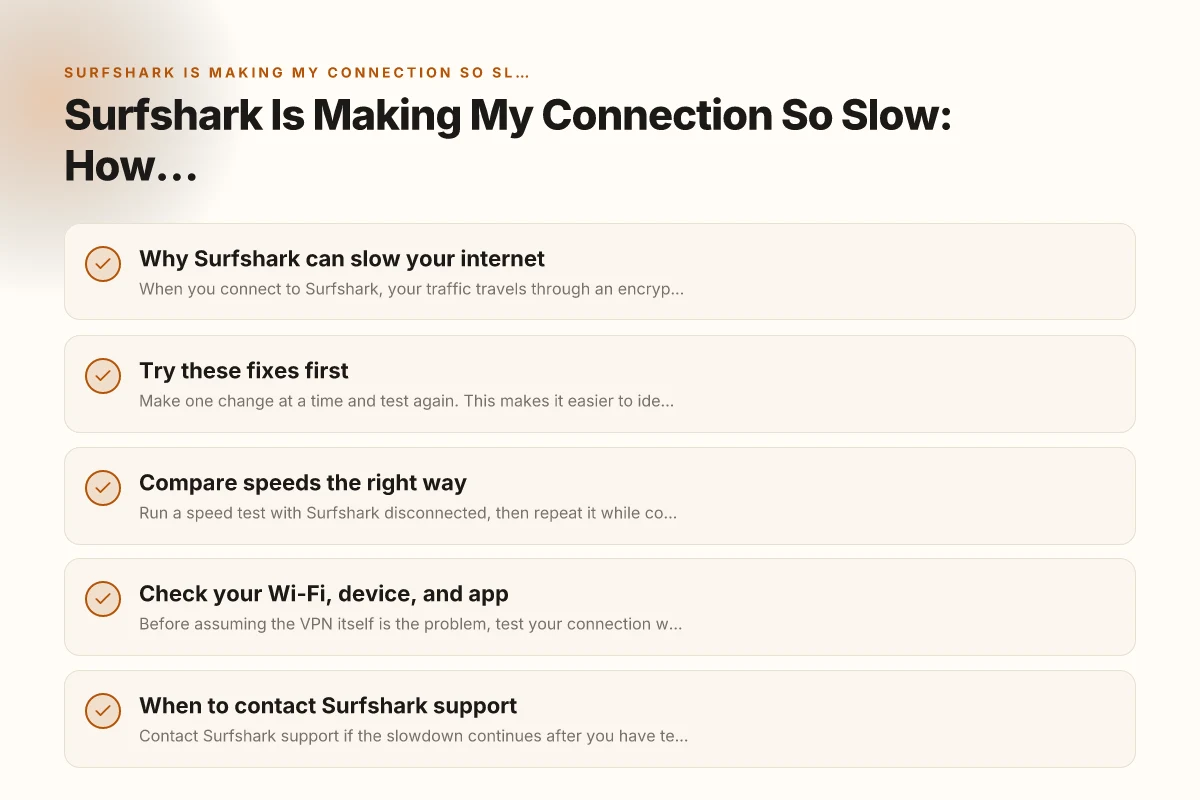
Try these fixes first
Make one change at a time and test again. This makes it easier to identify what is actually helping. Free VPN to Change Location: What to Know Before You Connect
- Choose a nearby server. Connect to a Surfshark server in your country or a nearby region. If your current server is already close, try another nearby location.
- Change VPN protocol. In Surfshark’s settings, test another available protocol. WireGuard is often a good speed option, while OpenVPN may work better on some networks. The best choice varies.
- Reconnect to the server. Disconnect, wait a few seconds, and connect again. You may be assigned a different route or server.
- Restart the app and device. A fresh connection can clear temporary app or network issues.
- Pause other traffic. Stop large downloads, cloud backups, streaming, and updates during your speed test.
- Update Surfshark. Install the latest app version, then check whether your device’s operating system also needs an update.
If you use a feature that routes traffic through additional VPN hops, such as a multi-hop connection, turn it off temporarily while testing. It can offer extra routing privacy, but the added route may reduce speed.
Compare speeds fairly before and after using Surfshark
| Check | VPN off | VPN on | Keep consistent? | What it helps identify |
|---|---|---|---|---|
| Test the same device | Record a baseline | Test on that device | Yes | Device-specific differences |
| Use the same speed-test service | Run the same test | Repeat the same test | Yes | Test-service variation |
| Keep the same Wi-Fi or cable | Test your usual connection | Use the same connection | Yes | Wi-Fi or cable changes |
| Choose the same test location | Select a nearby test server | Keep that test server | Yes | Different test routes |
| Test at similar times | Note when you test | Repeat around the same time | Yes | Network congestion |
| Run more than one test | Save each result | Save each result | Yes | One-off fluctuations |
| Compare download and upload | Record both results | Record both results | Yes | Which direction changed |
| Compare latency too | Record the delay | Record the delay | Yes | Added connection delay |
Compiled November 2026; check the provider's site for current details.
Compare speeds the right way
Run a speed test with Surfshark disconnected, then repeat it while connected to a nearby server. Use the same device, Wi-Fi network, and test service, and run each test more than once. Speed-test results can fluctuate, so one measurement is not enough to diagnose a problem. Microsoft Edge Menu > Settings > Show Advanced Settings > Change Proxy Settings > LAN Settings
| Test result | What it may suggest | What to try |
|---|---|---|
| Both connected and disconnected speeds are low | A wider internet, Wi-Fi, or device issue | Restart your router; test another device or use Ethernet |
| Only Surfshark speeds are low on one server | That server or route may be congested | Choose another nearby server |
| Speeds improve after changing protocol | The original protocol may not suit your network | Keep the faster reliable option |
| Download speed is fine, but latency is high | Distance or routing may be affecting responsiveness | Try a closer server |
| Surfshark is slow on one network but not another | The network may be unstable or restricting VPN traffic | Compare home Wi-Fi with a trusted alternative network |
Avoid drawing conclusions from tests against different servers or at different times of day. Your connection can change because of household traffic, ISP congestion, or temporary internet issues.
Check your Wi-Fi, device, and app
Before assuming the VPN itself is the problem, test your connection without Surfshark. If the internet is also slow when the VPN is off, troubleshoot your normal connection first.
- Move closer to the router or switch to a less congested Wi-Fi band.
- Restart your modem and router, following the manufacturer’s instructions.
- Test with an Ethernet cable if possible.
- Try another device on the same network to see whether the slowdown follows one device.
- Close applications that use substantial bandwidth or processing power.
- Check that your device is not running out of storage or using unusually high CPU resources.
Also confirm that you have not enabled settings that change how your traffic is routed. If you adjust security or connection features for testing, note the original settings and restore them afterward if they are important to your needs.
Decide whether to troubleshoot or contact Surfshark support NordVPN Download Windows 11: How to Get and Install the App
| Situation | First step | Try another server? | Check another device? | Contact support when |
|---|---|---|---|---|
| Slow only with Surfshark | Compare VPN-on and VPN-off speeds | Yes | Helpful | The slowdown persists |
| Slow with VPN off too | Check your internet connection | Not first | Helpful | Your provider or network needs help |
| One server is slow | Select a different nearby server | Yes | Optional | Several servers remain slow |
| Wi-Fi is weak | Move closer or try Ethernet | Optional | Helpful | The issue continues on a stronger connection |
| One device is affected | Restart and update the app | Optional | Yes | Other fixes do not help |
| All devices are affected | Restart the router and check the network | Optional | Yes | The connection remains slow |
| Connection keeps dropping | Try another server and protocol | Yes | Helpful | Drops continue across options |
| Fixes do not resolve the issue | Gather test results and details | Yes | Helpful | You need help diagnosing the problem |
Compiled November 2026; check the provider's site for current details.
When to contact Surfshark support
Contact Surfshark support if the slowdown continues after you have tested several nearby servers, more than one available protocol, and another network or device. Share useful details so support can investigate more efficiently:
- Your device model and operating system
- The Surfshark app version
- Your selected server location and protocol
- Approximate download, upload, and latency results with and without the VPN
- Whether the issue affects all websites or only specific services
- The steps you have already tried
Do not send passwords, payment details, or other sensitive information in a support request. If the connection is slow only on a workplace, school, or public network, its administrator may restrict VPN traffic. Follow that network’s rules rather than trying to bypass them.
Recommendation
If Surfshark is making your connection so slow, first compare speeds with and without the VPN, then test a nearby server and a different protocol. If the slowdown persists across servers and devices, check your Wi-Fi and contact Surfshark support with your test results. Keep the VPN enabled when privacy matters, and choose the fastest reliable server and settings that meet your needs. Checkpoint VPN: What It Does, How It Works, and Which Client to Use